
Wi-Fi 7 for Gaming PCs in 2026: Do You Need a New Router and Wireless Adapter?
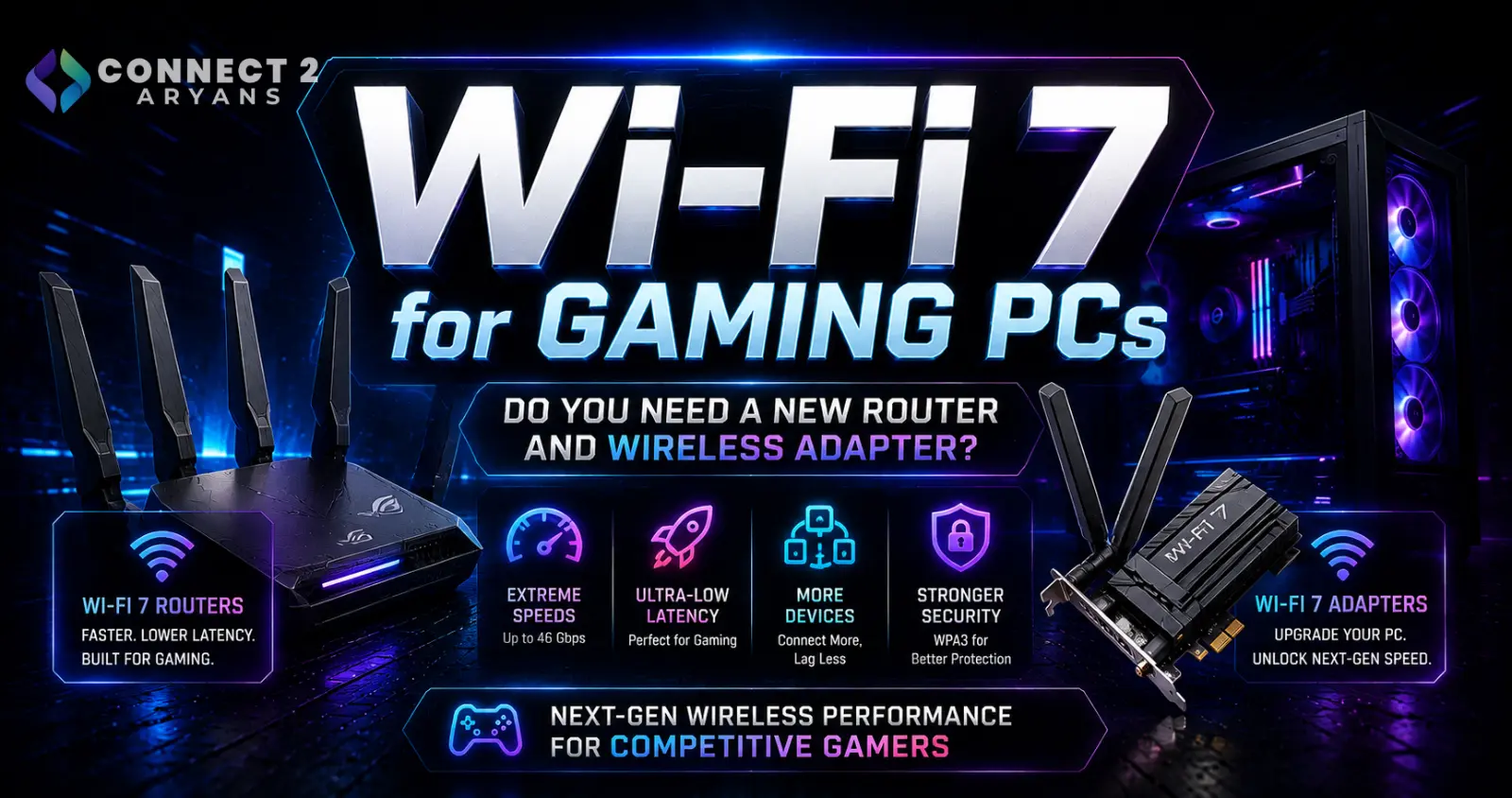
Wi-Fi 7 for Gaming PCs in 2026: Do You Need a New Router and Wireless Adapter?
Wi-Fi specifications have become another increasingly complicated part of building or upgrading a gaming PC.
A few years ago, buyers were mainly choosing between Wi-Fi 5 and Wi-Fi 6. Wi-Fi 6E then expanded compatible devices into the 6 GHz band. Now Wi-Fi 7 is appearing across newer routers, laptops, wireless adapters and PC platforms.
Wi-Fi 7 is based on IEEE 802.11be, also known as Extremely High Throughput (EHT). Microsoft identifies features including Multi-Link Operation, 320 MHz channel bandwidth and 4096-QAM among the important improvements introduced with Wi-Fi 7.
But there is an important question for PC gamers:
Does upgrading to Wi-Fi 7 actually improve gaming, or is your existing Wi-Fi 6/6E connection already enough?
The answer depends much more on your complete network than the Wi-Fi number printed on your motherboard.
What Is Wi-Fi 7?
Wi-Fi 7 is the generation following Wi-Fi 6 and Wi-Fi 6E.
Microsoft describes Wi-Fi 7 as IEEE 802.11be Extremely High Throughput, designed to improve speed, reliability, network capacity and latency.
Intel similarly identifies three major Wi-Fi 7 developments:
320 MHz channels
4096-QAM
Multi-Link Operation (MLO)
alongside features such as Multi-RU puncturing.
These technologies address different parts of wireless performance, so understanding them is more useful than simply thinking:
Wi-Fi 7 = faster Wi-Fi.
Wi-Fi 5 vs Wi-Fi 6 vs Wi-Fi 6E vs Wi-Fi 7
The Wi-Fi generation isn't simply an internet-speed rating.
Different generations introduce changes to efficiency, available spectrum, channel width and network behavior.
Wi-Fi 6 uses the IEEE 802.11ax standard and introduced improvements including OFDMA and MU-MIMO capabilities.
Wi-Fi 6E extends Wi-Fi 6 operation into the 6 GHz spectrum, providing additional spectrum for compatible devices.
Wi-Fi 7 builds further on these technologies using 802.11be. Microsoft specifically highlights MLO, 320 MHz channels and 4096-QAM as major additions.
That means moving from Wi-Fi 6E to Wi-Fi 7 is more than simply changing the number on the router box.
What Is Multi-Link Operation?
Multi-Link Operation, or MLO, is one of Wi-Fi 7's most interesting features.
Traditional Wi-Fi connections generally operate through a particular wireless link.
Wi-Fi 7 MLO allows compatible devices to use multiple links across available bands.
Microsoft explains that MLO can allow devices to use multiple bands such as 2.4 GHz, 5 GHz and/or 6 GHz simultaneously, helping avoid congestion and maintain connectivity.
Intel similarly says MLO can enable simultaneous transmission across multiple bands to improve throughput, latency and link reliability.
For gaming, reliability and latency consistency can potentially be more interesting than headline maximum throughput.
Why MLO Could Matter for Gaming
Gaming generally doesn't require enormous sustained bandwidth.
Downloading a 100GB game is bandwidth-intensive.
Actually playing an online multiplayer game usually presents a different networking workload.
Competitive gaming cares heavily about:
latency
jitter
packet loss
and
connection stability.
This is why a faster internet package doesn't automatically fix every gaming-network problem.
MLO is interesting because Wi-Fi 7 is designed to make more intelligent use of available wireless links rather than relying solely on a single connection.
Intel specifically positions MLO as a technology that can improve latency and reliability by using available links more effectively.
That doesn't guarantee lower ping to every game server.
Your ISP and the physical distance/routing to the server still matter.
What Are 320 MHz Wi-Fi Channels?
Wi-Fi channels can be thought of as portions of wireless spectrum used for communication.
Wider channels can carry more data under appropriate conditions.
Wi-Fi 7 introduces support for 320 MHz channels in the 6 GHz band.
Microsoft notes that this doubles the channel width compared with 160 MHz and enables substantially greater bandwidth for demanding applications.
Intel likewise identifies 320 MHz channels as one of Wi-Fi 7's primary throughput improvements.
This can be valuable for:
large local file transfers,
high-speed internet connections,
high-resolution wireless streaming,
and other bandwidth-intensive workloads.
But there's an important catch.
A 320 MHz Router Doesn't Automatically Give You 320 MHz
Your entire connection needs compatible hardware and suitable spectrum availability.
That includes the:
router/access point
and
client wireless adapter.
For example, Intel's Wi-Fi 7 BE200 supports 2×2 operation, 2.4 GHz, 5 GHz and 6 GHz bands, with a listed maximum speed of 5.8 Gbps when using its supported 320 MHz/4096-QAM configuration.
But Intel's Wi-Fi 7 BE202 is different.
It is also Wi-Fi 7 certified, yet Intel specifies 160 MHz, 1024-QAM and a maximum speed of 2.4 Gbps for that adapter.
That's an important buying lesson:
Two products carrying “Wi-Fi 7” branding do not necessarily have identical capabilities.
What Is 4096-QAM?
QAM stands for Quadrature Amplitude Modulation.
Without turning this into a wireless-engineering textbook, modulation determines how information can be represented within a wireless signal.
Wi-Fi 6 uses 1024-QAM in applicable configurations.
Wi-Fi 7 introduces 4096-QAM, often shortened to 4K QAM.
Microsoft states that 4096-QAM can increase data transmission by 20% compared with the previous modulation level under suitable conditions.
Intel combines 4K QAM with wider channels when describing Wi-Fi 7's increased potential throughput.
However, higher modulation levels require sufficiently good signal conditions.
So you shouldn't expect maximum theoretical performance while sitting several rooms away from the router through thick walls.
Wi-Fi 7 Doesn't Mean Your Internet Becomes Faster
This is one of the most important misconceptions to avoid.
Suppose your internet connection provides:
100 Mbps
and you replace a Wi-Fi 6 router with an extremely fast Wi-Fi 7 router.
Your ISP connection is still:
100 Mbps.
Wi-Fi 7 can improve the wireless connection between compatible devices and the network, but it cannot magically increase the internet bandwidth your ISP provides.
The internet path looks roughly like:
Gaming PC → Wi-Fi → Router → ISP → Internet → Game Server
Wi-Fi 7 primarily changes the wireless portion near the beginning of that path.
Wi-Fi Speed and Internet Speed Are Different
This distinction becomes particularly important when manufacturers advertise multi-gigabit Wi-Fi capability.
Intel lists the Wi-Fi 7 BE200 with a maximum speed of 5.8 Gbps under its supported configuration.
That doesn't mean installing the adapter gives you a 5.8 Gbps internet connection.
Your real internet speed remains constrained by factors including:
your ISP package,
router WAN capability,
network equipment,
server speed,
and network conditions.
However, fast Wi-Fi can also benefit local network traffic even when your internet connection is slower.
Local Network Speed Can Still Benefit
Imagine transferring a large game backup from:
PC → NAS
or
PC → another PC
inside your home.
That traffic may never need to leave your local network.
In this situation, a faster wireless network can provide benefits independent of your ISP package, assuming the rest of the local network can keep up.
This is one scenario where high Wi-Fi throughput can matter even if your internet connection is considerably slower.
Does Wi-Fi 7 Reduce Gaming Ping?
Potentially within the local wireless portion of the connection, but don't interpret Wi-Fi 7 as a universal ping-reduction button.
Microsoft describes Wi-Fi 7 as offering lower latency and improved responsiveness for real-time activities including gaming and video conferencing.
Intel also specifically identifies reduced latency and improved reliability as Wi-Fi 7 objectives.
But your total game ping includes much more than Wi-Fi.
If the game's server is geographically distant or your ISP has poor routing, changing your Wi-Fi adapter cannot remove that internet-side latency.
Wi-Fi 7 Cannot Fix Bad ISP Routing
Imagine:
PC → Router = excellent
but:
Router → ISP → Game Server = poor.
Installing Wi-Fi 7 improves the first connection.
It doesn't control the rest.
That's why gamers experiencing high ping should investigate whether the problem comes from:
the local Wi-Fi network,
router congestion,
internet connection,
ISP routing,
or the game server itself
before purchasing new hardware.
Ethernet Is Still Extremely Relevant for Gaming
Wi-Fi 7 doesn't make Ethernet obsolete.
A wired Ethernet connection removes the wireless radio environment from the PC-to-router connection.
That means you don't have to worry about factors such as:
wireless interference,
walls,
neighboring networks,
distance from the access point,
or wireless signal strength
on that segment of the network.
For a desktop gaming PC sitting close enough to the router for practical cabling, Ethernet remains a very attractive option.
Wi-Fi becomes particularly valuable where running a cable is inconvenient or impossible.
Wi-Fi 7 Makes Wireless Gaming More Interesting
The comparison becomes more interesting when Ethernet isn't practical.
For example:
the router may be downstairs,
the gaming PC may be in another room,
or running Ethernet through the building may not be possible.
In those situations, improvements in wireless reliability and latency become particularly useful.
Wi-Fi 7's MLO capability is therefore relevant because it specifically targets more flexible use of multiple wireless links.
Do You Need Windows 11 for Wi-Fi 7?
For Microsoft's current consumer implementation, this is important.
Microsoft states that Wi-Fi 7 support is available starting with Windows 11 version 24H2.
Microsoft lists the requirements for taking advantage of Wi-Fi 7 as including:
a Wi-Fi 7-compatible router,
Windows 11 with appropriate updates,
and a compatible Wi-Fi 7 wireless network adapter.
So buying a Wi-Fi 7 router by itself doesn't guarantee your PC can use Wi-Fi 7 features.
How to Check Whether Your PC Supports Wi-Fi 7
Windows provides a straightforward way to inspect the wireless standards supported by your adapter.
Open:
Command Prompt
or
Terminal
and enter:
netsh wlan show drivers
Microsoft recommends checking Radio types supported.
If you see:
802.11be
the adapter supports Wi-Fi 7.
If you see:
802.11ax
the adapter supports Wi-Fi 6/6E-class connectivity depending on its hardware capabilities.
This is much more reliable than assuming Wi-Fi capability based solely on the age of the PC.
Your Motherboard May Already Have Wi-Fi
Before buying a PCIe or USB wireless adapter, check your motherboard.
Many modern motherboards are available in variants with integrated wireless networking.
A motherboard with built-in Wi-Fi can eliminate the need for a separate adapter.
However, don't assume:
“Wi-Fi motherboard” = Wi-Fi 7.
It could use Wi-Fi 5, Wi-Fi 6, Wi-Fi 6E or Wi-Fi 7 depending on the exact model.
Browse Motherboards on Connect2Aryans
Always check the exact motherboard specification before buying an additional wireless adapter.
What If Your Desktop Doesn't Have Wi-Fi?
A desktop PC without integrated wireless networking can potentially add connectivity through a compatible adapter.
Common options include:
PCIe wireless adapters
and
USB Wi-Fi adapters.
The better option depends on the PC, required Wi-Fi generation, available expansion slots, antenna arrangement and desired performance.
Browse Wi-Fi Adapters on Connect2Aryans
Before purchasing, verify that the adapter supports the wireless standard you actually want.
Don't Assume Every M.2 Wi-Fi Card Works in Every PC
Desktop and laptop wireless upgrades require more compatibility checking than many buyers expect.
Intel's current Wi-Fi 7 products demonstrate why.
The Intel Wi-Fi 7 BE200 uses an M.2 PCIe/USB interface.
The Intel Wi-Fi 7 BE201, however, uses CNVio3.
Despite both being Wi-Fi 7 adapters, they aren't simply interchangeable implementations.
That makes buying an internal Wi-Fi card based only on:
“It is M.2 and Wi-Fi 7”
a bad idea.
Verify platform compatibility first.
Your Antennas Matter Too
Desktop motherboard Wi-Fi systems and PCIe wireless cards commonly use external antennas.
Those antennas are part of the wireless system.
Poor positioning can affect:
signal strength,
reliability,
and potentially achievable performance.
If your motherboard includes external antennas, connect them properly rather than leaving them in the motherboard box.
Also avoid hiding antennas behind large metal objects where possible.
2.4 GHz vs 5 GHz vs 6 GHz
Modern Wi-Fi devices can operate across different frequency bands.
Each has different characteristics.
2.4 GHz
Generally useful for longer-range connectivity and compatibility, but often more crowded.
5 GHz
Widely used for higher-performance Wi-Fi and offers considerably more spectrum than 2.4 GHz.
6 GHz
Introduced to consumer Wi-Fi through Wi-Fi 6E and also used by Wi-Fi 7.
The 6 GHz band provides additional spectrum that can support very wide channels, including Wi-Fi 7's 320 MHz operation where supported.
But higher frequency doesn't automatically mean better connectivity at every location in a building.
Router Placement Still Matters With Wi-Fi 7
Buying the latest router doesn't eliminate physics.
Walls, floors, distance and building materials still affect wireless signals.
A Wi-Fi 7 router hidden:
inside a cabinet,
behind several concrete walls,
at one end of a large house
may provide a worse gaming connection than a well-positioned older access point closer to the PC.
Before replacing hardware, consider whether router placement is actually the problem.
More Wi-Fi Bars Don't Always Mean Better Gaming
Signal strength is important, but it isn't the only metric.
A connection can show a strong Wi-Fi signal while still experiencing:
congestion,
packet loss,
jitter,
or poor internet routing.
Likewise, your game ping can be high even when the local wireless link is excellent.
This is why troubleshooting should distinguish:
Wi-Fi problem
from
internet problem.
Wi-Fi 7 Requires Compatible Hardware on Both Ends
To obtain Wi-Fi 7 connectivity, the client and access point need appropriate support.
Microsoft specifically states that users need a compatible wireless router/access point and wireless network adapter, alongside supported Windows software.
Consider:
Wi-Fi 7 router + Wi-Fi 6 PC
The connection will be limited by what both devices can mutually support.
Likewise:
Wi-Fi 7 PC + Wi-Fi 5 router
doesn't suddenly turn the router into Wi-Fi 7.
This is why upgrading only one side may provide little immediate benefit.
Should You Replace a Wi-Fi 6 Router?
Not necessarily.
If your existing Wi-Fi 6 network already provides:
stable connectivity,
low local latency,
sufficient internet throughput,
and good coverage,
there may be little reason to replace it purely because Wi-Fi 7 exists.
Wi-Fi generations aren't expiration dates.
A working Wi-Fi 6 network doesn't become defective when a newer standard launches.
Upgrade when the newer technology solves an actual problem or supports capabilities you intend to use.
What About Wi-Fi 6E?
Wi-Fi 6E remains particularly interesting because it already provides access to the 6 GHz band with compatible equipment.
The major distinction is that Wi-Fi 7 adds capabilities beyond simply using 6 GHz.
Microsoft highlights MLO, 320 MHz channels and 4096-QAM among those Wi-Fi 7 improvements.
Therefore, someone already using a strong Wi-Fi 6E network may have less urgency to upgrade than someone coming from an old Wi-Fi 5 router.
When Wi-Fi 7 Makes the Most Sense
Wi-Fi 7 becomes particularly attractive when several conditions align.
You have a fast internet or local network.
You are buying a new router anyway.
Your PC or laptop already supports Wi-Fi 7.
You regularly transfer large files wirelessly.
You use demanding wireless applications.
Your network contains many active devices.
You cannot practically use Ethernet.
You want to build a network intended to remain relevant through future device upgrades.
In those circumstances, buying older networking equipment purely to save a relatively small amount may not make sense.
When Wi-Fi 7 Probably Isn't Necessary Yet
An immediate upgrade may provide little benefit if:
your Wi-Fi 6/6E network is already stable,
your internet connection is much slower than your current Wi-Fi capability,
your gaming PC uses Ethernet,
your devices don't support Wi-Fi 7,
or
your actual problem is poor router placement or ISP performance.
Buying networking hardware should solve a problem.
Don't upgrade simply because the number changed from 6 to 7.
Wi-Fi 7 and Gaming Laptops
Gaming laptops can benefit more obviously from wireless improvements because mobility is part of their purpose.
Unlike a desktop, a laptop isn't necessarily sitting next to an Ethernet connection.
A modern laptop with integrated Wi-Fi 7 can therefore take advantage of compatible networks without requiring a separate adapter.
But check the exact laptop specification.
Two laptops from the same product family can sometimes ship with different wireless configurations.
Browse Gaming Laptops on Connect2Aryans
Wi-Fi 7 and Desktop Gaming PCs
Desktop PCs have a different decision.
If Ethernet is readily available, wired networking may already provide exactly what you need.
If not, Wi-Fi 7 can be attractive through:
a motherboard with integrated Wi-Fi 7,
or
a compatible add-in wireless adapter.
This is worth considering when selecting a motherboard for a completely new PC build.
Browse PC Components on Connect2Aryans
Compare Motherboards on Connect2Aryans
Don't Forget Bluetooth
Many internal PC wireless modules combine Wi-Fi and Bluetooth functionality.
For example, Intel lists Bluetooth 5.4 support for its Wi-Fi 7 BE200 adapter.
This can matter for users connecting:
controllers,
headphones,
keyboards,
mice,
and other wireless peripherals.
If Bluetooth is part of the reason you're replacing an adapter, check both the Wi-Fi and Bluetooth specifications rather than focusing only on Wi-Fi generation.
Browse Bluetooth Adapters on Connect2Aryans
Wi-Fi Security Matters Too
Network performance isn't the only consideration.
Microsoft recommends modern security standards such as WPA3 and warns that older standards including WEP and TKIP have known security weaknesses.
When upgrading networking hardware, check:
router security capabilities,
firmware support,
and the security standards supported by your client devices.
A faster router using poor configuration isn't a good network upgrade.
How to Decide Whether Your Gaming PC Needs Wi-Fi 7
Before purchasing anything, answer these questions:
Is my current Wi-Fi actually causing gaming problems?
If not, an upgrade may not be urgent.
Does my router support Wi-Fi 7?
If not, a Wi-Fi 7 adapter cannot create a Wi-Fi 7 connection by itself.
Does my PC support Wi-Fi 7?
Check the adapter specification or use Windows to inspect supported radio types.
Am I using Windows 11 24H2 or newer?
Microsoft identifies Windows 11 24H2 as the starting point for Wi-Fi 7 support.
Can I simply use Ethernet?
For a stationary gaming desktop, that may remain the simplest solution.
Am I buying a completely new network?
If yes, Wi-Fi 7 becomes easier to justify because you're not replacing otherwise satisfactory equipment solely for the upgrade.
Frequently Asked Questions
Is Wi-Fi 7 good for gaming?
Yes, Wi-Fi 7 is designed to improve wireless throughput, latency and reliability. Features such as Multi-Link Operation can make Wi-Fi 7 particularly interesting for latency-sensitive applications. However, actual game ping also depends on your ISP, server location, network congestion and other factors.
Is Wi-Fi 7 faster than Wi-Fi 6?
Wi-Fi 7 introduces technologies that enable substantially greater theoretical throughput, including 320 MHz channels and 4096-QAM. Microsoft says compatible Windows PCs can achieve multi-gigabit Wi-Fi 7 connectivity, although real-world performance depends on hardware and conditions.
Do I need a new router for Wi-Fi 7?
Yes, obtaining a Wi-Fi 7 connection requires a compatible Wi-Fi 7 access point/router as well as compatible client hardware. A Wi-Fi 7 adapter connected to an older router will operate using mutually supported capabilities.
Does my PC need a Wi-Fi 7 adapter?
Yes, unless compatible Wi-Fi 7 hardware is already integrated into the PC or motherboard. Microsoft recommends checking the device documentation or using netsh wlan show drivers and looking for 802.11be support.
Does Windows 10 support Wi-Fi 7?
Microsoft's current consumer guidance states that Wi-Fi 7 is available starting with Windows 11 version 24H2.
What does 802.11be mean?
IEEE 802.11be is the wireless standard associated with Wi-Fi 7. Microsoft refers to it as Extremely High Throughput (EHT).
What is MLO in Wi-Fi 7?
MLO stands for Multi-Link Operation. It allows compatible Wi-Fi 7 devices to make use of multiple wireless links, potentially improving throughput, latency and reliability.
Does Wi-Fi 7 support 6 GHz?
Yes. Compatible Wi-Fi 7 implementations can operate in the 6 GHz band. Intel's BE200, for example, supports 2.4 GHz, 5 GHz and 6 GHz.
Is Wi-Fi 7 better than Ethernet?
They're different technologies. Wi-Fi 7 provides extremely capable wireless networking, while Ethernet avoids the variable radio environment altogether. For a stationary gaming PC with convenient cabling, wired Ethernet remains an excellent choice.
Should I upgrade from Wi-Fi 6 to Wi-Fi 7 just for gaming?
Not necessarily. If Wi-Fi 6 already provides stable low-latency connectivity and sufficient speed, replacing your entire network may produce limited practical improvement. Wi-Fi 7 becomes more compelling when you're already replacing networking hardware, need higher local throughput, have compatible devices or cannot practically use Ethernet.
Conclusion
Wi-Fi 7 is a meaningful wireless upgrade, but it shouldn't be treated as something every gaming PC suddenly needs.
Its improvements are technically significant.
320 MHz channels can substantially increase available wireless bandwidth.
4096-QAM increases the amount of information that can be carried under appropriate signal conditions.
And perhaps most interestingly for gaming, Multi-Link Operation allows compatible devices to make more flexible use of multiple wireless links to improve throughput, latency and reliability.
But none of these features eliminate the need for a balanced network.
To actually use Wi-Fi 7, you need compatible hardware on both sides of the wireless connection and appropriate operating-system support. Microsoft currently identifies Wi-Fi 7 support as beginning with Windows 11 version 24H2.
And upgrading Wi-Fi does not increase the speed of your ISP package or fix poor routing to a distant game server.
For a gaming desktop sitting beside the router, Ethernet may remain the most practical solution.
For a gaming PC located where Ethernet isn't convenient, Wi-Fi 7 becomes much more interesting.
And if you're already buying a new router, motherboard or laptop in 2026, choosing Wi-Fi 7 can provide access to newer wireless capabilities without requiring another networking upgrade later.
The key is to upgrade because your network can benefit from Wi-Fi 7, not simply because Wi-Fi 7 is newer.
Browse Networking Devices on Connect2Aryans

