
How to Fix a PC That Keeps Disconnecting From Wi-Fi
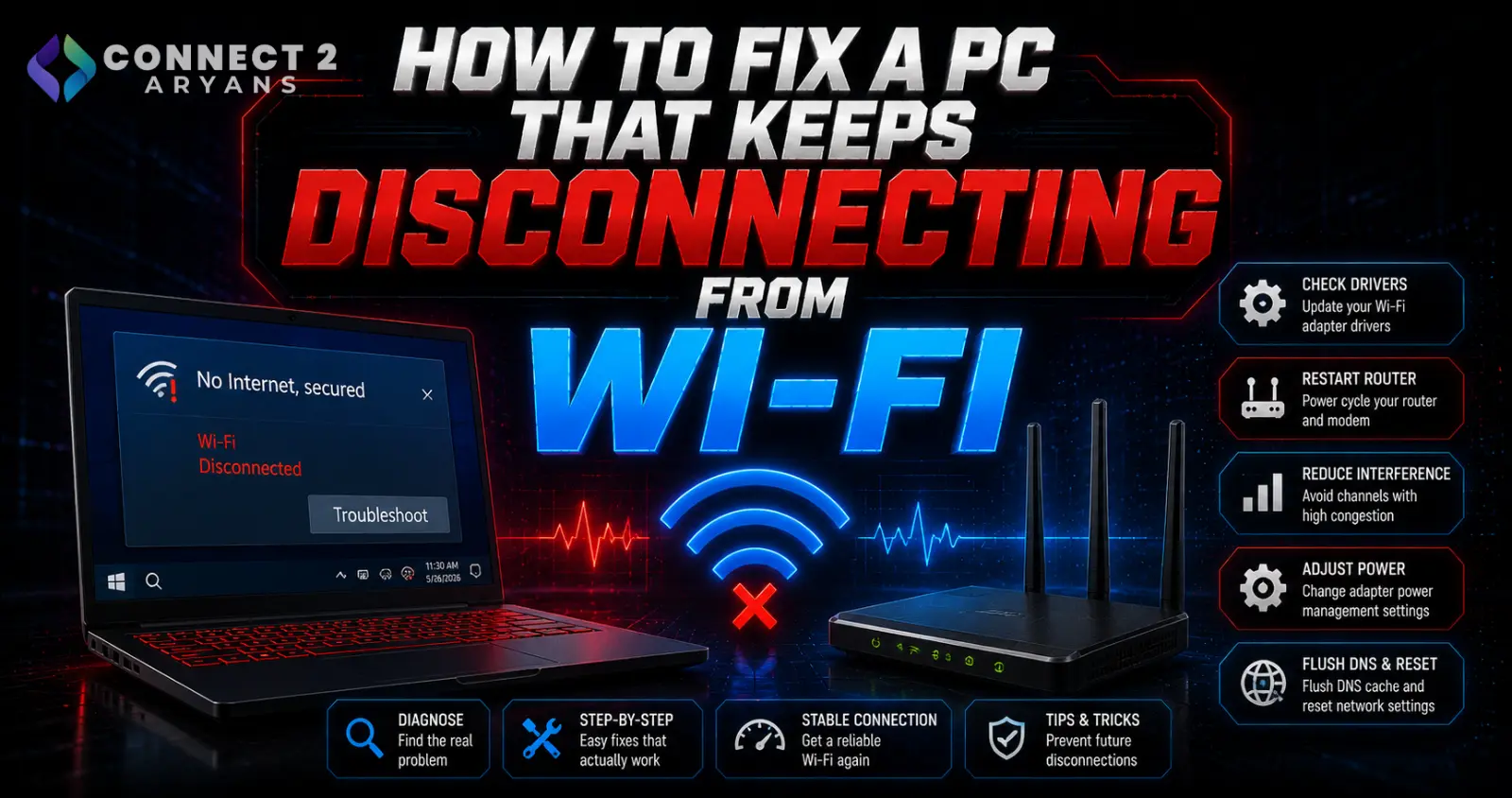
A PC that randomly drops its Wi-Fi connection — reconnecting on its own after a few seconds, or requiring a manual reconnect — is a genuinely common issue with a handful of specific, usually fixable causes. Here's how to diagnose and fix it.
Step 1: Confirm It's PC-Specific, Not a Router-Wide Issue
- Check whether other devices on the same network also experience disconnects at the same time
- Only your PC affected? Points toward a driver, adapter, or power setting issue on that specific machine
- All devices affected? Points toward the router or your internet connection itself, not your PC
Step 2: Check Wi-Fi Adapter Power Management Settings
- In Device Manager, find your Wi-Fi adapter under Network Adapters, right-click → Properties → Power Management
- Uncheck "Allow the computer to turn off this device to save power" — this Windows power-saving feature is one of the most common causes of random Wi-Fi disconnects, particularly on laptops
Step 3: Update Wi-Fi Adapter Drivers
- Outdated or corrupted Wi-Fi drivers are a frequent cause of instability — update directly from the adapter manufacturer's site rather than relying solely on Windows Update
- If you recently updated Windows and disconnects started right after, try rolling back the driver to the previous version to check if the update itself introduced the issue
Step 4: Check Wi-Fi Band and Channel
- Switching from 2.4GHz to 5GHz (or vice versa) can sometimes resolve instability caused by interference or congestion on your current band
- If your router allows manual channel selection, try switching to a less congested channel, especially in apartment buildings with many overlapping networks
Step 5: Check for Physical Interference
- Distance from the router, walls, and other electronics (microwaves, cordless phones, Bluetooth devices) can all contribute to intermittent disconnects, especially on the more interference-prone 2.4GHz band
- Moving closer to the router temporarily can help confirm whether distance/interference is a factor
Step 6: Disable Wi-Fi Sense and Related Background Features
- Some Windows networking features designed to automatically switch or optimize connections can occasionally cause more instability than they solve — checking and disabling unnecessary auto-switching features is worth trying if disconnects are frequent
Step 7: Reset Network Settings
- Windows includes a "Network Reset" option (in Settings → Network & Internet) that removes and reinstalls network adapters and resets networking components to default
- This is a broader fix worth trying if individual settings adjustments haven't resolved the issue, though it will require re-entering Wi-Fi passwords afterward
Step 8: Update Router Firmware
- Outdated router firmware can contain bugs affecting connection stability — check your router manufacturer's app or admin panel for available updates
- This is a free fix that's easy to overlook, especially on routers that don't update automatically
Step 9: Consider a Wi-Fi Adapter Upgrade
- If you're using an older or low-quality built-in Wi-Fi adapter, particularly on a budget laptop or older desktop, upgrading to a dedicated adapter with better antennas can resolve persistent instability that software fixes don't fully address
- Browse our Wi-Fi Adapters range from TP-Link or UGREEN for a more reliable external or internal adapter option
Step 10: Consider Wired Ethernet for Critical Use
- If instability persists despite trying the above, and the PC's location allows it, a wired ethernet connection eliminates Wi-Fi-related disconnects entirely — the most reliable fix available if it's feasible for your setup
Quick Diagnostic Summary
| Symptom | Likely Cause |
|---|---|
| Only your PC disconnects, other devices fine | Adapter power settings or drivers |
| All devices on network affected | Router or ISP issue, not your PC |
| Worse in a specific room/area | Distance/interference — try 5GHz or move closer |
| Started right after a Windows update | Try rolling back the Wi-Fi driver |
Common Mistakes to Avoid
- Not checking adapter power management settings, one of the most common and easily fixed causes
- Assuming it's always the router without confirming whether other devices are affected too
- Skipping router firmware updates as a possible contributing factor
- Sticking with a weak built-in adapter instead of considering an upgrade when software fixes don't resolve persistent issues
Final Thoughts
Random Wi-Fi disconnects on a single PC are usually traceable to adapter power settings, outdated drivers, or interference — work through these systematically before assuming it's a router or ISP problem. If software fixes don't resolve it, a better Wi-Fi adapter or, where feasible, a wired connection remains the most reliable long-term fix.
Browse our full range of Wi-Fi Adapters and Networking Devices on Connect2Aryans, with warranty support included.

