
Why Your New PC Might Not Be Hitting Advertised FPS
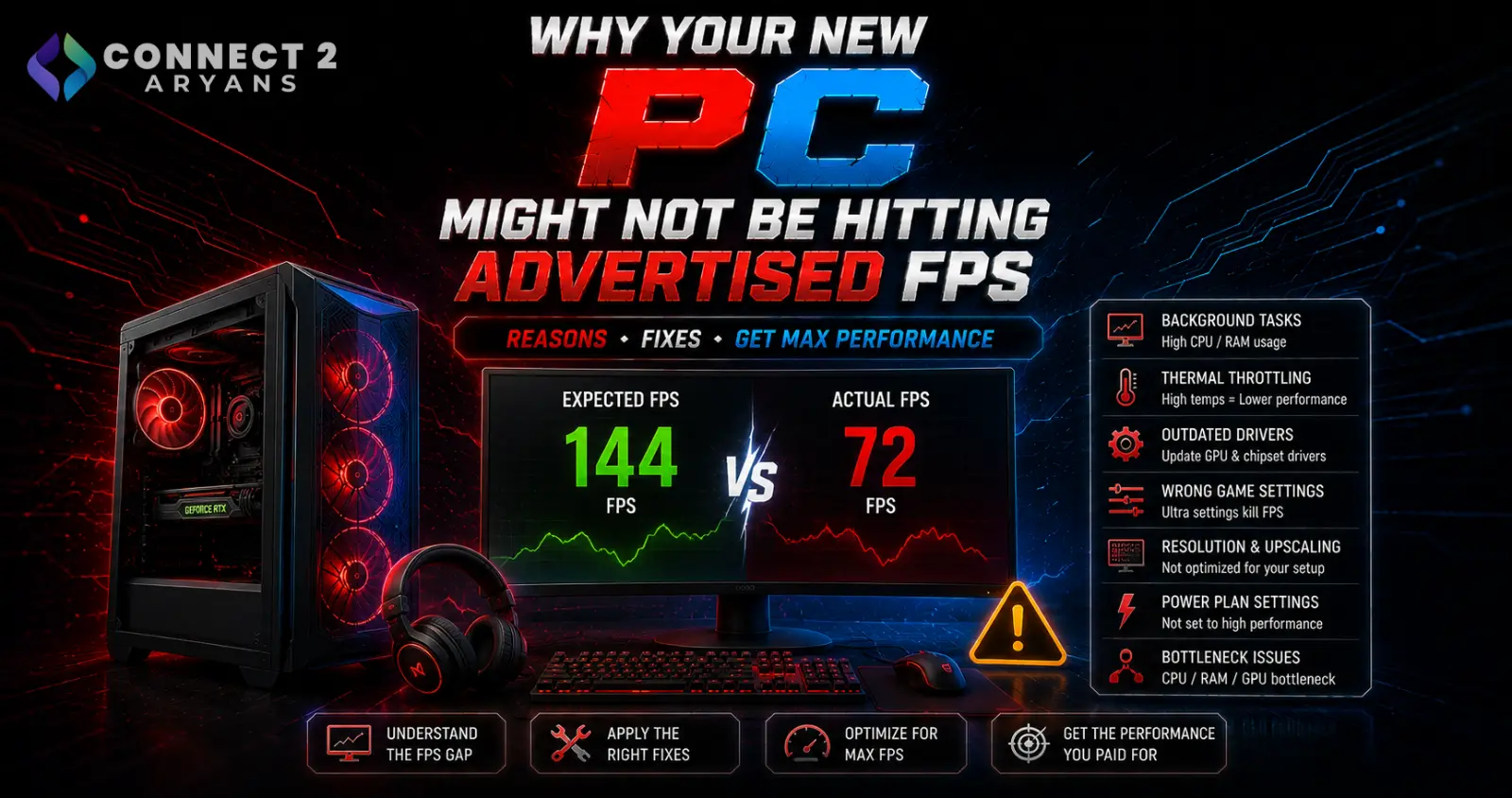
If your new PC's real-world frame rates don't match the numbers you saw in a review or benchmark video, it doesn't necessarily mean anything's wrong — but it's also worth checking, since several common, fixable issues can genuinely hold back a new build. Here's why the gap happens and how to close it.
Why Advertised Benchmarks Rarely Match Your Exact Experience
Before troubleshooting, it's worth understanding that benchmark numbers are often produced under specific, sometimes best-case conditions:
- Different game settings, resolution, and specific in-game test scenes than what you're actually playing
- Often tested with fresh driver installs, no background software, and an OS with minimal bloat
- Sometimes run with different RAM speed, cooling, or case airflow than your specific configuration, even with the "same" CPU and GPU model
A gap between advertised and real-world FPS is common and doesn't automatically mean something's broken — but the causes below are worth checking, since some genuinely are fixable performance left on the table.
Cause 1: RAM Not Running at Its Rated Speed
- RAM often ships running at a slower default (JEDEC) speed until XMP (Intel platforms) or EXPO (AMD platforms) is manually enabled in BIOS
- This is one of the most common, easily overlooked causes of underwhelming performance on a genuinely new build — the RAM is physically capable of its rated speed, it's just not running at it
- Fix: enter BIOS and enable XMP or EXPO to run your DDR4 or DDR5 RAM at its actually purchased, rated speed — this alone can meaningfully close the FPS gap in some games, particularly on AMD platforms where RAM speed has a larger performance impact
Cause 2: Outdated or Default Drivers
- A new PC doesn't always ship with the latest GPU drivers installed, especially if it's been sitting in stock for a while before reaching you
- Outdated drivers can miss game-specific optimizations that newer driver releases specifically include
- Fix: install the latest drivers directly from NVIDIA or AMD rather than relying on whatever came pre-installed or Windows' automatic driver installation
Cause 3: Background Software and Bloatware
- New PCs, especially pre-built systems, sometimes come with trial software, manufacturer utilities, or background processes running that quietly consume CPU and RAM resources
- Even a clean custom build can accumulate unnecessary startup programs quickly
- Fix: check Task Manager for background processes and startup programs, disabling anything unnecessary that could be competing for resources during gaming
Cause 4: Thermal Throttling From Day One
- In rare cases, factory thermal paste application on a pre-built or even a new cooler can be uneven or insufficient, causing higher-than-expected temperatures and throttling sooner than it should
- Fix: monitor CPU and GPU temperatures during a gaming session — if temperatures are unexpectedly high on a brand-new system, this is worth investigating rather than assuming it's normal. Browse our CPU Coolers range if your cooling setup (Air Cooler or liquid Cooler) genuinely needs reapplication or an upgrade
Cause 5: Storage Bottleneck (If an HDD Is Involved)
- If your new PC includes an HDD (either as the only drive, or games installed there rather than on the SSD), texture streaming stutters and loading-related performance dips can look like lower FPS, even if raw frame rate elsewhere is fine
- Fix: confirm your games are actually installed on your SSD, not an HDD — browse our NVMe SSDs range if you need more fast storage for your game library
Cause 6: Power Plan Settings
- Windows' default power plan on some systems is set to "Balanced" rather than "High Performance," which can throttle CPU performance slightly to save power, even while plugged in on a desktop
- Fix: check your Windows power plan settings and switch to a High Performance (or equivalent) profile for a desktop gaming PC, where power saving isn't a priority
Cause 7: Resolution, Settings, and VSync Differences
- Benchmarks are often run at specific settings and resolution combinations that may not match what you're actually playing at
- VSync or a frame rate cap enabled in-game or in your GPU's control panel can artificially limit your FPS below what your hardware could otherwise achieve
- Fix: confirm your in-game settings and resolution match what the benchmark you're comparing against actually used, and check that VSync/frame caps aren't unintentionally limiting your results
Cause 8: A Genuine CPU or GPU Bottleneck
- If you've checked everything above and performance is still consistently below expectations, your specific CPU/GPU pairing (or the specific game's demands) may simply differ from the benchmark's tested configuration
- Checking GPU and CPU usage percentage during gameplay can reveal whether one component is the limiting factor — if this turns out to be the case, browse our Graphics Card or Processors range for a targeted upgrade to the actual bottleneck
Quick Diagnostic Summary
| Check | What to Look For |
|---|---|
| BIOS RAM settings | Is XMP/EXPO enabled, or running at default slower speed? |
| GPU drivers | Latest version installed directly from manufacturer? |
| Background processes | Anything unnecessary running during gameplay? |
| Temperatures under load | Unexpectedly high on a new system? |
| Game install location | On SSD, not HDD? |
| Windows power plan | Set to High Performance? |
| In-game settings/resolution | Matching what you're comparing against? |
Common Mistakes to Avoid
- Assuming a new PC automatically has RAM running at full rated speed without checking XMP/EXPO status
- Comparing your FPS against a benchmark using different settings, resolution, or test scene without accounting for that difference
- Overlooking background software as a performance drag on a supposedly clean new system
- Not checking whether games are actually installed on your fastest available drive
Final Thoughts
A gap between advertised and real-world FPS is common, but several of the most frequent causes — RAM not at rated speed, outdated drivers, background software, and power plan settings — are free, quick fixes rather than hardware problems. Work through these before assuming your new PC's hardware itself is underperforming.
Browse our full range of Memory RAM, CPU Coolers, NVMe SSDs, Graphics Card, and Processors on Connect2Aryans if a genuine hardware bottleneck turns out to be the cause, with warranty support included.

