
Why Is My Laptop Overheating More Than My Desktop?
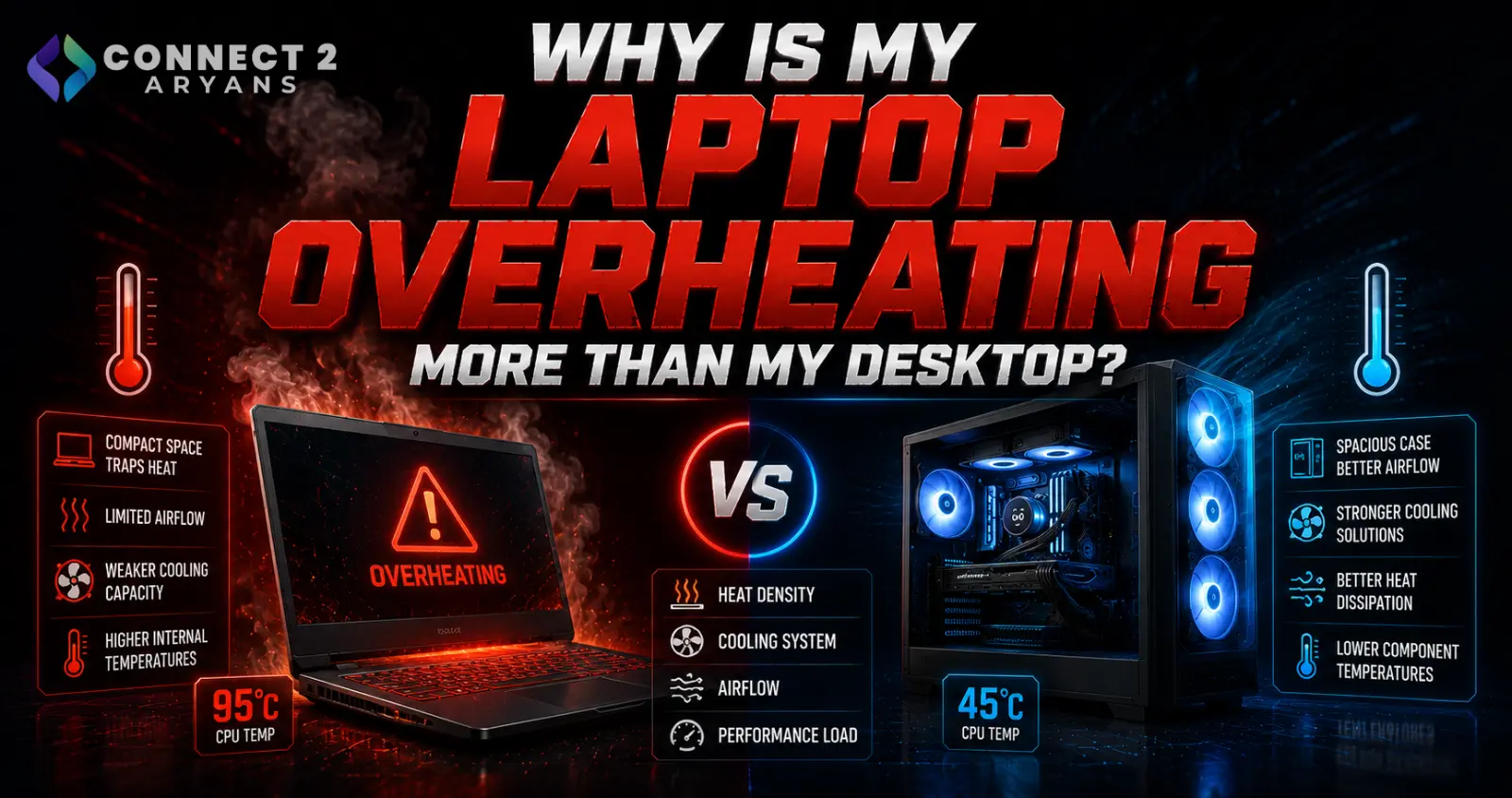
If you've used both a laptop and a desktop with similar specs, you've probably noticed the laptop runs noticeably hotter. This isn't a flaw specific to your unit — it's a fundamental design trade-off. Here's why it happens, and what genuinely helps.
Why Laptops Run Hotter by Design
- Limited physical space: laptop cooling systems have to fit into a thin chassis, meaning smaller heatsinks, smaller fans, and less airflow volume compared to a desktop's much larger case and cooling components
- Shared thermal envelope: in a laptop, the CPU and GPU (if present) often share limited cooling capacity and sometimes even heat pipes, competing for the same limited thermal headroom
- Compact component placement: components sit much closer together than in a desktop, meaning heat from one part more easily affects nearby components
- Battery and power constraints: laptops balance performance against battery life and power delivery limits that desktops don't need to consider, sometimes leading to more aggressive thermal throttling as a trade-off
This Is Partly Normal — But Excessive Heat Still Matters
- Laptops running warmer than an equivalent desktop under load is expected and by design — this alone isn't a problem
- However, a laptop that's uncomfortably hot to touch, throttling significantly, or shutting down unexpectedly under normal use has crossed from "normal laptop behavior" into a genuine issue worth addressing
Step 1: Check Ventilation Isn't Blocked
- Using a laptop on a soft surface (bed, couch, lap) blocks intake vents on the bottom, which is one of the most common and easily fixed causes of excessive laptop heat
- Always use laptops on a hard, flat surface, or ideally a cooling pad, to maintain proper airflow underneath
Step 2: Clean Dust From Vents and Fans
- Laptops accumulate dust just like desktops, but with much smaller vents that clog more easily and are harder to access
- Compressed air through the exhaust vents can help dislodge surface dust; a deeper clean (removing the bottom panel) reaches the fans directly but requires more comfort with laptop disassembly, and may affect warranty depending on your specific model and region
Step 3: Check Power Settings and Performance Mode
- Many laptops include a performance mode setting (often through manufacturer software) that can be adjusted between "quiet/battery saving" and "performance," which directly affects how hard fans work and how much heat is generated under load
- Running demanding tasks in a lower-power mode intentionally reduces heat output at the cost of some performance — useful if thermal comfort matters more than maximum performance for a given task
Step 4: Consider a Cooling Pad
- An external cooling pad with its own fans placed underneath the laptop can meaningfully improve airflow and reduce temperatures during demanding tasks like gaming
- This is one of the more effective, low-effort external fixes available for a laptop running hot
Step 5: Check for Thermal Paste Degradation (Older Laptops)
- Like desktops, laptop thermal paste between the CPU/GPU and heatsink degrades over years of use
- If your laptop has gradually gotten hotter over a few years despite regular cleaning, aging thermal paste is a likely contributor — though laptop repasting is more involved than desktop repasting and may be worth professional service depending on your comfort level and the specific model's design
Step 6: Reduce Background Load
- Background processes and browser tabs increase CPU usage even during lighter tasks, generating more heat than necessary
- Closing unnecessary background software reduces both power draw and heat generation during everyday use
Step 7: Know When It's a Genuine Design Limitation
- Thin, lightweight laptops with powerful components (especially gaming laptops in ultra-slim chassis) inherently have less thermal headroom than bulkier designs — this is a trade-off made at the design stage, not something fixable after purchase
- If your specific laptop model is known for running hot even among reviewers and other users, this may be closer to its normal operating characteristics than a fixable individual problem
Quick Diagnostic Summary
| Situation | Action |
|---|---|
| Hot specifically when used on soft surfaces | Use a hard surface or cooling pad |
| Gradually hotter over years of use | Dust buildup or aging thermal paste |
| Hot even during light tasks | Check background processes and power mode settings |
| Consistently hot despite all fixes, matches other reviews of the same model | Likely a design characteristic, not a fixable fault |
Common Mistakes to Avoid
- Using a laptop regularly on a bed or soft surface, blocking intake airflow
- Skipping regular dust cleaning specifically because laptop vents are less accessible than desktop ones
- Running maximum performance mode for tasks that don't actually need it
- Assuming every hot laptop has a fixable fault, when some thin, powerful designs simply run warmer by nature
Final Thoughts
Laptops run hotter than desktops by design due to space, shared cooling, and power constraints — some of this is simply normal. Focus on the genuinely fixable factors (ventilation, dust, power settings, a cooling pad) rather than expecting desktop-level temperatures, and recognize when a specific model's heat characteristics are closer to inherent design than a fixable individual issue.
Browse our full range of Laptops, including Gaming Laptops, on Connect2Aryans, with warranty support included.

