
Why Is My Keyboard or Mouse Not Working? Troubleshooting Guide
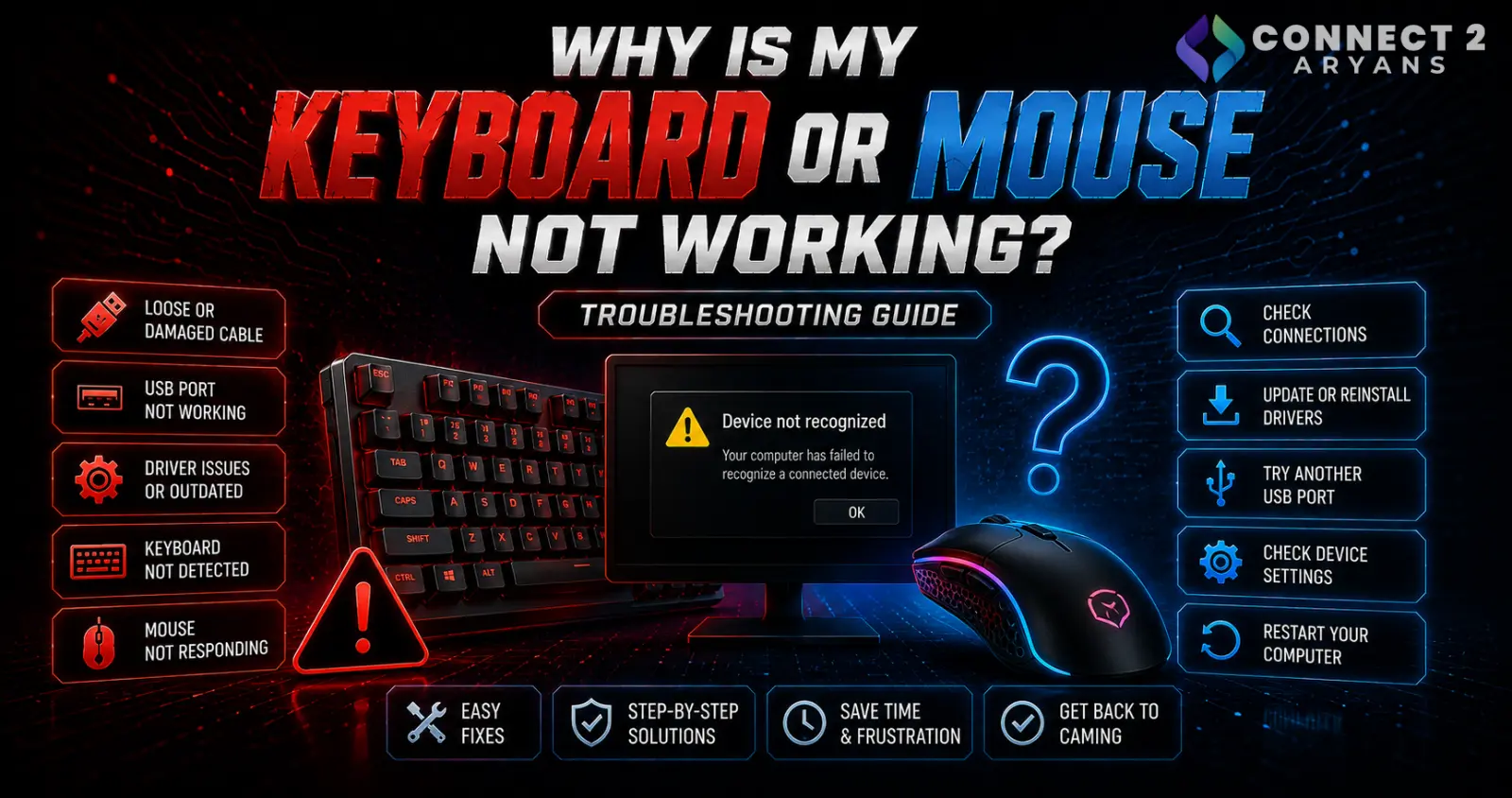
A keyboard or mouse that suddenly stops responding is one of the more disruptive but usually simplest problems to fix — it's rarely the PC itself, and almost always traces back to the connection, drivers, battery, or the device itself. Here's how to work through it.
Step 1: Check the Basics First
- Wired devices: confirm the cable is fully plugged in at both ends, and try a different USB port entirely
- Wireless devices (Wireless): check battery level, or try fresh batteries if it's been a while since the last change
- Bluetooth devices: confirm Bluetooth is enabled on your PC and the device is actually paired, not just powered on
Step 2: Try a Different USB Port
- USB ports can occasionally fail individually without affecting the rest of the system — moving the device to a different port (ideally directly on the motherboard's rear I/O, not a front panel port or hub) quickly rules this out
- If the device works in a different port, the original port may have a hardware issue worth investigating separately
Step 3: Test on a Different Device or PC
- If possible, try the keyboard or mouse on another computer, or try a known-working keyboard/mouse on your PC
- This isolates whether the problem is the peripheral itself or something on the PC side
Step 4: Check Device Manager for Driver Issues
- Open Device Manager and look for the keyboard/mouse entry — a yellow warning icon indicates a driver problem
- Try uninstalling the device from Device Manager and letting Windows reinstall it automatically upon reconnection
- Update drivers manually from the manufacturer's site if automatic reinstallation doesn't resolve it
Step 5: Check for a USB Dongle Issue (Wireless Devices)
- Many wireless keyboards and mice use a small USB receiver dongle — confirm it's firmly plugged in, and try a different USB port for the dongle specifically
- If you have another compatible dongle from the same manufacturer/model, testing with it can help isolate a faulty dongle from a faulty device
Step 6: Check for Interference (Wireless/Bluetooth)
- Other wireless devices, USB 3.0 ports (which can sometimes cause interference with 2.4GHz wireless peripherals), or physical obstructions between the device and receiver can cause intermittent disconnection
- Try moving the dongle to a USB port further from other devices, or use a USB extension cable to reposition it closer to the peripheral
Step 7: Check for a Windows Update or Software Conflict
- Recent Windows updates occasionally introduce temporary driver conflicts — check if the issue started right after an update
- Some third-party peripheral software (RGB lighting apps, macro software) can occasionally conflict with normal device function — try closing or temporarily uninstalling it to test
Step 8: Physical Inspection
- For wired devices, check the cable for visible damage, especially near the connector ends where cables most commonly wear out
- For mice specifically, check the sensor for debris or dust that could be interfering with tracking (different from a total non-response issue, but worth checking if the device partially works)
Quick Diagnostic Summary
| Symptom | Likely Cause |
|---|---|
| Completely unresponsive, wired | Cable, port, or driver issue |
| Completely unresponsive, wireless | Dead battery or dongle issue |
| Works intermittently | Interference or a failing cable/connection |
| Yellow warning in Device Manager | Driver conflict — reinstall driver |
| Works on another PC, not yours | PC-side driver or port issue |
| Doesn't work on another PC either | Device itself has likely failed |
Common Mistakes to Avoid
- Not testing a different USB port before assuming the device has failed
- Overlooking battery level on wireless devices as the simplest possible cause
- Ignoring Device Manager, which often shows a clear driver conflict at a glance
- Assuming interference isn't a factor for wireless peripherals near other wireless devices
Final Thoughts
Keyboard and mouse issues are almost always traceable to the connection, battery, drivers, or occasionally the device itself — work through these systematically rather than assuming the worst. If you've confirmed the device fails on multiple PCs and ports, it's genuinely time to consider a replacement.
Browse our full range of Gaming Keyboards, Professional Keyboards, Gaming Mouse, and Professional Mouse on Connect2Aryans, with warranty support included.

