
Why Does My Monitor Say "No Signal"? Troubleshooting Guide
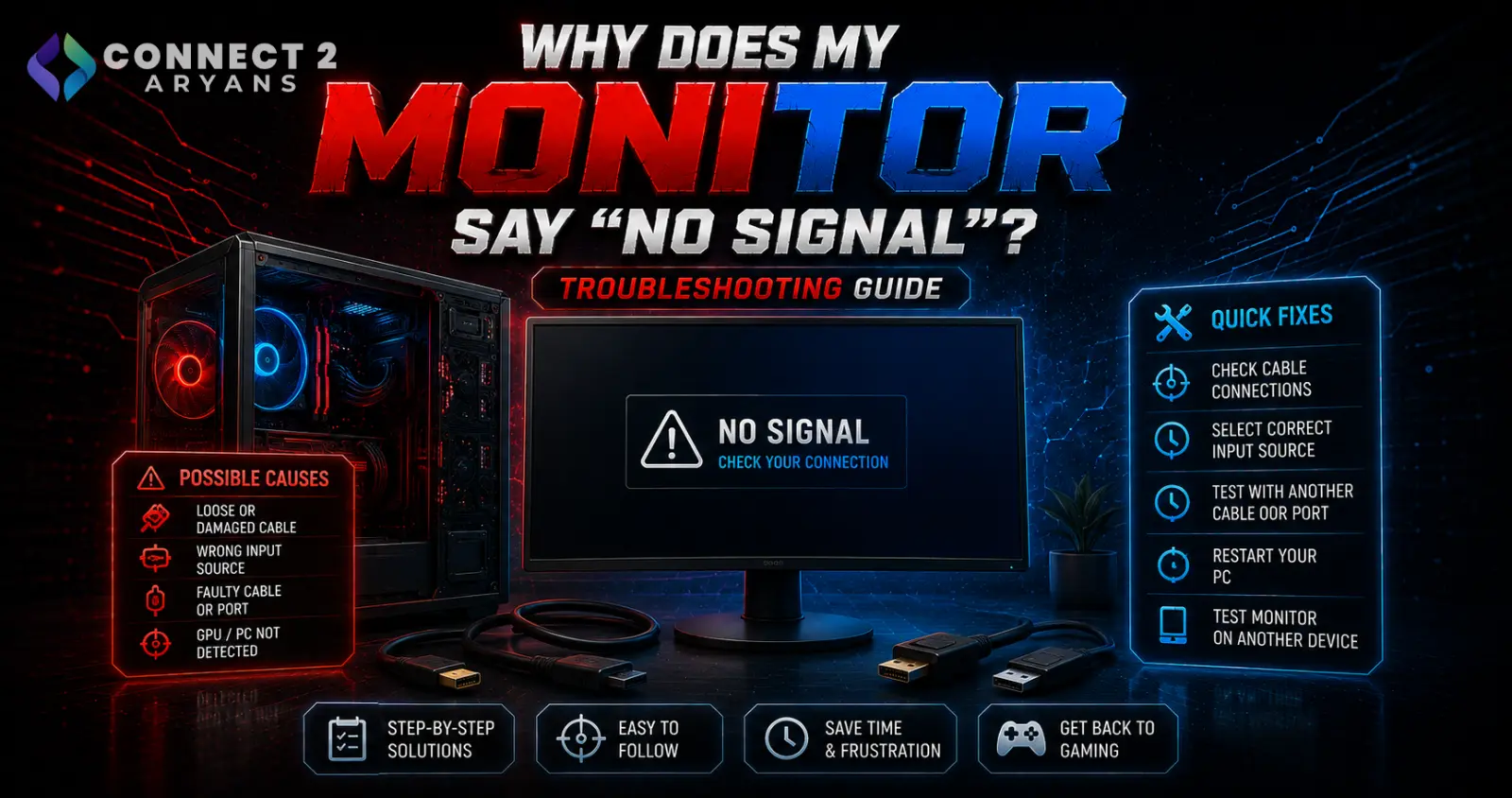
"No Signal" means exactly what it says — your monitor isn't receiving any video signal at all, regardless of whether your PC is actually running. This narrows the problem down significantly: it's almost always the cable, the input source, or the GPU connection, not a general PC failure. Here's how to work through it.
Step 1: Confirm Your PC Is Actually Powered On
- Check for fans spinning, lights on the case, or any sign the system is running
- If the PC itself shows no signs of life, the issue isn't the monitor at all — it's a power or boot problem elsewhere in the system
Step 2: Check the Monitor's Input Source
- Monitors with multiple inputs (HDMI, DisplayPort, VGA) need the correct input selected — check your monitor's on-screen menu to confirm it's set to the input your cable is actually plugged into
- This is one of the most common and simplest causes, especially after unplugging/replugging cables or switching monitors between devices
Step 3: Check the Cable Connection
- Confirm the cable is firmly seated at both the GPU and monitor ends — a loose connection can cause exactly this symptom
- Try a different cable entirely if you have one available, to rule out a damaged or faulty cable
- If using an adapter (like DisplayPort to HDMI), try connecting directly if possible to rule out adapter compatibility issues
Step 4: Confirm You're Connected to the GPU, Not the Motherboard
- If you have a dedicated graphics card installed, your monitor cable must connect to the GPU's output, not the motherboard's integrated graphics output
- This is a very common mistake after a new GPU installation — the motherboard's video output is typically disabled or unused once a dedicated GPU is installed
Step 5: Reseat the GPU
- Power off and unplug the PC, then reseat the graphics card fully in its PCIe slot, ensuring the retention latch clicks into place
- Confirm all GPU power connectors are firmly and fully connected
Step 6: Try a Different Monitor or Port
- If you have access to another monitor, test with it to determine if the issue is monitor-specific
- Try a different port on the GPU (if it has multiple HDMI/DisplayPort outputs) to rule out a specific port failure
Step 7: Check for RAM-Related Boot Issues
- A "No Signal" screen can sometimes actually be a failed boot due to RAM issues, rather than a display connection problem specifically — reseat RAM sticks and try booting again
- Listen for beep codes if your motherboard has a speaker installed, which can indicate a RAM or GPU-related boot failure rather than a pure display connection issue
Quick Diagnostic Summary
| Check | Fixes |
|---|---|
| Monitor input source | Switch to the correct HDMI/DisplayPort input |
| Cable connection | Reseat firmly, try a different cable |
| Connected to GPU vs motherboard | Confirm cable is in the dedicated GPU's output |
| GPU seating | Reseat fully in PCIe slot, confirm power connectors |
| Different monitor/port | Isolates monitor-specific vs GPU-specific issue |
Common Mistakes to Avoid
- Plugging the monitor into the motherboard's video output after installing a dedicated GPU
- Not checking the monitor's input source setting before assuming a hardware fault
- Assuming "No Signal" means the whole PC has failed, when it's usually isolated to the display connection
Final Thoughts
"No Signal" is one of the more straightforward display issues to diagnose — it's almost always the cable, input selection, or GPU connection rather than a deeper hardware failure. Work through the checks in order, and you'll usually isolate the cause within a few minutes.
Browse our full range of Monitors, Graphics Card, and Cables & Hub on Connect2Aryans if a replacement turns out to be needed, with warranty support included.

