
Which Should You Actually Boot From?
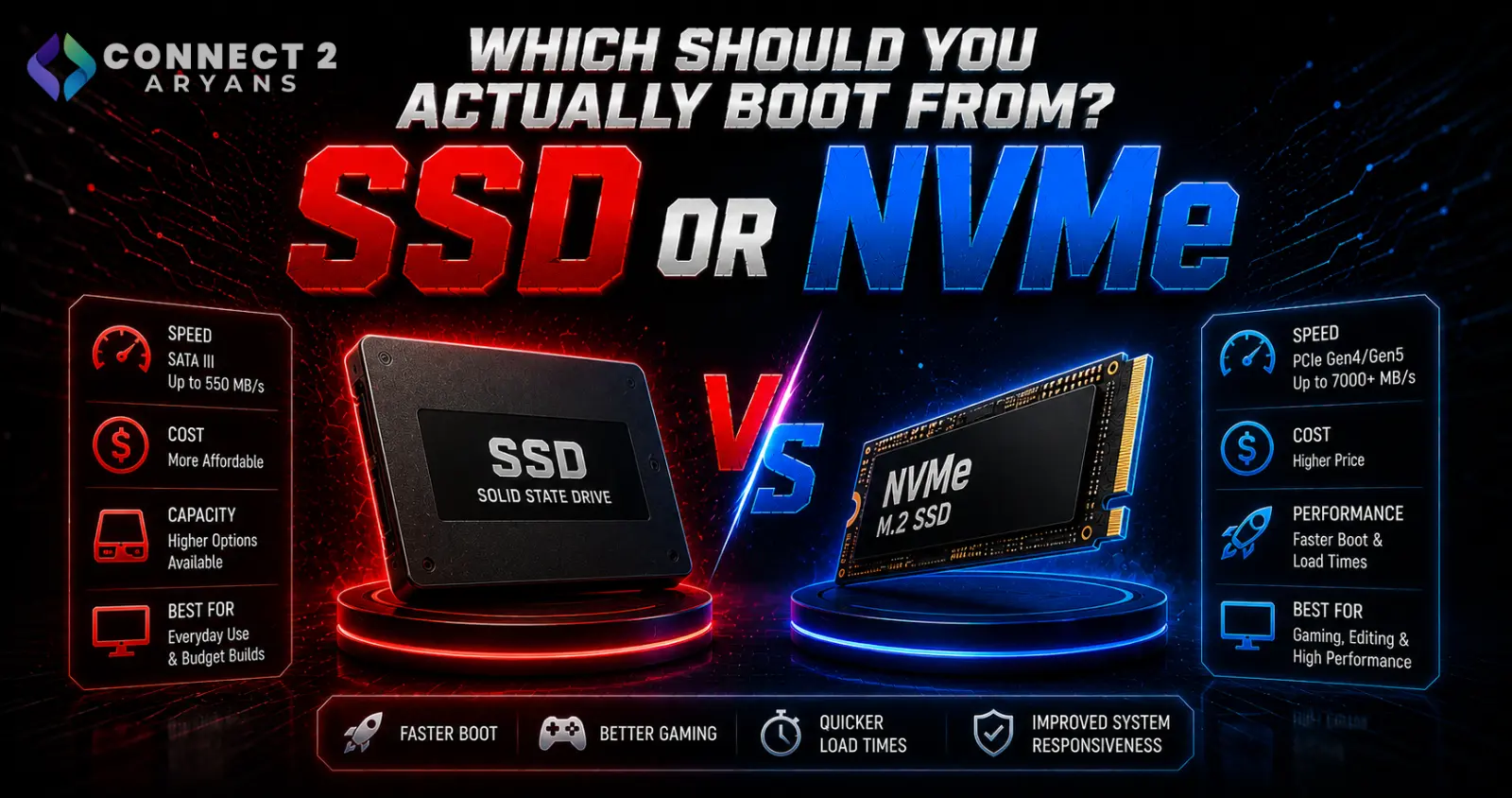
This is one of the rare PC questions with a genuinely clear answer: your boot drive should be an SSD, not an HDD, in 2026. But it's worth understanding exactly why, and how HDDs still fit into a smart storage setup even though they shouldn't be running your operating system.
The Short Answer
Boot Windows (or any OS) from an SSD, ideally NVMe. Use an HDD, if you use one at all, purely for bulk storage — media, backups, games you play infrequently — not for your operating system.
Why SSD Wins for Boot Drive — The Real Numbers
- Boot time: an SSD boot drive typically gets you to a usable desktop in seconds, compared to HDDs which can take significantly longer, especially as Windows and installed software accumulate over time
- Application launch speed: programs open near-instantly from an SSD versus a noticeable pause from an HDD, since the OS and program files load dramatically faster
- System responsiveness overall: general day-to-day snappiness — opening File Explorer, switching between apps, installing updates — is consistently faster on SSD, and this compounds across everything you do on the PC
Reliability: SSDs Have No Moving Parts
- HDDs are mechanical — a spinning platter and moving read/write head, both of which are vulnerable to physical shock, vibration, and wear over time
- SSDs have no moving parts, making them inherently more resistant to physical damage from drops or bumps (a bigger deal for laptops than desktops, but still relevant)
- This doesn't mean SSDs never fail — they have their own wear characteristics related to write cycles — but for typical consumer OS drive use, SSD failure rates for boot drive purposes are generally not a practical concern within a normal PC's usable lifespan
Addressing the Price-Per-GB Argument
- HDDs still win decisively on raw cost per GB, especially at higher capacities (multiple TB) — this remains true and is exactly why HDDs still have a legitimate role
- But for a boot/OS drive specifically, you don't need huge capacity — the OS, core programs, and most-used software fit comfortably on a modestly sized SSD
- The right strategy isn't "SSD or HDD" as a single either/or choice — it's SSD for boot/OS, HDD (if needed) for bulk storage, using each drive type for what it's actually good at
NVMe or SATA SSD for Your Boot Drive?
- NVMe SSD — the faster option, connecting via PCIe rather than the older SATA interface, offering meaningfully quicker load times, especially noticeable in larger, more demanding software and bigger game installs
- SATA SSD — still dramatically faster than any HDD for boot purposes, and a perfectly reasonable choice if your motherboard lacks a free M.2 NVMe slot or budget is tight
- For a boot drive specifically, either is a massive upgrade over an HDD — NVMe is the better choice if your motherboard supports it and budget allows, but don't feel like SATA SSD is a compromise compared to sticking with an HDD
How Much Capacity Do You Need for a Boot Drive?
- 256GB — workable for a lean OS-only setup with minimal installed software, though tight by modern standards
- 500GB–1TB — the realistic comfortable range for most users, fitting the OS, core applications, and several installed games or programs
- 2TB+ — worth it if you want to keep most or all of your active game library on the fast boot drive rather than splitting across a secondary drive
How to Migrate From HDD to SSD
- Fresh install (recommended for older systems): installing your OS cleanly on the new SSD avoids carrying over years of accumulated clutter, fragmentation, and unnecessary background processes from the old HDD installation
- Cloning: software tools can clone your existing HDD installation directly to the new SSD, preserving your current setup without reinstalling everything — faster to set up, but carries over any existing bloat or issues from the old drive
- After migrating, set the new SSD as the boot drive in BIOS, and repurpose the old HDD (if keeping it) as secondary bulk storage rather than removing it entirely
When an HDD Still Makes Sense (Just Not for Booting)
- Bulk media libraries, large backups, and infrequently accessed files are still genuinely well-served by HDD's cost-per-GB advantage
- A common, sensible setup: SSD (ideally NVMe) as the boot/OS drive, paired with a larger HDD as secondary storage for everything that doesn't need fast access speed
Popular Storage Brands
Common Mistakes to Avoid
- Continuing to boot from an HDD purely to save money, when even a modest SSD delivers a dramatically better daily experience for a relatively small cost
- Buying an oversized SSD boot drive when a well-sized SSD plus a separate HDD for bulk storage is more cost-effective
- Cloning a years-old, cluttered HDD installation instead of doing a fresh OS install on the new SSD when starting genuinely fresh would serve better
- Removing the old HDD entirely instead of repurposing it as useful secondary storage
Final Thoughts
For a boot drive specifically, there's no real argument left for HDD in 2026 — SSD (ideally NVMe) is faster in every practical, everyday sense, and the cost difference for a reasonably sized boot drive is small relative to the improvement in daily experience. Keep HDDs around for what they're still genuinely good at: cheap bulk storage, not running your operating system.
Browse our full range of NVMe SSDs, SATA SSD and HDD options from Samsung, Western Digital, Crucial, and ADATA on Connect2Aryans, with warranty support included.

