
When Should You Upgrade Your RAM?
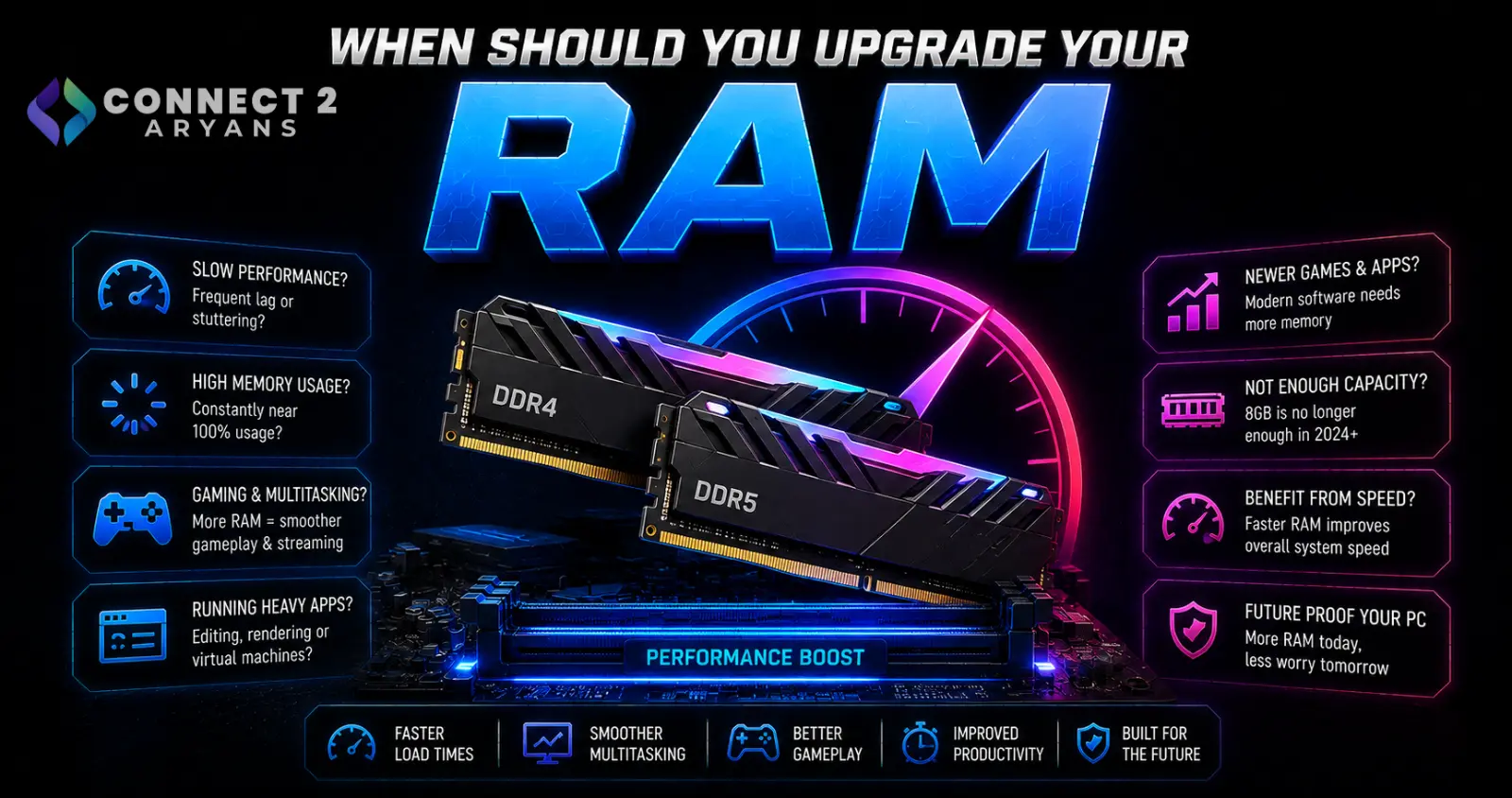
RAM is one of the cheapest, most effective upgrades available — when it's actually the bottleneck. The tricky part is that RAM-related slowdowns can look a lot like other problems (slow storage, CPU limitations), so it's worth confirming before spending money. Here's how to tell if you genuinely need more.
Sign 1: RAM Usage Consistently Near 100%
- Open Task Manager (or equivalent monitoring tool) during your normal daily use — browsing with multiple tabs, apps open, gaming with background software running
- If memory usage consistently sits near or at your total installed capacity during normal use, you're genuinely RAM-constrained
- Occasional brief spikes to high usage aren't necessarily a problem — sustained near-100% usage during routine tasks is the real signal
Sign 2: Noticeable Slowdown When Multitasking
- If switching between apps feels sluggish, or things visibly slow down specifically as you open more browser tabs or programs, this is a classic RAM-limited symptom
- The system compensates for insufficient RAM by using slower storage as overflow (paging/swap), which is dramatically slower than RAM itself — this is often the actual cause of the sluggish feeling
Sign 3: Specific Software Requirements
- Some software (video editing, 3D rendering, virtualization, certain games) has explicit RAM requirements or strongly recommended amounts
- If you're running software that recommends more RAM than you currently have installed, and experiencing crashes, slowdowns, or the software itself warning about memory, this is a direct signal to upgrade
Sign 4: Stuttering in RAM-Heavy Games
- Open-world and memory-intensive games can stutter specifically due to insufficient RAM, especially when combined with several background applications running simultaneously
- If stuttering improves noticeably when you close background apps, but the game itself demands more memory than you have free even with a clean system, more RAM is likely to help
How Much RAM Do You Actually Need?
- 8GB — genuinely tight for 2026 use across almost any modern workload; upgrade is very likely worthwhile if you're still at this level
- 16GB — the practical minimum for smooth everyday multitasking, gaming, and general productivity
- 32GB — the comfortable sweet spot if you multitask heavily, stream, record, or run demanding creative software alongside other programs
- 64GB+ — worth it specifically for heavy video editing, 3D rendering, large virtualization setups, or professional workstation use
When Adding RAM Won't Actually Help
- If your RAM usage monitoring shows plenty of headroom (well below capacity during normal use), the slowdown you're experiencing is likely coming from somewhere else — check your storage type (HDD vs SSD) or CPU usage instead before spending on RAM
- Adding RAM to a system that's already CPU or GPU bottlenecked for gaming performance won't meaningfully improve frame rates if capacity wasn't the limiting factor to begin with
Step-by-Step: How to Upgrade Correctly
- Confirm your motherboard's supported memory type — DDR4 or DDR5 — since these aren't interchangeable, and buying the wrong type simply won't work
- Check your motherboard's maximum supported capacity and number of slots, so you know your realistic ceiling before buying
- Buy a matched dual-channel kit rather than a single stick, or rather than mixing with your existing RAM — mismatched sticks (different speeds, timings, or brands) can cause instability or force the whole kit to run at the slower stick's speed
- Consider replacing entirely rather than adding, if your existing RAM is older or a different speed than what you're adding — a clean matched kit avoids compatibility headaches entirely
- Enable XMP/EXPO in BIOS after installing, since RAM often runs below its rated speed by default until this is enabled
Popular RAM Brands
Quick Diagnostic Summary
| Symptom | RAM Upgrade Likely to Help? |
|---|---|
| Usage near 100% during normal multitasking | Yes |
| Slows down noticeably with many tabs/apps open | Yes |
| Software explicitly recommends more RAM than installed | Yes |
| Usage stays well below capacity, but performance is still poor | No — check CPU, GPU, or storage instead |
Common Mistakes to Avoid
- Buying RAM without checking DDR4 vs DDR5 compatibility with your motherboard first
- Mixing new RAM with old, mismatched sticks instead of buying a clean matched kit
- Assuming RAM is the fix for every slowdown without actually checking usage percentage first
- Forgetting to enable XMP/EXPO after installing, leaving performance on the table
Final Thoughts
RAM is worth upgrading specifically when usage monitoring shows you're genuinely running near capacity during normal use — not as a default fix for every kind of slowness. Confirm your motherboard's memory type and slot configuration first, buy a proper matched kit, and enable XMP/EXPO after installing to get the performance you're paying for.
Browse our full range of Memory RAM from ADATA, Ease, TeamGroup, Transcend and XPG on Connect2Aryans, across DDR4 and DDR5 platforms, with warranty support included.