
USB4 Version 2.0 vs Thunderbolt 5 in 2026: What 80Gbps and 120Gbps USB-C Ports Actually Mean
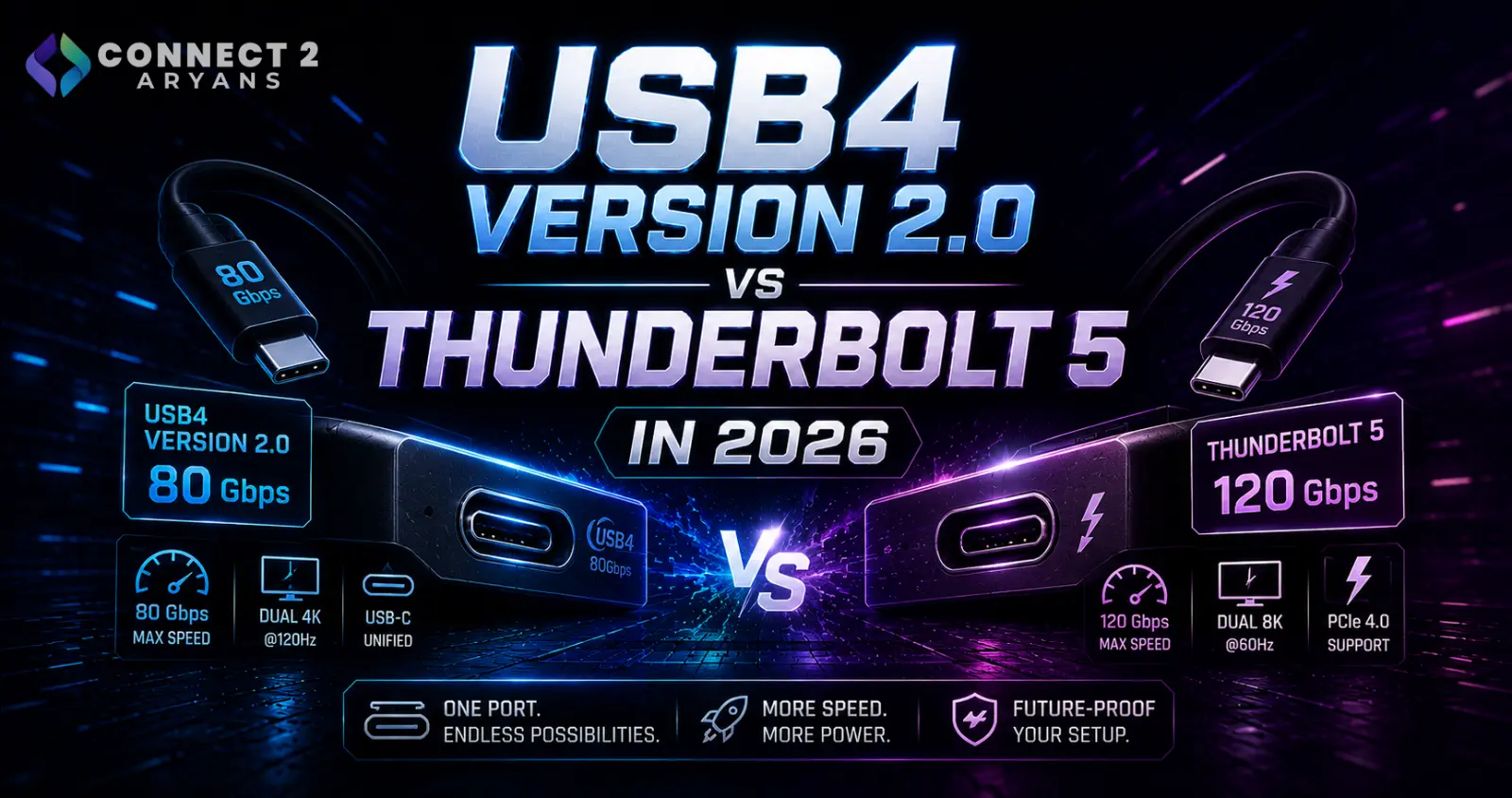
USB4 Version 2.0 vs Thunderbolt 5 in 2026: What 80Gbps and 120Gbps USB-C Ports Actually Mean
USB-C was supposed to make connecting devices simpler.
Physically, it largely has.
The same small reversible connector can now appear on laptops, desktop motherboards, monitors, phones, external SSDs, docking stations, graphics equipment and chargers.
Technically, however, USB-C has become surprisingly complicated.
Two ports can look exactly the same while providing completely different capabilities.
One USB-C port might handle relatively basic USB data.
Another might provide:
80Gbps USB4 connectivity
high-resolution display output
PCI Express tunneling
and
USB Power Delivery.
Thunderbolt 5 takes the same USB Type-C connector even further, providing 80Gbps of bidirectional bandwidth and an adaptive Bandwidth Boost mode that can provide up to 120Gbps in one direction for video-intensive workloads.
Meanwhile, the USB Implementers Forum published the USB4 Version 2.0 specification on April 2, 2026, while its current USB4 guidance describes operation up to 80Gbps using certified 80Gbps cables.
For anyone buying a gaming laptop, motherboard, external SSD, USB-C dock or monitor in 2026, understanding these differences is becoming increasingly useful.
Because the most important rule is:
USB-C describes the connector. It does not tell you everything the connection can do.
USB-C Is a Connector, Not a Speed
This is where much of the confusion begins.
USB Type-C describes the physical connector/interface design.
It does not, by itself, guarantee:
- 40Gbps data
- 80Gbps data
- Thunderbolt
- DisplayPort output
- laptop charging
- 240W charging
- external GPU support
- multiple-monitor support
A USB-C connector can be used with different underlying USB capabilities.
That means buying something simply because it says:
USB-C
doesn't tell you enough.
You need to know what protocols and performance levels that particular port and cable support.
What Is USB4?
USB4 is the newer USB architecture designed around the USB Type-C connector.
The USB Implementers Forum explains that USB4 builds upon earlier USB architectures and allows multiple data and display protocols to share a high-speed connection dynamically.
USB4 also maintains backward compatibility with earlier USB generations.
The USB-IF currently lists important USB4 characteristics including:
Two-lane USB Type-C operation
up to 80Gbps operation using appropriate certified cables
simultaneous data and display protocols
and
backward compatibility with previous USB versions.
This makes USB4 much more than simply a faster version of USB 3.
What Is USB4 Version 2.0?
USB4 Version 2.0 represents a major evolution of USB4.
The USB-IF published its current USB4 Specification Version 2.0 on April 2, 2026.
One of the biggest practical changes is increased link performance.
The USB-IF's current USB4 documentation identifies support for up to 80Gbps operation over suitable USB Type-C cables.
That's twice the 40Gbps figure many users associate with earlier high-performance USB4 implementations.
But there is an important purchasing lesson here:
Not every USB4 product is automatically 80Gbps.
The supported speed still depends on the host, device and cable.
What Is Thunderbolt 5?
Thunderbolt 5 is Intel's latest generation of Thunderbolt connectivity.
Like USB4, it uses the familiar USB Type-C connector.
Intel specifies Thunderbolt 5 with:
80Gbps bidirectional bandwidth
and
Bandwidth Boost up to 120Gbps for display-intensive workloads.
Intel says Thunderbolt 5 is built using several industry technologies, including:
USB4 Version 2
DisplayPort 2.1
and
PCI Express Gen 4.
So USB4 Version 2.0 and Thunderbolt 5 aren't completely unrelated competing technologies.
Thunderbolt 5 incorporates USB4 technology while applying Intel's own certification and minimum capability requirements.
Thunderbolt 5 vs Thunderbolt 4
The bandwidth increase is substantial.
Thunderbolt 4 requires:
40Gbps
while Thunderbolt 5 increases its minimum PC speed requirement to:
80Gbps.
Intel also specifies Bandwidth Boost at up to:
120Gbps
for appropriate high-bandwidth display workloads.
That means Thunderbolt 5 can provide twice the standard bidirectional bandwidth of Thunderbolt 4.
For particular video-intensive configurations, its asymmetric bandwidth mode can provide even more outbound bandwidth.
What Does 80Gbps Actually Mean?
Gbps means:
gigabits per second.
Notice that this is bits, not bytes.
Storage products often display file-transfer performance in:
MB/s or GB/s
while connectivity standards commonly advertise:
Gbps.
Because:
8 bits = 1 byte
an 80Gbps raw signaling rate corresponds mathematically to:
10GB/s
before protocol overhead and other real-world factors are considered.
That doesn't mean every Thunderbolt 5 SSD will transfer files at exactly 10GB/s.
Actual device performance depends on the:
storage controller,
SSD,
PCIe implementation,
enclosure,
host,
workload,
thermal behavior,
and protocol overhead.
Then What Is 120Gbps?
This is another specification that can easily be misunderstood.
Thunderbolt 5 doesn't simply operate as:
120Gbps in both directions all the time.
Its standard mode provides up to:
80Gbps bidirectional bandwidth.
Intel's Bandwidth Boost can reconfigure bandwidth for display-intensive workloads, providing up to 120Gbps in one direction while maintaining 40Gbps in the other direction.
That asymmetrical mode is particularly relevant when the system needs to send enormous amounts of display data outward.
Think:
high-resolution + high-refresh-rate monitors
rather than simply copying a file.
Why Does Thunderbolt 5 Need 120Gbps for Displays?
Modern monitor bandwidth requirements are becoming enormous.
PC users increasingly want combinations such as:
- 4K high refresh rate
- Multiple 4K monitors
- 6K displays
- 8K displays
- High color depth
- HDR
- High-refresh gaming
Intel says Thunderbolt 5 can support dual 8K monitors, while its gaming guidance also highlights support for high-refresh-rate display scenarios.
Bandwidth Boost allows Thunderbolt 5 to allocate additional bandwidth toward video when the workload requires it.
This is one of the main reasons the 120Gbps capability exists.
Thunderbolt 5 Can Be Useful for Gaming Monitors
High-resolution gaming monitors have moved far beyond traditional:
1080p 60Hz.
Modern gaming displays can combine high resolutions with very high refresh rates.
That means the connection between the GPU and display increasingly matters.
Thunderbolt 5 incorporates DisplayPort 2.1 capabilities and Intel specifically positions the technology for high-bandwidth gaming displays.
If you're shopping for a monitor separately:
Browse Gaming Monitors on Connect2Aryans
However, don't assume every USB-C monitor can use Thunderbolt 5's maximum display capabilities.
The monitor, GPU, laptop/PC port and cable all need compatible functionality.
Thunderbolt 5 Is Particularly Interesting for Gaming Laptops
Desktop PCs have plenty of physical space for connections.
Gaming laptops do not.
A laptop might need to connect to:
monitor
keyboard
mouse
Ethernet
external SSD
headset
capture equipment
and
power
while sitting at a desk.
A high-bandwidth Thunderbolt dock can consolidate many of those connections through one laptop port.
Intel specifically promotes Thunderbolt 5 docking as a way to connect peripherals, monitors and external storage through a single high-bandwidth connection.
That makes Thunderbolt particularly attractive for a laptop that functions as both:
portable computer
and
desktop gaming setup.
Browse Gaming Laptops on Connect2Aryans
USB4 and Thunderbolt Can Carry More Than USB Data
Traditional USB is commonly associated with peripherals:
mouse,
keyboard,
flash drive,
printer,
controller.
USB4 and Thunderbolt operate at a broader level.
The USB-IF describes USB4 as an architecture capable of dynamically sharing the high-speed link among different data and display protocols.
Thunderbolt similarly combines multiple types of connectivity.
Intel's Thunderbolt 5 platform incorporates:
USB
DisplayPort
and
PCI Express
over the same USB Type-C physical connection.
That is why one port can potentially connect to a sophisticated docking station instead of simply one USB peripheral.
Why PCI Express Matters
PCI Express tunneling is particularly important for high-performance peripherals.
PCIe is the same fundamental interface family used internally by devices such as:
graphics cards,
NVMe SSDs,
and expansion hardware.
Thunderbolt allows PCIe connectivity to extend externally through the Thunderbolt link.
Intel states that Thunderbolt 5 doubles PCI Express data throughput compared with Thunderbolt 4.
Its current comparison lists:
Thunderbolt 4 PCIe: 32Gbps
versus
Thunderbolt 5 PCIe: 64Gbps.
This is particularly relevant for external storage and other PCIe-based devices.
Thunderbolt 5 and External NVMe SSDs
External storage is one of the clearest use cases for increased connection bandwidth.
An NVMe SSD installed directly inside a PC can communicate through PCI Express.
When an NVMe drive is placed inside an external enclosure, the external connection can become another part of the performance equation.
A fast SSD behind a slow USB interface cannot operate at its full internal capability.
Thunderbolt 5's increased PCIe throughput can therefore provide much more headroom for high-performance external SSD solutions than previous Thunderbolt generations.
For internal storage options:
Browse NVMe SSDs on Connect2Aryans
Can You Game From an External SSD?
Yes, games can be installed and run from sufficiently capable external storage configurations.
Intel specifically identifies gaming from an external SSD as one of the potential Thunderbolt 5 use cases.
But don't interpret that as meaning:
Thunderbolt 5 automatically makes external storage faster than every internal SSD.
Performance still depends on the drive, enclosure, connection and system.
For desktop gaming PCs with available internal M.2 slots, an internal NVMe drive remains a very straightforward storage solution.
External high-speed storage becomes particularly useful when:
internal expansion is limited,
large datasets need to move between machines,
or
portable high-speed storage is required.
USB4 Version 2.0 vs Thunderbolt 5: Are They the Same?
No.
They are closely related, but they should not be treated as identical labels.
USB4 is a USB-IF specification.
Thunderbolt 5 is Intel's certified connectivity platform built upon technologies including USB4 Version 2.
One major difference is mandatory capability requirements.
Intel's comparison notes that Thunderbolt devices and computers go through mandatory certification and cable quality testing requirements, whereas several USB4 capabilities can be optional depending on implementation.
This leads to an important consumer difference:
Thunderbolt branding tells you more about the minimum feature set.
With generic USB-C or USB4 products, checking the exact specification remains particularly important.
USB4 Doesn't Automatically Mean Thunderbolt 5
A USB4 port can exist without being certified as Thunderbolt 5.
Likewise, seeing:
80Gbps USB
doesn't automatically mean:
Thunderbolt 5.
USB-IF and Intel maintain different branding and certification programs.
Therefore, if you specifically require a Thunderbolt peripheral or a guaranteed Thunderbolt feature, look for the appropriate Thunderbolt certification rather than assuming every high-speed USB-C port is equivalent.
Thunderbolt 5 Is USB4 Compatible
Intel states that Thunderbolt 5 is built on USB4 Version 2 and is compatible with previous Thunderbolt and USB generations.
This backwards compatibility is one of the major advantages of maintaining the USB Type-C connector.
You don't necessarily lose the ability to connect older USB peripherals simply because your laptop has a newer Thunderbolt 5 port.
However, the connection operates according to the best mutually supported capability of the devices involved.
That principle is critical.
The Slowest Part of the Connection Can Become the Limit
Imagine this setup:
Thunderbolt 5 laptop
→
basic USB-C cable
→
USB 3.x external drive
The laptop having an 80Gbps Thunderbolt port doesn't make the external drive operate at Thunderbolt 5 speeds.
Likewise:
80Gbps host
80Gbps cable
10Gbps device
still leaves the device as a limiting factor.
High-speed connectivity requires compatible capabilities throughout the chain.
The Cable Matters Much More Than Many Buyers Realize
USB-C cables can look nearly identical.
Internally, however, they can have very different capabilities.
One cable might be intended primarily for charging.
Another might support relatively basic data transfer.
Another may support:
40Gbps
or
80Gbps
high-speed connectivity.
The USB-IF specifically notes that USB4 operation up to 80Gbps requires suitable 80Gbps certified cables.
Intel likewise specifies Thunderbolt 5 cable requirements around its higher-bandwidth capabilities.
So:
USB-C shape ≠ guaranteed USB-C performance.
Don't Buy a Cable Based Only on Wattage
A cable advertised as:
100W
or
240W
tells you something about its power capability.
It doesn't automatically tell you its maximum data-transfer capability.
Likewise, an extremely fast data cable doesn't necessarily mean every device connected through it can charge at the highest USB Power Delivery level.
When buying a USB-C cable, check separately for:
data speed
charging power
display support
certification
and
length.
Browse Cables & Hubs on Connect2Aryans
Why Cable Length Can Matter
Extremely high-speed signaling becomes increasingly difficult over longer cable runs.
Intel's original Thunderbolt 5 announcement highlighted the ability to achieve the new signaling rates using passive cables up to one meter, while its current Thunderbolt materials cover certified cables for supported use cases.
This is another reason not to assume that any long USB-C cable can provide maximum high-speed performance.
For charging a phone, a long cable may be perfectly suitable.
For an 80Gbps storage or display connection, the requirements are much stricter.
USB-C Charging Is Also Separate From Data Speed
USB Type-C can support USB Power Delivery, but charging capability depends on the host, charger, device and cable.
Thunderbolt 5 supports high-power charging configurations.
Intel states that Thunderbolt 5 can provide charging up to 240W where supported, while its PC requirements specify charging requirements depending on the system design.
That doesn't mean:
every Thunderbolt 5 laptop charges at 240W.
The laptop itself has to be designed to accept that level of power.
Likewise, using a 240W-capable cable doesn't force the laptop to consume 240W.
Can USB-C Replace a Gaming Laptop Charger?
Sometimes.
Not always.
Thin laptops may be designed to charge entirely through USB-C Power Delivery.
High-performance gaming laptops can require substantially more power under heavy CPU and GPU workloads.
Even though modern USB Power Delivery can reach very high power levels, the exact laptop has to support that charging configuration.
Always check the laptop manufacturer's specifications.
Do not replace the supplied gaming-laptop charger simply because you own a high-wattage USB-C adapter.
Can Thunderbolt 5 Run an External GPU?
Thunderbolt has historically been used for external PCIe devices, including external graphics enclosures.
Thunderbolt 5 doubles PCIe data throughput compared with Thunderbolt 4, providing more bandwidth for PCIe-based devices.
That can make high-bandwidth external PCIe applications more capable.
However, an external GPU still communicates through a more constrained external path than a desktop graphics card installed directly into a full PCIe slot.
So an eGPU shouldn't automatically be expected to perform identically to the same GPU installed internally in a desktop.
For conventional desktop graphics:
Browse Graphics Cards on Connect2Aryans
Thunderbolt 5 Doesn't Make Desktop PCIe Obsolete
A desktop PC still has enormous advantages for internal expansion.
A graphics card installed directly into the motherboard has a dedicated PCIe connection.
An internal NVMe SSD can similarly use dedicated motherboard PCIe lanes.
Thunderbolt is most compelling when you need that type of high-speed connectivity outside the computer.
That is particularly valuable for laptops and compact PCs where internal expansion is limited.
Docking Stations Are One of the Best USB4/Thunderbolt Use Cases
A modern laptop dock can turn one USB-C-style connection into several ports.
Depending on the exact product, a dock may provide:
USB-A,
USB-C,
HDMI,
DisplayPort,
Ethernet,
audio,
memory-card readers,
and
Power Delivery.
For example, Connect2Aryans currently lists USB-C docking/hub products ranging from basic multi-port USB expansion through models with HDMI, Ethernet, card readers and Power Delivery.
Browse USB-C Hubs, Docks and Cables on Connect2Aryans
The important point is that the dock's capabilities must match the host connection.
An advanced Thunderbolt port doesn't transform a basic USB hub into a Thunderbolt dock.
A USB-C Hub Is Not Automatically a Thunderbolt Dock
These products can look very similar in photos.
Both may connect using a short USB-C cable.
But their internal capabilities can differ enormously.
A basic USB-C hub might provide:
5Gbps USB data + HDMI + card reader.
For example, Connect2Aryans currently lists the Philips SWR1603G USB-C hub with USB 3.0 data capability up to 5Gbps and Power Delivery support.
View Philips SWR1603G USB-C Hub on Connect2Aryans
That's useful connectivity, but it shouldn't be confused with an 80Gbps Thunderbolt 5 dock simply because both use USB-C connectors.
Your Monitor's USB-C Port May Also Be Different
USB-C is increasingly appearing directly on monitors.
Depending on the display, that port may support combinations of:
display input,
USB hub functionality,
Power Delivery,
KVM features,
or
data transfer.
But once again, the connector alone doesn't guarantee all of these capabilities.
If you're buying a monitor specifically to create a one-cable laptop setup, check:
display protocol
maximum resolution/refresh rate
charging wattage
USB data capability
and
whether Thunderbolt is actually supported.
Browse Monitors on Connect2Aryans
DisplayPort 2.1 Is Part of the Thunderbolt 5 Story
Thunderbolt 5 incorporates DisplayPort 2.1 capabilities.
This is particularly important as displays move toward combinations of:
high resolution,
high refresh rate,
HDR,
and
multiple-monitor configurations.
The connection between a laptop and dock can become a major bandwidth bottleneck when several high-resolution displays and fast peripherals are being used simultaneously.
Thunderbolt 5's larger bandwidth budget is designed partly for precisely these workloads.
What Does Daisy-Chaining Mean?
Thunderbolt supports connecting compatible devices in sequence.
Instead of every device requiring a separate computer port, compatible Thunderbolt devices can be chained.
Intel's current Thunderbolt 5 gaming guidance describes support for daisy-chaining multiple Thunderbolt accessories.
This can be particularly useful in professional desktop setups involving:
monitor,
storage,
dock,
and other high-speed devices.
However, each device in the chain still has its own capabilities and bandwidth requirements.
Is Thunderbolt 5 Useful for a Gaming Desktop?
It can be, but it isn't essential for every gaming PC.
A conventional desktop already provides direct internal expansion through:
PCIe slots,
M.2 slots,
USB ports,
DisplayPort,
and HDMI.
Thunderbolt 5 becomes more attractive if you regularly use:
very fast external storage,
high-end docks,
professional capture equipment,
multiple high-resolution displays,
external PCIe devices,
or
high-speed PC-to-PC networking.
For someone whose desktop setup consists of:
monitor + keyboard + mouse + headset
Thunderbolt 5 may provide little immediate gaming benefit.
Is Thunderbolt 5 Useful for Content Creators?
This is where the additional bandwidth can become much more compelling.
Consider a creator working with:
large 4K/8K video files,
high-speed external NVMe storage,
multiple high-resolution monitors,
capture equipment,
and
large project files.
The ability to move large amounts of data while simultaneously driving displays can make a high-bandwidth connection much more useful.
Intel explicitly positions Thunderbolt 5 toward creators as well as gamers and professionals.
Do You Need Thunderbolt 5 for an External SSD?
No.
External SSDs exist across many interface levels.
A mainstream external SSD may operate perfectly well through:
5Gbps,
10Gbps,
20Gbps,
or
40Gbps-class connections,
depending on the product.
Thunderbolt 5 becomes useful when the storage device itself is fast enough to benefit from the additional PCIe and connection bandwidth.
Buying an 80Gbps-capable computer solely to connect a relatively slow portable SSD doesn't suddenly make that SSD dramatically faster.
Do You Need USB4 Version 2.0 in 2026?
Not necessarily.
Many users still have no workload that requires 80Gbps connectivity.
If you mainly connect:
keyboard,
mouse,
printer,
controller,
USB flash drive,
and
phone,
then much older USB standards already provide sufficient bandwidth.
USB4 Version 2.0 becomes more interesting for high-bandwidth workloads involving:
fast external storage,
high-resolution displays,
advanced docks,
professional peripherals,
and
future expansion.
The question isn't:
“Is 80Gbps better than 10Gbps?”
Technically, yes.
The useful question is:
“Does anything I connect actually need it?”
Don't Pay for Bandwidth You Cannot Use
This principle applies across PC hardware.
Buying an extremely expensive Thunderbolt 5 dock makes little sense if your laptop only supports basic USB-C.
Buying an 80Gbps cable doesn't make a 10Gbps SSD transfer at 80Gbps.
Buying a Thunderbolt 5 laptop doesn't improve the polling rate of your USB mouse.
Match the connection to the workload.
That produces a much better PC than simply choosing the largest number on every specification sheet.
How to Check What Your USB-C Port Supports
Do not identify a port solely by its shape.
Start with the manufacturer's specification page for the exact:
laptop
motherboard
mini PC
or
monitor.
Look for terminology such as:
USB 3.2
USB4
USB 80Gbps
Thunderbolt 4
Thunderbolt 5
DisplayPort Alt Mode
and
USB Power Delivery.
For Thunderbolt specifically, Intel recommends looking for the Thunderbolt icon beside the port or checking the device's official I/O specification.
Check the Laptop Before Buying an Expensive Dock
This can prevent an expensive mistake.
Suppose you buy a premium Thunderbolt 5 dock.
Then discover your laptop has:
USB-C 10Gbps
with no Thunderbolt support.
The dock may provide limited backward-compatible functionality depending on its design, but you cannot assume you'll receive its full Thunderbolt 5 capability.
Check the host first.
Then choose the dock.
Not the other way around.
Check the Cable Before Blaming the Device
Suppose your high-speed external SSD isn't reaching expected transfer rates.
The SSD may not be the problem.
The issue could be:
wrong host port
wrong cable
slow enclosure
thermal throttling
driver configuration
or
the SSD itself.
When troubleshooting USB-C performance, evaluate the entire chain rather than immediately assuming the storage device is defective.
USB4 and Thunderbolt Are Backward Compatible — But Speed Scales Down
Backward compatibility is extremely useful.
The USB-IF states that USB4 maintains compatibility with previous USB generations.
Intel similarly designed Thunderbolt 5 for compatibility with previous Thunderbolt and USB technologies.
But backwards compatibility doesn't mean:
old device becomes new device.
A slower peripheral connected to a faster host still operates according to the mutually supported capabilities.
What Pakistani PC Buyers Should Prioritize
For buyers in Pakistan, high-end connectivity can increase the cost of:
laptops,
motherboards,
docks,
cables,
and
external storage.
So don't make Thunderbolt 5 mandatory unless you actually need it.
For a conventional gaming desktop, prioritize:
GPU
CPU
sufficient RAM
NVMe storage
quality PSU
appropriate monitor
before paying a significant premium purely for Thunderbolt connectivity.
For a premium laptop intended to remain docked to multiple devices, however, Thunderbolt 5 can be much easier to justify.
A Simple USB-C Buying Checklist
Before purchasing a USB-C device, check these five things:
1. Connector
Is it physically USB Type-C?
2. Data Standard
Does it support:
5Gbps,
10Gbps,
20Gbps,
40Gbps,
or
80Gbps?
3. Display Capability
Does it support the resolution and refresh rate you need?
4. Power
What charging level does the host, cable and device support?
5. Protocol
Is it:
USB,
USB4,
Thunderbolt,
DisplayPort Alt Mode,
or a combination?
Those five checks eliminate most USB-C purchasing mistakes.
USB4 Version 2.0 vs Thunderbolt 5 — Quick Comparison
| Feature | USB4 | Thunderbolt 5 |
|---|---|---|
| Connector | USB Type-C | USB Type-C |
| Maximum modern link class | Up to 80Gbps | 80Gbps bidirectional |
| Higher asymmetric mode | Implementation-dependent USB4 capabilities | Up to 120Gbps Bandwidth Boost |
| Display/Data Multiplexing | Yes | Yes |
| PCIe Support | Depends on implementation | Required Thunderbolt capability |
| Display Technology | Implementation dependent | DisplayPort 2.1-based capabilities |
| Certification | USB-IF ecosystem | Mandatory Thunderbolt certification |
| Backward Compatibility | Previous USB | Previous Thunderbolt and USB |
| Best Use | General to high-performance USB connectivity | High-end docks, displays, storage and PCIe peripherals |
The exact capabilities of a USB4 implementation should always be verified from the manufacturer because USB4 permits more variation than Intel's Thunderbolt certification requirements.
Frequently Asked Questions
Is USB-C the same as USB4?
No. USB-C describes the physical connector. USB4 is a connectivity specification that uses USB Type-C.
Is USB4 the same as Thunderbolt 5?
No. Thunderbolt 5 is Intel's certified connectivity platform built using technologies including USB4 Version 2, DisplayPort 2.1 and PCIe Gen 4.
How fast is USB4 Version 2.0?
The USB-IF's current USB4 guidance supports operation up to 80Gbps using suitable certified 80Gbps cables.
How fast is Thunderbolt 5?
Thunderbolt 5 provides up to 80Gbps bidirectional bandwidth and can use Bandwidth Boost for up to 120Gbps in one direction for video-intensive workloads.
Is Thunderbolt 5 120Gbps all the time?
No. Standard Thunderbolt 5 bandwidth is up to 80Gbps bidirectional. Bandwidth Boost can provide up to 120Gbps in one direction while maintaining 40Gbps in the other direction for appropriate workloads.
Does every USB-C cable support 80Gbps?
No. USB-C cables can have very different data and charging capabilities. USB-IF specifies appropriate certified cables for 80Gbps USB4 operation.
Does a 240W USB-C cable transfer data at 80Gbps?
Not necessarily. Power-delivery capability and data-transfer capability are separate specifications. Check both.
Can Thunderbolt 5 connect to Thunderbolt 4 devices?
Thunderbolt 5 is designed for compatibility with previous Thunderbolt generations. The connection operates according to the capabilities available across the connected devices.
Can Thunderbolt 5 run multiple monitors?
Yes. Intel specifies support for high-bandwidth multi-display configurations, including dual 8K monitor capability in appropriate Thunderbolt 5 implementations.
Is Thunderbolt 5 useful for gaming?
It can be particularly useful for gaming laptops connected to high-refresh displays, docks, external SSDs and multiple peripherals. It does not directly increase the gaming performance of the CPU or GPU.
Should I upgrade my PC just for Thunderbolt 5?
Usually not. Thunderbolt 5 is most valuable when you have high-bandwidth external devices that can actually use its capabilities. For a typical desktop gaming PC, GPU, CPU, RAM, storage and display upgrades are usually more important.
Conclusion
USB Type-C has achieved something impressive:
one small reversible connector can now handle an enormous range of devices.
But that convenience has also created one of the most confusing parts of modern PC specifications.
USB-C doesn't automatically mean fast USB.
It doesn't automatically mean Thunderbolt.
It doesn't automatically mean display output.
And it doesn't automatically mean high-power charging.
USB4 Version 2.0 pushes the USB ecosystem toward 80Gbps-class connectivity, with the USB-IF's current USB4 architecture supporting up to 80Gbps operation over suitable certified cables.
Thunderbolt 5 builds on this generation of connectivity with a more tightly defined certified platform.
It provides 80Gbps bidirectional bandwidth, doubles the minimum bandwidth of Thunderbolt 4 and introduces Bandwidth Boost up to 120Gbps for display-intensive scenarios.
For gamers, creators and professionals using:
high-resolution monitors,
fast external NVMe storage,
advanced docking stations,
external PCIe devices,
or
complex laptop desk setups,
that additional bandwidth can be genuinely useful.
For someone connecting a keyboard, mouse and ordinary flash drive, it probably isn't.
The best way to buy USB-C hardware in 2026 is therefore to stop asking:
“Does it have USB-C?”
and start asking:
“What does this particular USB-C port actually support?”
That one question can prevent you from buying the wrong cable, wrong dock, wrong external SSD or even the wrong laptop.
Browse Cables & Hubs on Connect2Aryans
Browse Gaming Monitors on Connect2Aryans
Browse NVMe SSDs on Connect2Aryans
Browse Gaming Laptops on Connect2Aryans
Primary research sources: the USB Implementers Forum's current USB4 documentation and April 2, 2026 USB4 Version 2.0 specification, plus Intel's official Thunderbolt 5 technical documentation and gaming guidance. Connect2Aryans was used only to verify relevant internal-link destinations and was not used as the factual research source for the article.

