
Upgrading vs Building a New PC — How to Decide
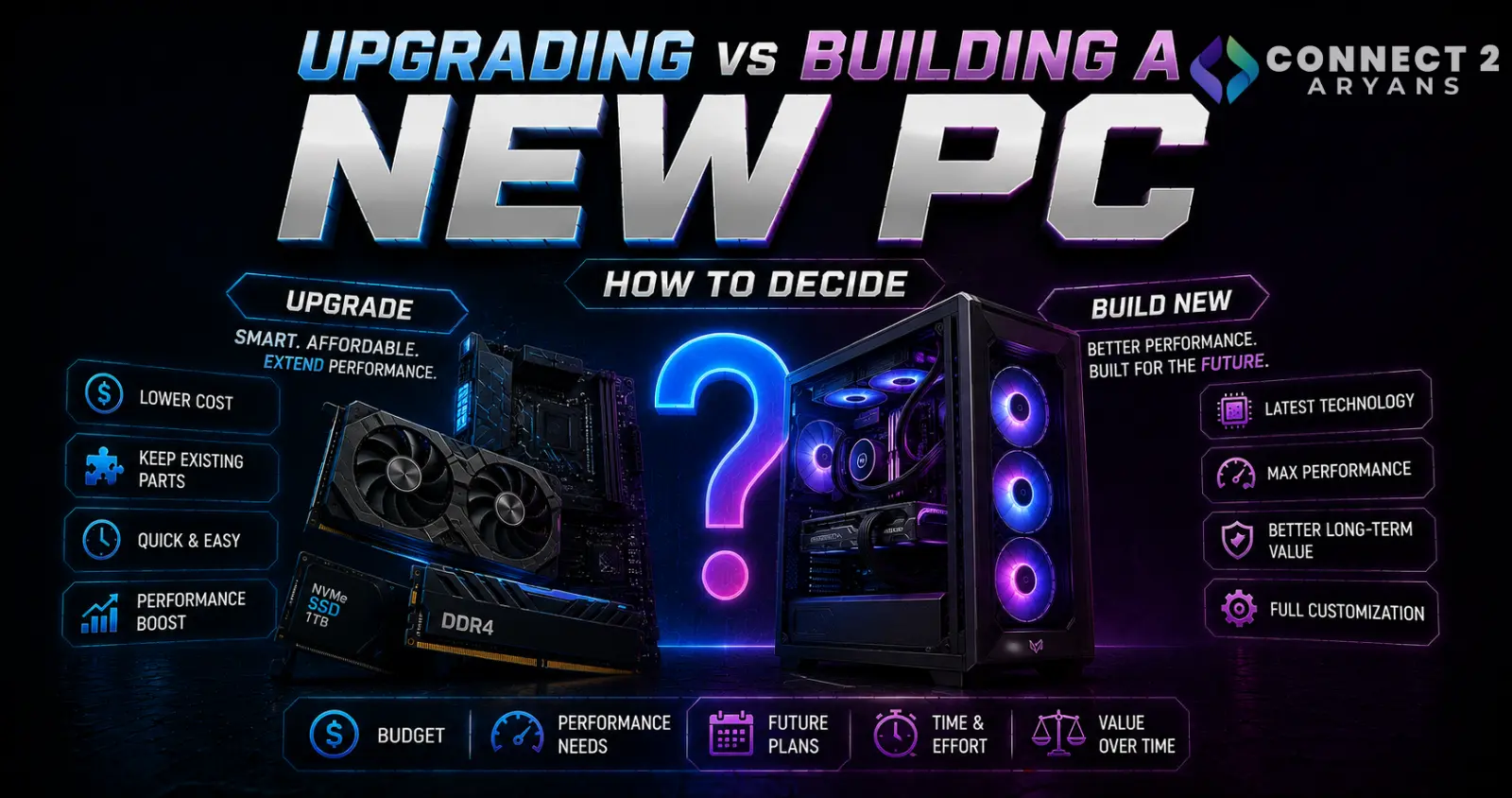
A single targeted upgrade sometimes fixes everything wrong with a PC. Other times, upgrading one component just reveals that the next one is now the bottleneck, and you end up spending new-PC money in smaller, less efficient chunks. Here's how to figure out which situation you're actually in.
Step 1: Identify What's Actually Holding You Back
Before spending anything, pin down the specific bottleneck:
- Games running poorly at low settings? Check whether it's GPU-bound (GPU usage near 100%) or CPU-bound (GPU usage well below 100% while performance is still poor)
- General slowness, multitasking struggles? Often RAM or storage (still on an HDD), not necessarily CPU or GPU
- Everything feels equally dated? A broader upgrade or new build is more likely the right call than one targeted fix
Step 2: Consider a Single-Component Upgrade If Only One Thing Is Holding You Back
If your CPU, RAM, storage, and case/PSU are all still reasonably current, but one specific component is clearly the limiting factor, a targeted upgrade is usually the more cost-effective choice:
- GPU-bound with a still-capable CPU? Upgrading just the Graphics Card often delivers the biggest performance jump for the money — browse NVIDIA, AMD, and Intel options matched to your target resolution, with 12 GB VRAM or higher recommended for 1440p and above
- Still on an HDD? Moving to an SSD from our NVMe SSDs range is one of the most noticeable, affordable upgrades available, often outperforming a CPU upgrade for everyday responsiveness
- Running low on RAM? Adding capacity from our Memory RAM range (confirming DDR4 or DDR5 compatibility first) is a relatively cheap fix for multitasking-related slowdowns
Step 3: Know When a Single Upgrade Won't Actually Fix Things
- Pairing a new GPU with an old, weak CPU often just shifts the bottleneck rather than solving it — check whether your current CPU can actually keep up with a GPU upgrade before buying one
- An old motherboard platform may not support faster RAM speeds or current-gen CPUs at all, meaning a "simple" RAM or CPU upgrade isn't actually possible without also replacing the motherboard
- If solving your actual bottleneck requires replacing two or three components together (CPU + motherboard + RAM, for example), the maths often shifts toward a broader upgrade or new build being more sensible than piecing it together
Step 4: Consider Platform Age Specifically
- If your motherboard is on an old, unsupported socket (older AM4 boards, or Intel platforms several generations back), upgrading the CPU alone may not be possible — you're locked into whatever generation your socket supports
- Older platforms also often mean DDR4 rather than DDR5, which affects your realistic RAM upgrade path too
- Rule of thumb: if your CPU and motherboard are both genuinely dated (roughly 5+ years, multiple generations behind current), building around a new platform tends to make more long-term sense than trying to stretch the old one further
Step 5: Factor In the Case and PSU
- An aging PSU may not have the wattage headroom for a significant GPU upgrade — check your current unit against 700 - 750 Watts or higher requirements before assuming you can just drop in a new GPU
- If your case is genuinely limiting (poor airflow, doesn't fit modern GPU lengths or radiator sizes), that's a cost worth factoring into an "upgrade" that might otherwise seem cheaper than a new build
Step 6: Do the Actual Cost Comparison
- Add up the realistic cost of every component you'd need to replace to fix your actual bottleneck(s) — not just the one part that feels like "the upgrade"
- Compare that total against a full new build or a Pre-Built PCs option in a similar performance tier
- If the incremental upgrade cost approaches 60-70% or more of a full new build's cost, the new build is often the better value, since you also get a fresh warranty across every component rather than a mismatched system
Step 7: Consider Reselling What You Replace
- If you do decide to upgrade rather than rebuild, components you replace (GPU, RAM, storage) often have resale value that offsets some of the new purchase cost
- This can tip the calculation back toward incremental upgrading even in cases where a full rebuild looked similar in raw cost
Quick Decision Summary
| Situation | Likely Right Choice |
|---|---|
| One clear bottleneck, rest of system still current | Single-component upgrade |
| Fixing the bottleneck requires CPU + motherboard + RAM together | New build or full platform upgrade |
| Motherboard/CPU platform is 5+ years old | New build |
| PSU/case can't support the upgrade you actually need | Factor replacement cost into your comparison |
| Upgrade cost approaches new-build cost | New build (fresh warranty on everything) |
Common Mistakes to Avoid
- Upgrading a GPU while keeping a genuinely bottlenecking old CPU, not solving the actual performance problem
- Assuming a RAM or CPU upgrade is possible without checking motherboard/socket and memory platform compatibility first
- Ignoring PSU wattage headroom when planning a GPU upgrade
- Not comparing total incremental upgrade cost against a full new build before deciding
Final Thoughts
The right choice comes down to how many components are actually holding you back, and whether your current platform (motherboard, socket, RAM type) can even support the upgrade path you want. One genuine bottleneck on an otherwise current system usually justifies a targeted upgrade — multiple aging components or an outdated platform usually points toward a new build being the more sensible long-term investment.
Browse our full range of Graphics Card, Processors, Memory RAM, NVMe SSDs, and Pre-Built PCs on Connect2Aryans, whichever path fits your situation, with warranty support included.