
Improving Your Webcam Video Quality
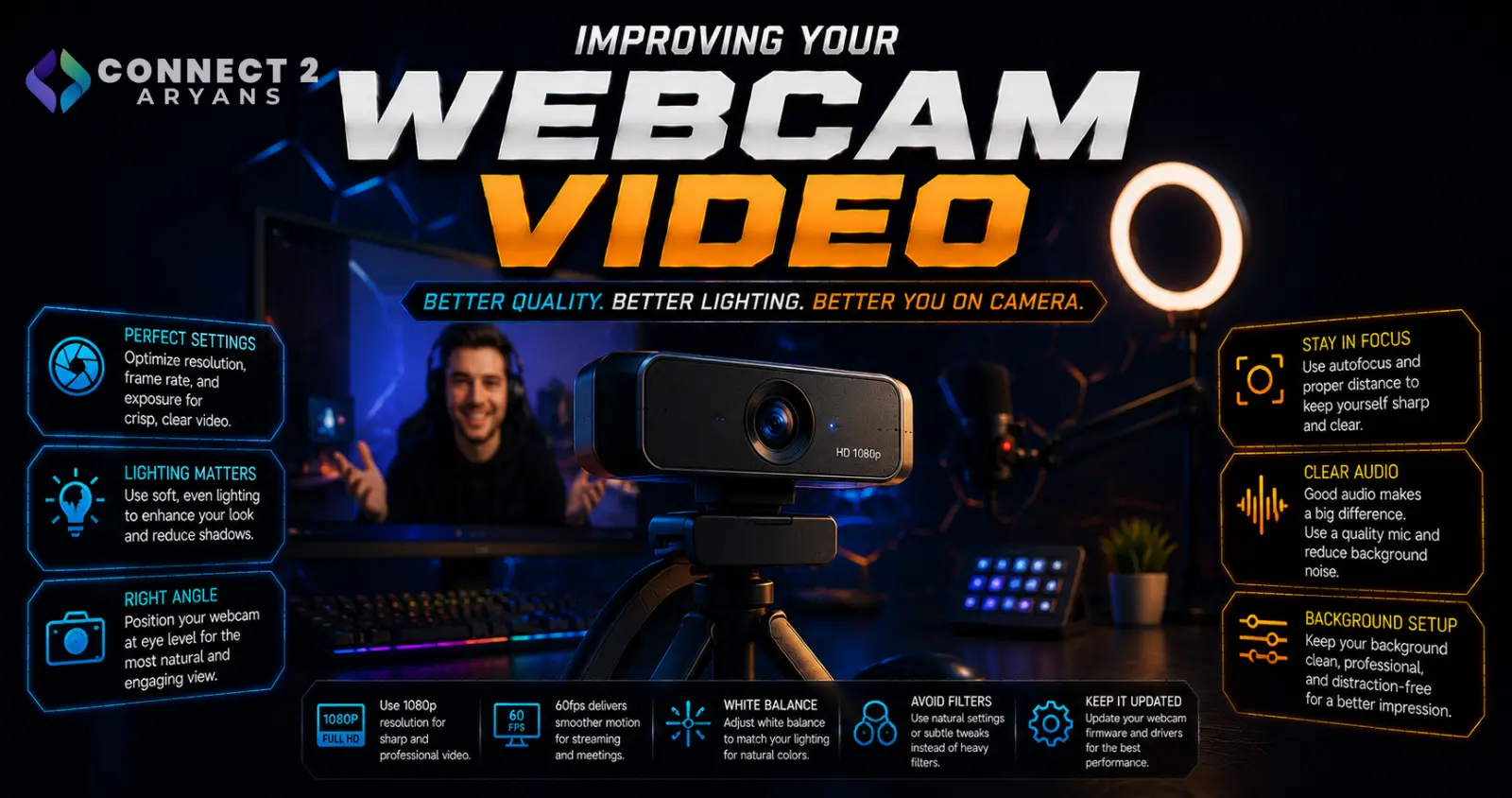
Before spending money on a new webcam, it's worth knowing that lighting and positioning usually make a bigger visible difference than the camera itself. A budget webcam with good lighting often looks better than an expensive one in a dim, backlit room. Here's how to noticeably improve your video quality without necessarily buying anything new.
Step 1: Fix Your Lighting First
This is the single biggest factor in how good you look on camera:
- Face a light source, don't have it behind you — a window or lamp behind you creates a silhouette effect, making your face dark regardless of camera quality
- Use a front-facing light source — natural window light facing you, a desk lamp, or a dedicated key light all work; the key is having your face lit rather than your background
- Avoid harsh single-point lighting — a diffused light source (like a lamp with a shade, or a ring light with diffusion) looks more natural than a bare, direct bulb
If you're regularly on camera for work or streaming, a dedicated key light is a worthwhile investment — often a bigger visible upgrade than a new webcam itself.
Step 2: Position Your Camera at Eye Level
- A webcam positioned below eye level (common with laptop cameras) creates an unflattering upward angle
- Raising the camera to roughly eye level, or slightly above, generally looks more natural and professional
- If your webcam clips onto your monitor, adjusting your monitor height (or using a monitor arm) can help achieve a better camera angle without extra equipment
Step 3: Adjust Your Background
- A cluttered or messy background is distracting even with great lighting and camera quality
- Simple background improvements — tidying visible areas, adding a plant or simple decor, or using a webcam's background blur feature if available — genuinely improve how professional a call or stream looks
- If your software supports virtual backgrounds or blur, test how it handles edges around your hair and movement, since quality varies a lot between implementations
Step 4: Check Your Software Settings
- Make sure your webcam software (or the call/streaming platform) is actually using your camera's maximum supported resolution and frame rate — many defaults are set conservatively
- Check exposure and white balance settings if your webcam software allows manual adjustment; auto settings sometimes struggle with mixed lighting (like a window plus indoor lighting) and manual tweaks can look noticeably better
- If using OBS or similar streaming software, confirm your capture settings match your webcam's actual capabilities, since a mismatched bitrate can make even a good webcam look compressed and blurry
Step 5: Clean the Lens
It sounds obvious, but a smudged webcam lens (from dust, fingerprints, or being left uncovered) is a common and completely avoidable cause of soft, hazy footage. A quick wipe with a microfiber cloth before an important call or stream takes seconds.
Step 6: Check Your Internet Bandwidth (For Streaming/Calls)
Even a great webcam looks poor if the video is heavily compressed due to bandwidth limitations:
- For calls, a stable, reasonably fast upload speed matters more than download speed
- For streaming, check your platform's recommended upload bitrate for your target resolution and frame rate, and confirm your connection can sustain it consistently, not just in short bursts
Step 7: Consider a Small Upgrade Before a Full Replacement
If you've tried lighting and positioning and still want better quality, small additions often go further than a full webcam replacement:
- A basic desk-mounted key light
- A simple monitor-mount webcam stand for better positioning flexibility
- Only after these, consider a webcam upgrade specifically focused on sensor quality and low-light performance
Common Mistakes to Avoid
- Sitting with a bright window directly behind you, creating a silhouette effect
- Leaving your webcam at a low, upward-facing angle from an unadjusted laptop position
- Assuming a new webcam alone will fix quality issues that are actually caused by poor lighting
- Never cleaning the lens and blaming blurry footage on the camera itself
Final Thoughts
Most webcam quality complaints come down to lighting and positioning, not the camera itself. Fix your lighting, raise your camera to eye level, and check your software settings before assuming you need to spend money on new hardware — a budget webcam in good light will usually beat an expensive one in bad light.
Browse our range of key lights, webcam stands, and Webcams on Connect2Aryans if you're ready for a hardware upgrade, with warranty support included.

