
How to Test If Your RAM Is Actually Bad (Step-by-Step)
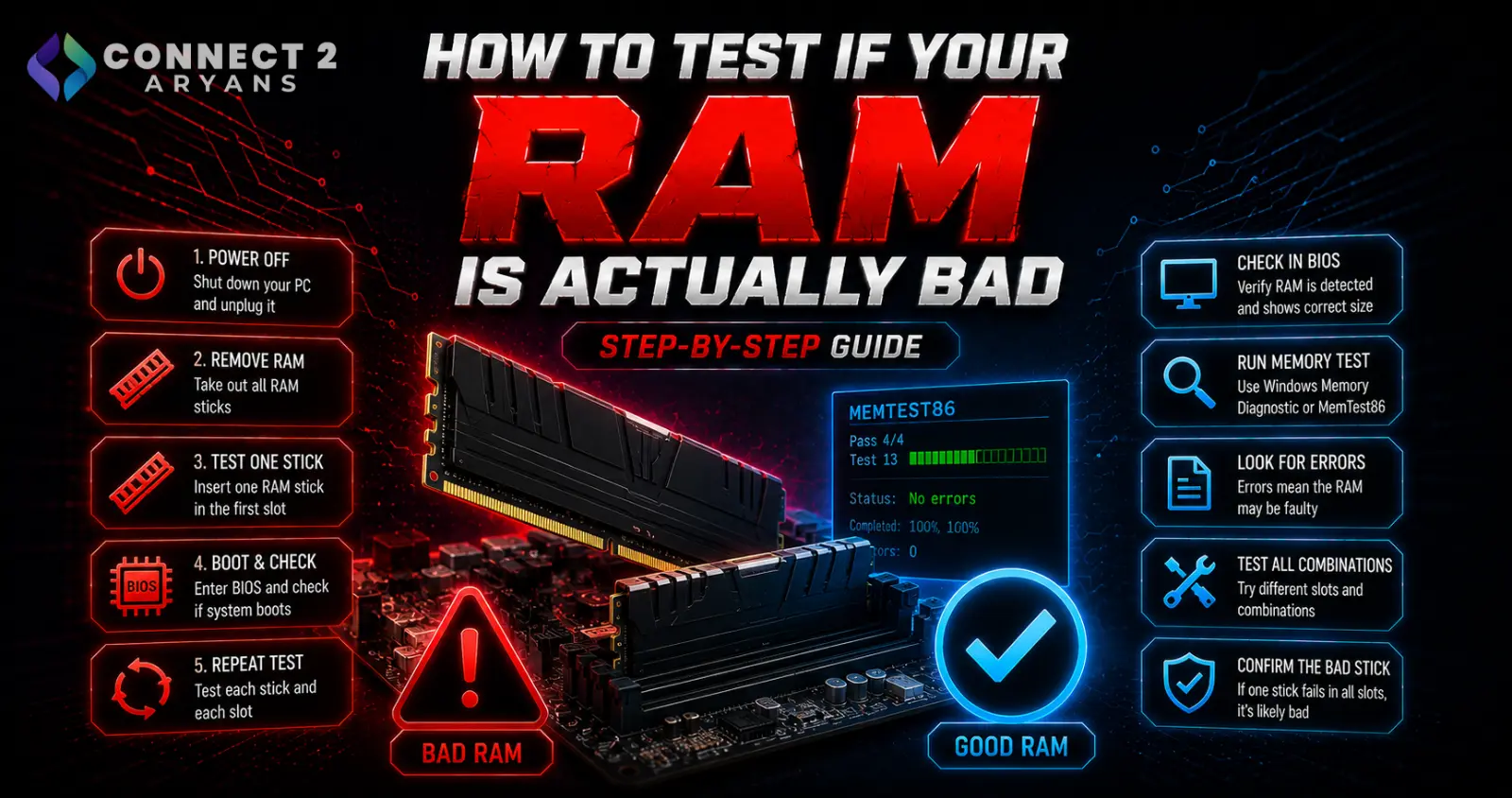
RAM problems don't always announce themselves clearly. Here's how to properly test for faulty RAM instead of guessing.
Faulty RAM can cause a wide range of confusing symptoms — random crashes, BSODs, corrupted files, or a PC that won't boot at all — which makes it easy to blame the wrong component. Here's how to actually test whether RAM is the real culprit.
Step 1: Recognize the Symptoms Worth Testing For
- Random crashes or restarts, especially with no consistent pattern
- Blue Screens of Death, particularly memory-management-related stop codes
- File corruption, especially in large files or during transfers
- A PC that fails to boot, sometimes with beep codes from the motherboard speaker
- General instability that seems to worsen under heavier memory use (multitasking, large games)
Step 2: Use Windows Memory Diagnostic (Built-In, Free)
- Search "Windows Memory Diagnostic" in the Start menu and run it
- Choose to restart and check for problems immediately, or on your next restart
- The tool runs a series of memory tests automatically and reports results after rebooting — check Event Viewer afterward if the results screen closes too quickly to read
Step 3: Use MemTest86 for a More Thorough Test
- MemTest86 is a widely used, more comprehensive third-party memory testing tool that runs outside of Windows via a bootable USB
- Create a bootable USB with MemTest86 and boot from it (you may need to select the boot device in your BIOS boot menu)
- Let it run multiple full passes — a single pass can sometimes miss intermittent errors, so running it overnight for several passes gives a more reliable result
- Any errors reported during testing are a clear, direct indication of faulty RAM
Step 4: Isolate Which Stick Is Faulty (If You Have Multiple)
- If you have more than one RAM stick installed, test with only one stick at a time in the primary slot
- Run the diagnostic test with each stick individually to identify which specific module is causing errors
- This also helps rule out a bad motherboard slot rather than the RAM itself — if a stick tests fine in one slot but shows errors in another, the slot (not the RAM) may be the actual problem
Step 5: Reseat and Retest Before Assuming Failure
- Before concluding a stick is faulty, remove and firmly reseat it, ensuring it's fully clicked into place
- Dust or a poor connection can sometimes mimic actual RAM failure symptoms — a clean reseat rules this out cheaply before you consider replacement
Step 6: Check for an Overclocking or XMP/EXPO Cause
- If you've enabled XMP/EXPO or manually overclocked your RAM, instability may be caused by an unstable speed setting rather than genuine hardware failure
- Try reverting to default JEDEC speed and retesting — if errors disappear, the RAM itself may be fine, just running at a speed it can't sustain reliably
What to Do If RAM Is Confirmed Faulty
- If a specific stick consistently shows errors across multiple tests and slots, it's genuinely faulty and needs replacing
- Browse our Memory RAM range for a replacement, confirming DDR4 or DDR5 compatibility with your motherboard, and consider replacing the full kit (not just the faulty stick) to maintain matched speed and timings
- If your RAM is still under warranty, check with the manufacturer or seller about a replacement rather than buying new outright
Quick Diagnostic Summary
| Symptom | Test to Run |
|---|---|
| Random crashes, BSODs | Windows Memory Diagnostic or MemTest86 |
| PC won't boot at all | Reseat RAM, test one stick at a time |
| Errors only after XMP/EXPO enabled | Test at default JEDEC speed first |
| Multiple sticks installed | Isolate by testing individually |
Common Mistakes to Avoid
- Assuming RAM is bad without running an actual diagnostic test first
- Testing multiple sticks together, making it impossible to identify which one is actually faulty
- Not checking whether an XMP/EXPO overclock, rather than genuine hardware failure, is the real cause
- Replacing a single stick without matching speed/timings to your remaining RAM
Final Thoughts
Faulty RAM causes a wide range of vague, confusing symptoms, which is exactly why a proper diagnostic test — not guesswork — is the right way to confirm it. Test each stick individually, run multiple passes for reliability, and rule out an unstable XMP/EXPO setting before concluding the hardware itself has failed.
Browse our full range of Memory RAM from ADATA, Ease, TeamGroup, and Transcend on Connect2Aryans, with warranty support included.

