
How to Safely Overclock Your CPU or GPU
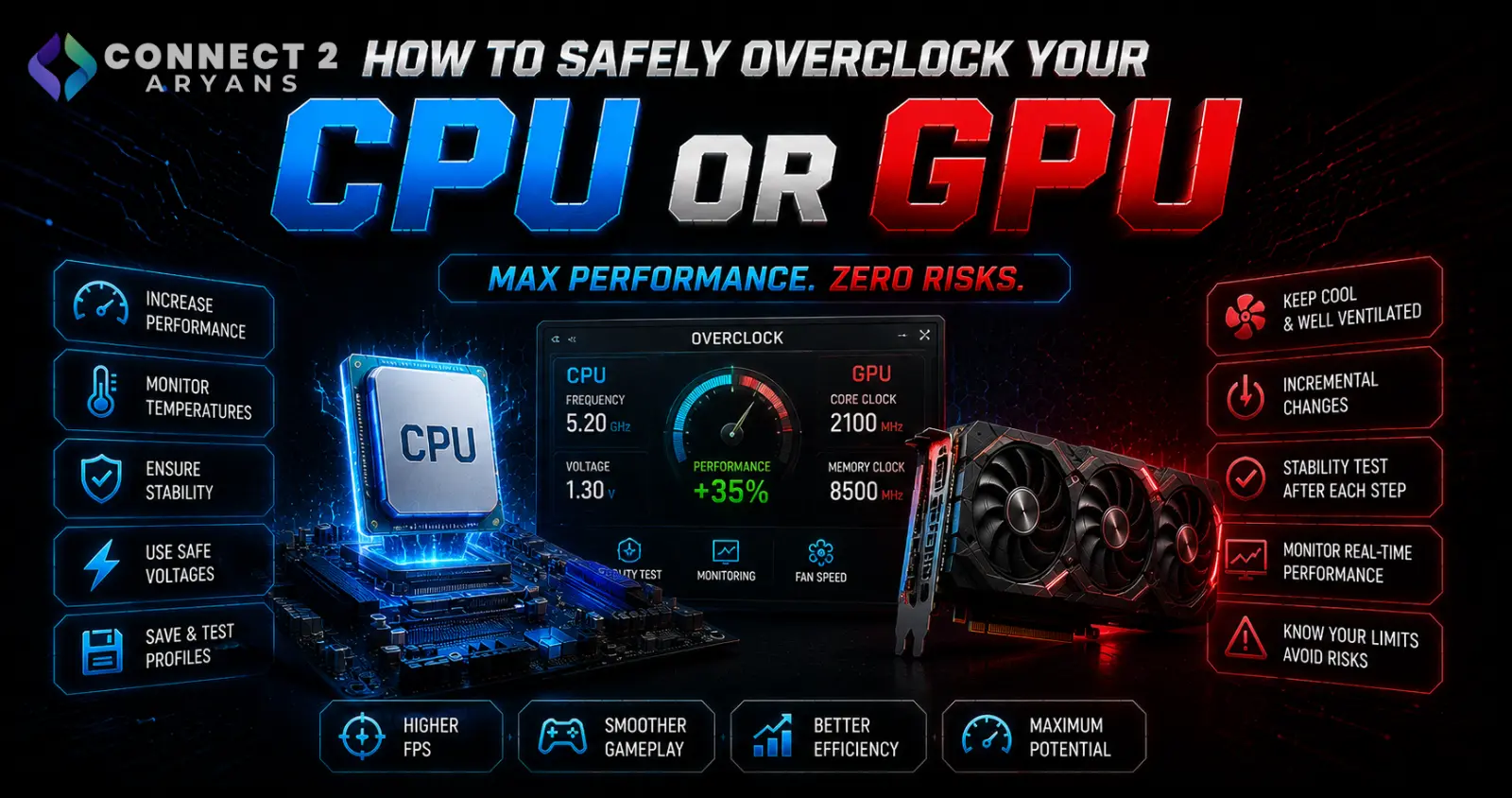
Overclocking gives you more performance from hardware you already own, essentially for free — but doing it carelessly risks instability, and in rare cases, hardware damage. The good news is that a careful, incremental approach makes it genuinely safe for most current CPUs and GPUs. Here's how to do it properly.
Before You Start: Check Your Hardware Actually Supports It
- CPU: Intel requires a "K-series" (or similarly unlocked) CPU paired with a Z-series motherboard chipset to overclock; AMD Ryzen CPUs generally support overclocking more broadly across chipset tiers, though X-series boards typically offer more headroom
- Motherboard: confirm your specific board supports the overclocking features you're planning — browse our Motherboard range, checking Intel Motherboards or Ryzen Motherboards for chipset-specific overclocking support if you're shopping for a board with this in mind
- GPU: virtually all current GPUs support at least modest overclocking through software, without needing special editions, though headroom varies by specific card and cooler design
Prerequisite 1: Adequate Cooling
This is non-negotiable — overclocking increases heat output, and inadequate cooling is the most common reason overclocking attempts fail or become unstable.
- For CPU overclocking, a stock or budget Air Cooler is often insufficient for meaningful headroom — a quality air cooler or Liquid Cooling 240mm setup gives more realistic room to push clock speeds
- For more aggressive overclocking goals, Liquid Cooling 360mm provides the most thermal headroom
- Browse our CPU Coolers range if your current cooling isn't sufficient for the overclock you're planning
Prerequisite 2: A Quality PSU with Headroom
- Overclocking increases power draw, sometimes significantly for aggressive CPU or GPU overclocks
- Confirm your PSU has genuine headroom above your current build's draw — if you're already close to your PSU's rated wattage, overclocking on top of that is a recipe for instability
- Browse our Power Supply range from Cooler Master or MSI if your current unit is borderline; 700 - 750 Watts or higher gives comfortable headroom for most overclocked mid-to-high-end builds
How to Overclock Your CPU (Step by Step)
- Establish a baseline — run a stress test (like Cinebench or Prime95) and note your stock temperatures and performance before changing anything
- Enter your motherboard's BIOS and locate the CPU overclocking settings (varies by motherboard brand, typically under an "OC" or "Overclocking" menu)
- Increase the CPU multiplier/clock speed incrementally — small steps, not large jumps, testing stability after each change
- Adjust voltage carefully if needed, understanding that higher voltage means more heat and more risk — only increase as much as genuinely necessary for stability at your target clock speed
- Stress test after each change for at least 15-30 minutes, watching both temperatures and stability (crashes, freezes, or BSODs indicate instability)
- Back off if temperatures exceed safe limits (generally staying comfortably under 90°C sustained for most current CPUs) or if you see any instability
How to Overclock Your GPU (Step by Step)
- Use dedicated GPU overclocking software (like MSI Afterburner or your GPU brand's own utility) rather than BIOS-level settings
- Establish a baseline — run a benchmark or stress test and note stock performance and temperatures
- Increase the core clock offset in small increments, testing stability with a benchmark or stress test after each change
- Once core clock is stable, try increasing memory clock separately, since GPU core and memory can often be pushed independently
- Watch for artifacts (visual glitches on screen) during testing — this is a clear sign you've pushed too far and need to back off
- Adjust the fan curve if needed to keep temperatures reasonable at the new clock speeds, since GPU cooling (Air Cooler-equivalent open-air GPU coolers) needs to keep pace with the added heat
Signs You've Gone Too Far
- Crashes, freezes, or BSODs during stress testing or normal use — back off the clock speed or voltage immediately
- Visual artifacts on screen (GPU specifically) — a clear sign of instability requiring you to reduce the overclock
- Temperatures consistently exceeding safe thresholds even with adequate cooling — this means you've exceeded what your specific cooling setup can support
- Diminishing returns — if pushing further requires disproportionately more voltage/heat for marginal performance gains, it's often not worth the added risk
An Easier Alternative: XMP/EXPO for RAM
If you want a "free performance" boost without the more involved process of manually overclocking CPU or GPU, enabling XMP (Intel platforms) or EXPO (AMD platforms) in BIOS is a much simpler, largely risk-free way to run your RAM at its already-rated speed, which many systems don't use by default out of the box.
Common Mistakes to Avoid
- Skipping cooling and PSU headroom checks before attempting any overclock
- Making large jumps in clock speed or voltage instead of small, testable increments
- Not stress testing thoroughly enough before considering an overclock "stable"
- Ignoring warning signs (artifacts, crashes, high temperatures) and pushing further anyway
- Assuming overclocking voids your entire warranty — policies vary by manufacturer, so check your specific CPU/GPU brand's stance before proceeding if this matters to you
Final Thoughts
Safe overclocking comes down to adequate cooling, PSU headroom, and a careful, incremental approach with proper stress testing at every step — rushing straight to aggressive settings is where most instability and risk comes from. If your current cooling or PSU can't support meaningful headroom, upgrading those first makes any overclocking attempt both safer and more effective.
Browse our full range of CPU Coolers, Power Supply, and Motherboard options on Connect2Aryans to build the foundation a safe overclock actually needs, with warranty support included.

