
How to Know If Your GPU Is Bottlenecking Your CPU (or Vice Versa)
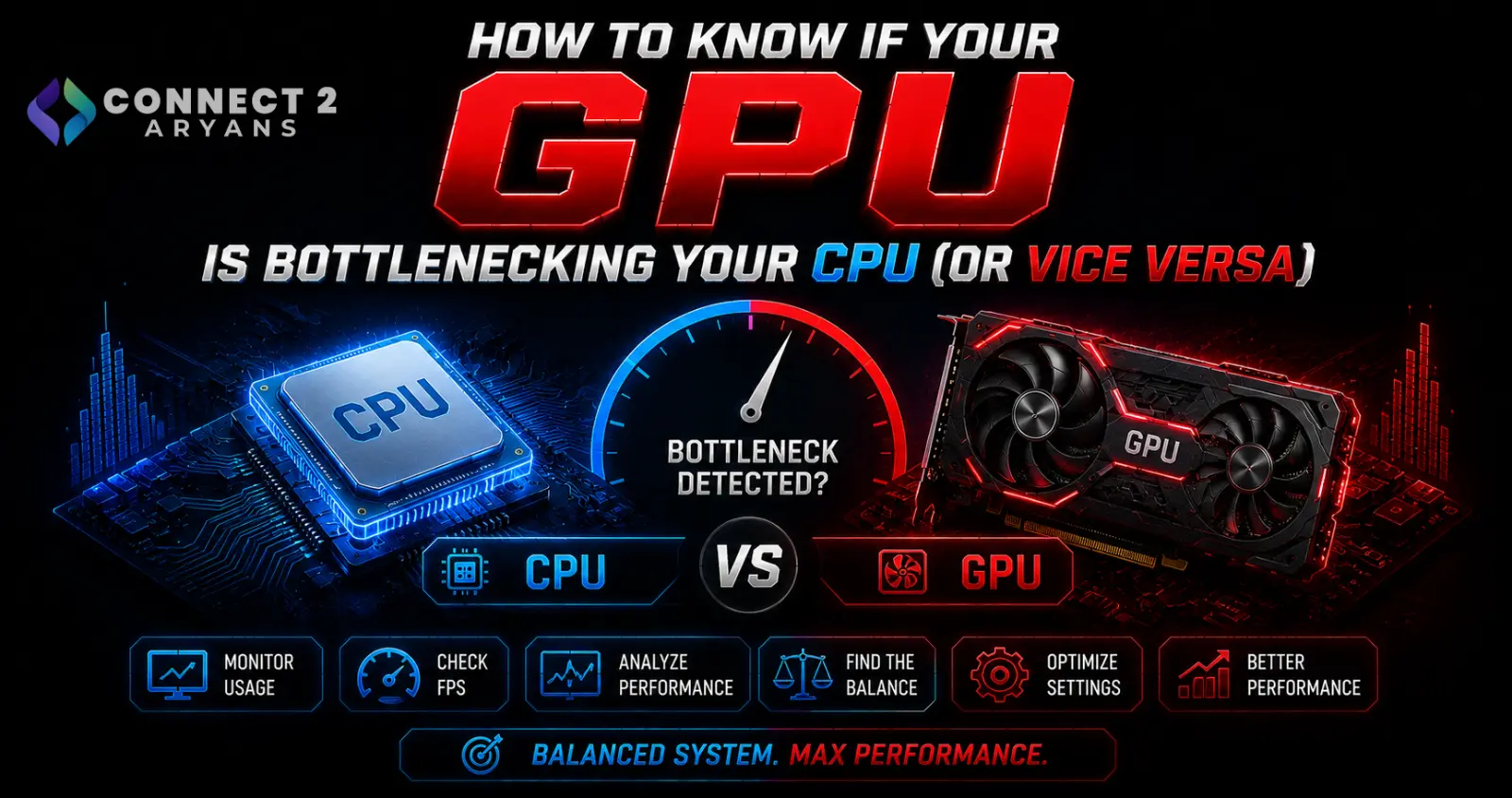
A bottleneck happens when one component can't keep up with another, meaning the stronger part is sitting idle, waiting rather than working. It's one of the most common causes of "why isn't my expensive GPU giving me the FPS I expected" — and it's genuinely diagnosable rather than something you have to guess at.
What a Bottleneck Actually Means
- Your CPU prepares game data (physics, AI, draw calls) and hands it to the GPU, which then renders the actual frame
- If the CPU can't prepare data fast enough, the GPU sits waiting — this is a CPU bottleneck, showing as lower-than-expected GPU usage
- If the GPU can't render frames fast enough despite the CPU keeping up easily, this is a GPU bottleneck, showing as GPU usage near 100%
Step 1: Check GPU and CPU Usage While Gaming
- Use Task Manager (Windows), or more detailed tools like MSI Afterburner, to monitor both GPU and CPU usage percentage in real time while playing
- GPU usage consistently near 100%, CPU usage well below that: you're GPU-bound — your graphics card is the limiting factor
- CPU usage near 100% (or one/two cores maxed in older, less multi-threaded games), GPU usage noticeably lower than 100%: you're CPU-bound — your processor is the limiting factor
- Both sitting comfortably below 100%, but FPS still feels low: the bottleneck may be elsewhere — RAM capacity/speed, storage, or a software issue rather than CPU/GPU directly
Step 2: Understand How Resolution Affects the Balance
- Lower resolutions (1080p) put more relative demand on the CPU, since the GPU has less rendering work per frame — a CPU bottleneck is more likely to show up here, especially with a powerful GPU
- Higher resolutions (1440p, 4K) shift the demand toward the GPU, since rendering more pixels is GPU-intensive work — a GPU bottleneck becomes more likely at these resolutions
- This is why the "right" CPU/GPU pairing depends partly on what resolution you actually play at, not just the components in isolation
Step 3: Is Some Bottleneck Actually Normal?
- A GPU bottleneck at high settings/high resolution is expected and fine — you generally want your GPU to be the limiting factor at high settings, since that's what you're paying for
- A CPU bottleneck at 1080p with a high-end GPU is more likely a genuine mismatch worth addressing, especially if you're not hitting the frame rates the GPU should support at that resolution
- The goal isn't zero bottleneck — it's making sure neither component is drastically undersized relative to the other for your actual use case
Step 4: Fixing a CPU Bottleneck
If you've confirmed CPU usage is maxed while GPU usage sits well below 100%:
- Check whether background processes are contributing to CPU load unnecessarily, and close anything unneeded
- If the CPU is genuinely underpowered for your GPU tier, upgrading it (and possibly the motherboard/RAM alongside it, depending on platform) is the direct fix — browse our Processors range, with Ryzen Processor or Intel Processor options matched to your GPU's actual tier
- Confirm RAM isn't a contributing factor too — insufficient capacity or speed can worsen an apparent CPU bottleneck. 16GB is the practical minimum, 32GB the comfortable sweet spot; check our Memory RAM range for DDR4 or DDR5 options matching your platform
Step 5: Fixing a GPU Bottleneck
If GPU usage sits consistently near 100% while CPU usage has clear headroom:
- This is often expected and fine at higher settings/resolutions, but if frame rates are lower than you want, a GPU upgrade is the direct fix
- Browse our Graphics Card range from NVIDIA, AMD, and Intel — match VRAM to your resolution, with 12 GB VRAM or higher recommended for 1440p and above
- Lowering in-game settings is a free, immediate way to reduce GPU load if an upgrade isn't in the budget right now
Step 6: Consider VRAM as a Separate Factor
- Stuttering or performance drops that look like a bottleneck can sometimes actually be insufficient VRAM for your settings, rather than a raw GPU power issue
- If GPU usage spikes to 100% intermittently alongside stutters (rather than staying consistently high), check whether your VRAM capacity is adequate for your resolution and texture settings before assuming it's a straightforward power bottleneck
Quick Diagnostic Summary
| Observation | Likely Situation |
|---|---|
| GPU near 100%, CPU well below | GPU-bound (expected at high res/settings) |
| CPU near 100%, GPU well below | CPU-bound (worth addressing, especially at 1080p) |
| Both well below 100%, FPS still low | Check RAM, storage, or background software |
| GPU usage spikes with stutters | Possible VRAM limitation, not pure power bottleneck |
Common Mistakes to Avoid
- Upgrading the GPU when CPU usage monitoring would have shown a CPU bottleneck instead
- Assuming any bottleneck is a problem — a GPU-bound system at high settings is normal and expected
- Ignoring resolution's effect on which component is more likely to bottleneck
- Overlooking RAM capacity/speed as a contributing factor when usage monitoring shows neither CPU nor GPU maxed out
Final Thoughts
Checking GPU and CPU usage percentages while gaming is the most direct way to identify a genuine bottleneck rather than guessing based on component age or price alone. Match your fix to what the numbers actually show — a CPU upgrade solves a CPU bottleneck, a GPU upgrade solves a GPU bottleneck, and sometimes the real answer is neither, and RAM or storage is the actual limiting factor.
Browse our full range of Processors, Graphics Card, and Memory RAM on Connect2Aryans to fix whichever bottleneck you've actually identified, with warranty support included.