
How to Improve Wi-Fi Signal for Gaming (Reduce Lag/Ping)
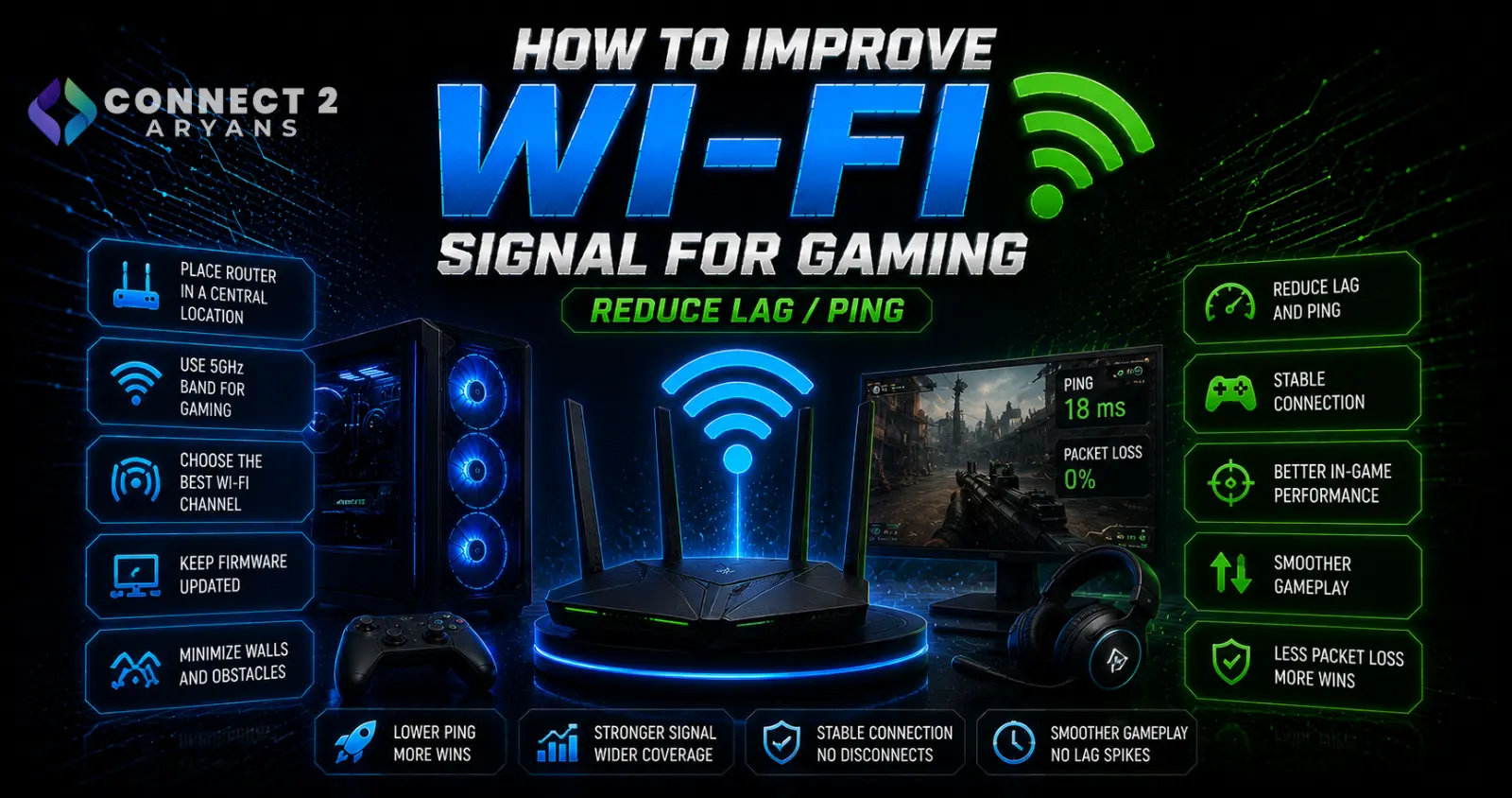
Wi-Fi lag while gaming isn't random bad luck — it's usually one of a handful of specific, identifiable causes: interference, weak signal, router placement, or simply too many devices competing for bandwidth. Here's how to actually fix it, step by step.
Step 1: Understand the Real Best Fix First — Wired Ethernet
Before optimizing Wi-Fi, it's worth being honest: a wired ethernet connection will always be more stable and lower-latency than wireless, since it eliminates interference and signal variability entirely.
- If running an ethernet cable to your gaming PC is even remotely feasible, it remains the single most effective fix for lag and inconsistent ping
- If ethernet genuinely isn't an option (layout, distance, rental restrictions), the Wi-Fi optimizations below will meaningfully help, even if they don't fully match a wired connection
Step 2: Optimize Router Placement
- Place your router in a central, open location rather than a corner or enclosed cabinet — walls, floors, and large furniture all degrade signal strength
- Elevate the router off the floor where possible, since signal propagates better from a raised, open position
- Keep the router away from other electronics that can cause interference — microwaves, cordless phones, and baby monitors are common culprits, especially on the 2.4GHz band
Step 3: Use the 5GHz Band for Gaming
- 2.4GHz — longer range, better wall penetration, but more prone to interference and generally lower speeds
- 5GHz — faster, less congested (fewer devices default to it), and generally better for gaming specifically, as long as you're within reasonable range of the router
- Manually connect your gaming PC to your router's 5GHz network specifically (rather than letting it auto-select) if your router broadcasts both bands separately
Step 4: Upgrade Your Wi-Fi Adapter
- A weak or outdated built-in Wi-Fi adapter can be a genuine bottleneck, even with a strong router signal
- Browse our Wi-Fi Adapters range from TP-Link or UGREEN for a stronger external adapter — a USB or PCIe adapter with external antennas often significantly outperforms a compact built-in laptop or motherboard antenna, especially at distance from the router
Step 5: Consider a Mesh System for Coverage Issues
- If your gaming setup is far from the router or in a dead zone, a mesh Wi-Fi system provides more complete coverage than a single router alone
- This matters more for consistency than raw speed — eliminating a weak signal zone reduces the packet loss and instability that cause noticeable in-game lag spikes
- Browse our Networking Devices range for mesh system options if coverage (not just speed) is your actual problem
Step 6: Reduce Network Congestion
- Other devices on your network streaming video, downloading large files, or running cloud backups simultaneously can meaningfully impact your gaming connection's stability
- Check for and pause unnecessary downloads or streaming on other devices during gaming sessions, especially on a shared household connection
- Enable Quality of Service (QoS) settings on your router if available, prioritizing your gaming device's traffic over other network activity
Step 7: Check for Channel Congestion (Especially in Apartments)
- In dense living situations (apartments, close neighbors), many routers broadcasting on the same Wi-Fi channel can cause interference and instability
- Most current routers auto-select the least congested channel, but manually checking and switching channels through your router's admin settings can help if auto-selection isn't performing well
- Wi-Fi analyzer apps can show you which channels are most congested in your specific area
Step 8: Confirm It's Actually Wi-Fi, Not Your Internet Plan
- High, consistent ping across all connections (wired or wireless) points to your internet plan or ISP routing, not your local Wi-Fi setup
- Test your ping while connected via ethernet temporarily if possible — if it's still high, the issue is upstream of your home network, and no Wi-Fi optimization will fix it
- If your internet plan's speed and latency are genuinely insufficient for gaming, that's a conversation with your ISP rather than a hardware fix
Step 9: Update Router Firmware
- Outdated router firmware can contain unpatched bugs affecting stability and performance — check your router manufacturer's site or app for available updates
- This is a free, often overlooked fix that can resolve intermittent connectivity issues
Quick Diagnostic Summary
| Symptom | Likely Cause |
|---|---|
| High ping only on Wi-Fi, fine on ethernet test | Local Wi-Fi issue — signal, band, or adapter |
| High ping on both wired and wireless | ISP/internet plan issue, not local network |
| Lag spikes correlating with others streaming/downloading | Network congestion — check QoS settings |
| Weak signal in specific room/area | Router placement or coverage — consider mesh |
Common Mistakes to Avoid
- Assuming all Wi-Fi lag is your ISP's fault without testing wired to isolate the actual cause
- Leaving your device on the 2.4GHz band by default when 5GHz would perform better for gaming
- Ignoring router placement, which has a bigger impact on real-world signal quality than most people expect
- Skipping a Wi-Fi adapter upgrade when the built-in one is genuinely the bottleneck
Final Thoughts
Wi-Fi gaming lag almost always traces back to a specific, fixable cause — router placement, band selection, adapter quality, or network congestion — rather than being an unavoidable wireless limitation. Work through these in order, and if ethernet is even remotely feasible for your setup, it remains the single most reliable fix available.
Browse our full range of Wi-Fi Adapters and Networking Devices on Connect2Aryans to improve your gaming connection, with warranty support included.

