
How to Clean Your PC and Prevent Dust Buildup
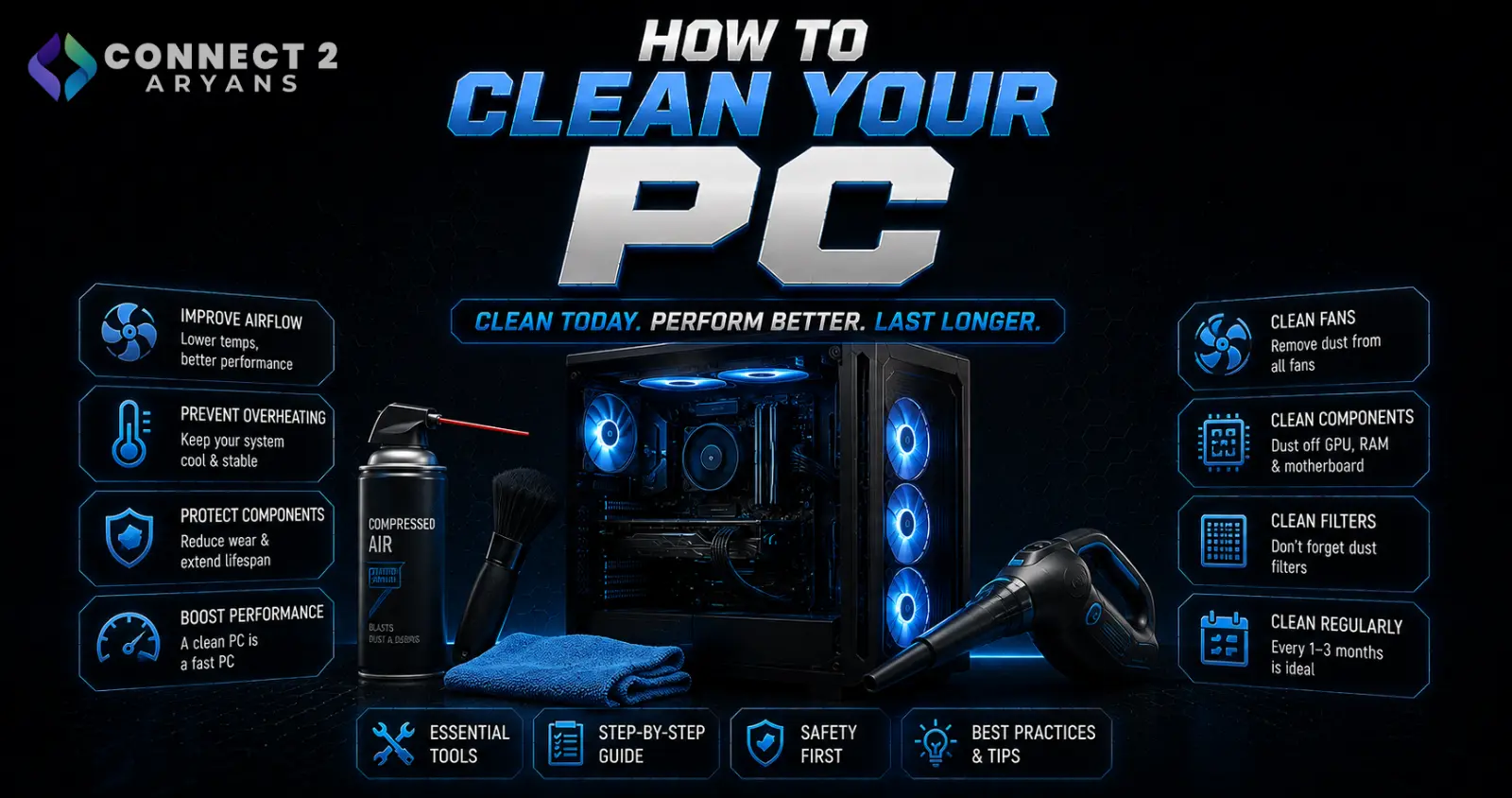
Dust is the single biggest cause of rising temperatures, louder fans, and gradually declining performance in a PC that used to run just fine. It's also one of the easiest, cheapest problems to fix — a proper cleaning routine takes maybe 30 minutes and needs almost no special equipment. Here's how to do it right.
What You'll Need
- Compressed air (canned air duster, or a rechargeable electric duster) — the primary tool for dislodging dust from components
- A soft brush (an unused, clean paintbrush works well) — for gently loosening stubborn dust on heatsink fins and fan blades
- Microfiber cloth — for wiping down exterior surfaces and glass panels
- Isopropyl alcohol (90%+) and cotton swabs — optional, useful if you're also reapplying thermal paste during the cleaning session
Safety First
- Power off and fully unplug your PC from the wall before opening the case — never clean while it's powered on or even just switched off at the PSU
- Avoid using a vacuum cleaner directly on internal components — vacuum motors can generate static electricity, which risks damaging sensitive electronics; compressed air is the safer choice
- Hold fans in place while blowing compressed air on them — spinning fan blades too fast from air pressure alone can generate a small electrical charge or, in rare cases, damage the fan's bearing
Step 1: Clean the Exterior and Dust Filters First
- Remove and clean any dust filters (front, bottom, top intake points) — most are washable or can be cleaned with compressed air and a brush
- Wipe down exterior panels, especially tempered glass, with a microfiber cloth
- Clean, unobstructed dust filters immediately improve airflow before you've even touched the internals
Step 2: Open the Case and Clean Fans
- Use compressed air to blow dust off case fans, holding the fan blades still with a finger or the brush to prevent them spinning too fast
- Pay attention to the fan's center hub area, where dust and sometimes hair can accumulate around the bearing
- If fans are heavily caked in dust or showing wear, this is a good opportunity to check whether they need replacing — browse our Cooling Fans range if any are due for an upgrade rather than just a cleaning
Step 3: Clean the CPU Cooler
- For Air Cooler setups, use compressed air combined with a brush to work dust out from between the heatsink fins, which trap dust particularly effectively
- For liquid coolers (Liquid Cooling 240mm or Liquid Cooling 360mm), clean the radiator fins the same way — dust buildup here restricts airflow just as much as on an air cooler
- If your cooler is several years old and this is the first proper cleaning, consider also checking thermal paste condition while you're in there — dried-out paste is a common co-occurring issue with heavy dust buildup
Step 4: Clean the GPU
- GPU fans and heatsink fins collect dust just as readily as CPU coolers, and are often overlooked during general cleaning
- Use compressed air at an angle to blow dust out through the fins rather than pushing it further in, holding fan blades stationary as you did with case fans
- Avoid removing the GPU cooler shroud unless you're specifically comfortable repasting a GPU — for general dust cleaning, external compressed air cleaning is sufficient for most builds
Step 5: Clean the PSU Carefully
- If your PSU has a visible intake fan or vent, clean it gently with compressed air from the outside
- Avoid opening the PSU casing itself — capacitors inside can retain a charge even when unplugged, making this a genuine safety risk best left to a professional if internal cleaning is needed
Step 6: Clean Peripherals Too
- Keyboards accumulate dust and debris between keys — compressed air works well here too, or removing keycaps for a deeper clean if needed
- Wipe down your mouse and mouse pad periodically, since oil and dust buildup on a mouse pad can actually affect sensor tracking over time
How Often Should You Clean?
- Every 3-4 months is a reasonable baseline for most home environments
- More frequently if you have pets, live in a dusty environment, or smoke indoors, all of which accelerate dust accumulation significantly
- Less frequently may be fine in very clean, controlled environments, but even then, a check every 6 months catches buildup before it becomes a real problem
Preventing Dust Buildup Going Forward
- Positive air pressure setups (slightly more intake than exhaust airflow) reduce dust intake by controlling where air enters your case, rather than being pulled in through every unfiltered gap
- Quality dust filters on all intake points make a genuine difference — if your case lacks them or has poor ones, this is worth factoring into your next case upgrade
- Keep the PC off the floor where possible, since floor-level dust and pet hair concentration is typically higher than at desk height
- Regular light dusting of the room itself reduces the overall dust available to be pulled into the case in the first place
Common Mistakes to Avoid
- Using a vacuum cleaner directly on internal components instead of compressed air
- Letting fan blades spin freely at high speed from compressed air pressure without holding them steady
- Cleaning only the exterior and dust filters while skipping heatsink fins, where the most airflow-restricting buildup actually occurs
- Opening the PSU casing to clean internally without proper knowledge of the safety risks involved
Final Thoughts
A proper cleaning routine every few months is one of the highest-value, lowest-cost things you can do for your PC's temperatures, noise levels, and long-term component health. If cleaning alone doesn't bring temperatures back down to normal, it may be a sign your cooling setup needs an upgrade rather than just maintenance — browse our CPU Coolers and Cooling Fans ranges if that turns out to be the case.
Browse our full range of CPU Coolers and Cooling Fans on Connect2Aryans if your current setup needs more than just a cleaning, with warranty support included.

