
Choosing the Right Monitor
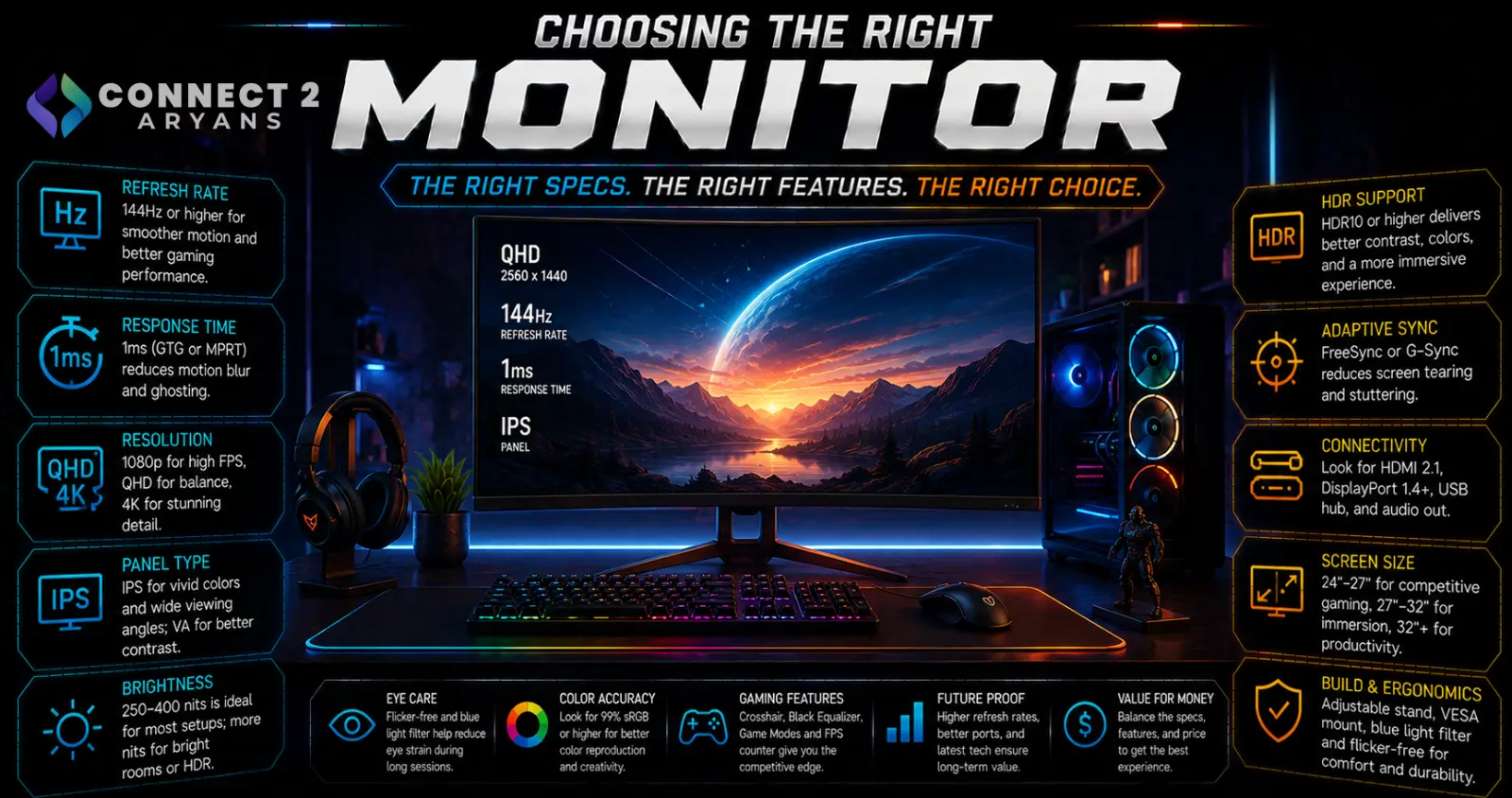
A monitor sits in front of you for hours every day, yet it's often bought as an afterthought compared to the CPU and GPU. Resolution, refresh rate, and panel type all genuinely change how a monitor looks and feels, and the right combination depends heavily on what you actually use it for. Here's how to choose the right Monitors for your setup.
Step 1: Choose Your Resolution
- 1080p (Full HD) — still a solid choice for competitive gaming and budget setups, easier to drive at high frame rates with a mid-range GPU
- 1440p (QHD) — a strong sweet spot for most users, offering noticeably sharper detail than 1080p without demanding flagship-tier GPU power
- 4K (UHD) — the sharpest option, ideal for content creation, detailed work, and visually immersive gaming, but requires a stronger GPU to drive comfortably at high frame rates
Match resolution to your GPU's actual capability — a 4K monitor paired with a modest GPU often means running games at reduced settings just to maintain playable frame rates.
Step 2: Choose Your Refresh Rate
Refresh rate affects how smooth motion looks, and matters more or less depending on use:
- 60 Hz — fine for office work, browsing, and non-competitive gaming
- 75 Hz to 100 Hz — a noticeable smoothness improvement over 60Hz for general and casual gaming use
- 165 Hz — the sweet spot for most gamers, offering a genuinely noticeable upgrade in responsiveness and motion clarity
- 165 Hz to 240 Hz — worth it for competitive, fast-paced gaming where responsiveness matters most
- 280 Hz and above — mainly relevant for esports-focused competitive gaming, where every millisecond counts
Rule of thumb: match refresh rate to your GPU's realistic output in your games — a 240Hz monitor doesn't help if your GPU can't consistently push frame rates anywhere close to that.
Step 3: Panel Type
- IPS — the most popular choice today, offering strong color accuracy and wide viewing angles, good for both gaming and general/creative use
- VA — generally offers deeper blacks and higher contrast than IPS, a good fit for movies and darker content, though with somewhat slower response times than IPS or TN
- TN — historically the fastest response times and cheapest option, though largely being replaced by fast IPS panels; weaker color accuracy and viewing angles
- OLED — offers the best contrast and color available, with near-instant response times, at a higher price point; increasingly popular for high-end gaming and content creation monitors
Recommendation: IPS is the safest, most versatile choice for most buyers today. OLED is worth the premium if contrast and color truly matter to you and budget allows.
Step 4: Size and Aspect Ratio
- 24"–27" — the most common sizes for desk setups, offering a good balance of screen real estate and desk space
- 32"+ — better suited to 4K resolution or content creation work needing more screen space, though can feel overwhelming for competitive gaming at close distances
- Ultrawide (21:9 or 32:9) — offers more horizontal screen space, popular for productivity multitasking and certain immersive gaming genres, though not all games support ultrawide aspect ratios natively
Step 5: HDR — Worth It or Not?
- Genuine HDR (with proper peak brightness and local dimming) offers a noticeably richer image in supported content
- Budget monitors advertising "HDR" without adequate brightness or dimming zones often show minimal real-world difference — check actual HDR certification standards rather than the label alone
- HDR matters most for content creation, movies, and games with proper HDR implementation — less critical for general office or productivity use
Step 6: Connectivity
- HDMI — widely compatible, check the version (2.0 vs 2.1) for higher refresh rate/resolution support
- DisplayPort — generally preferred for PC gaming monitors, often supporting higher refresh rates and resolutions more reliably than HDMI at a given price point
- Confirm your GPU's available outputs match the monitor's inputs, especially for high-refresh, high-resolution combinations
Step 7: Match the Monitor to Your Primary Use Case
- Competitive gaming: Prioritize high refresh rate ([[F: Refresh Rate | 144 Hz]]+) and fast response time over resolution
- Immersive/visual gaming: Prioritize resolution and panel quality (IPS or OLED) alongside a solid mid-range refresh rate
- Content creation: Prioritize color accuracy, resolution, and panel quality over refresh rate
- Office/productivity: A reliable [[F: Refresh Rate | 60 Hz]] to [[F: Refresh Rate | 75 Hz]] IPS monitor is more than sufficient
Popular Monitor Brands
Common Mistakes to Avoid
- Buying a high refresh rate monitor your GPU can't realistically drive in your actual games
- Choosing 4K resolution without a GPU capable of running it comfortably, forcing reduced settings anyway
- Trusting an "HDR" label without checking actual brightness and dimming zone specifications
- Ignoring connectivity compatibility between your GPU's outputs and the monitor's inputs before buying
Final Thoughts
The right monitor comes down to matching resolution and refresh rate to your GPU's real capabilities, and choosing a panel type that fits your priorities — color accuracy, contrast, or raw speed. There's no single "best" monitor spec sheet, only the combination that actually matches what you do most and what your PC can realistically drive.
Browse our full range of Monitors from AOC, Asus, Dell, GameOn, GFURY and Samsung on Connect2Aryans, across every resolution and refresh rate, with warranty support included.

