
Choosing the Right Storage for Your PC
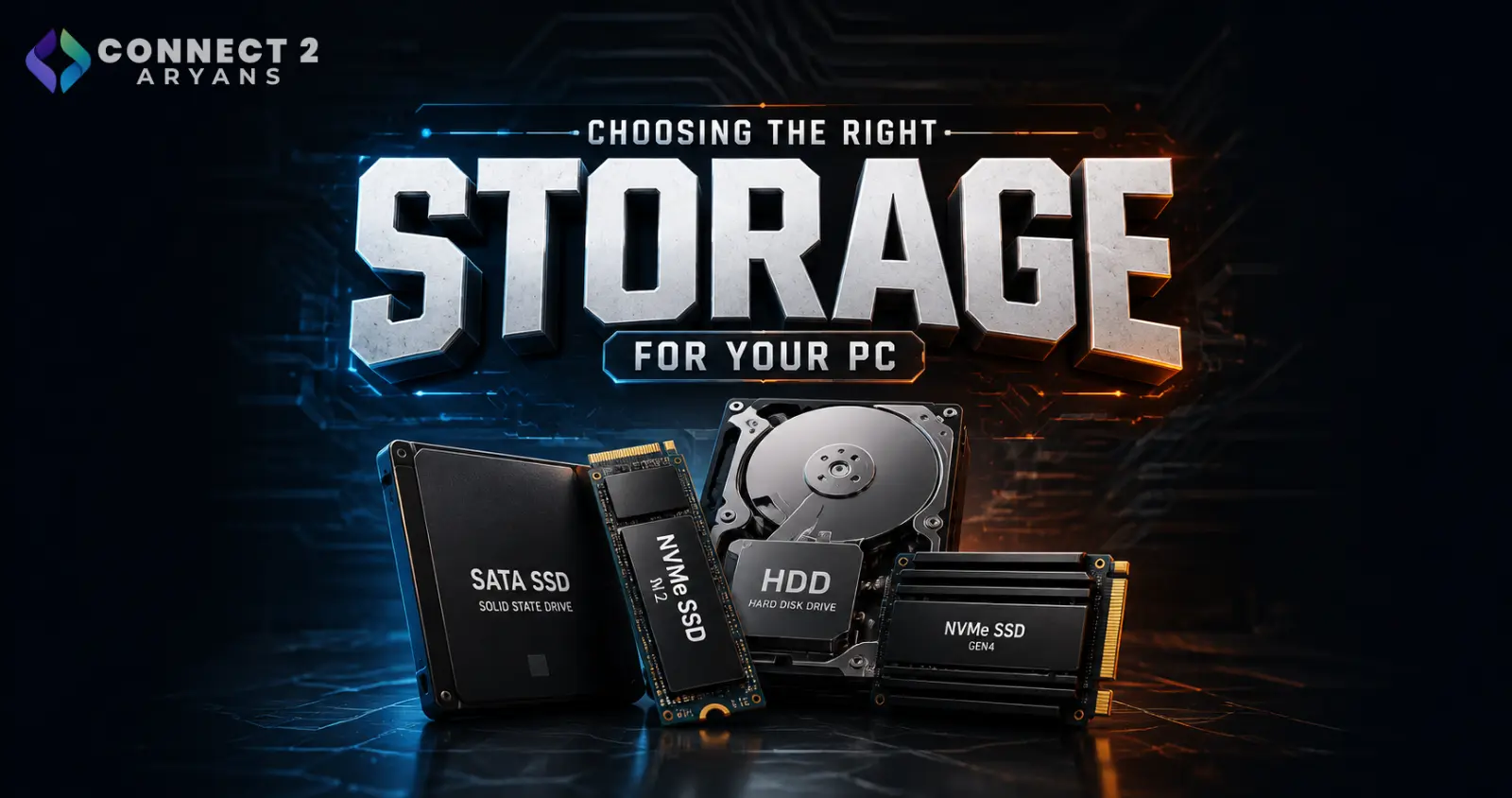
Storage doesn't get talked about as much as CPU or GPU, but it has a bigger everyday impact than most people expect — boot times, game load screens, file transfers, and general system responsiveness all come down to what kind of drive you're running. Here's how to choose the right setup.
Step 1: Understand the Three Main Storage Types
- HDD (Hard Disk Drive) — mechanical, slowest option, but offers the lowest cost per GB, best suited for bulk storage rather than your main drive
- SATA SSD — solid-state, much faster than HDD for everyday tasks, moderate pricing, uses the older SATA interface
- NVMe SSD (M.2) — the fastest consumer option, connects directly via PCIe, ideal as a primary drive for OS, games, and active projects
For almost every current build, an NVMe SSD as your primary drive is the right starting point — HDDs and SATA SSDs now mainly serve as secondary, bulk-storage roles.
Step 2: Match Capacity to Your Actual Usage
- 256GB–512GB — tight for a primary drive today; workable only for lighter users who mainly browse and use office software
- 1TB — the realistic sweet spot for a primary drive, comfortably fitting an OS, several games, and everyday software
- 2TB — worth it if you install many large modern games, or work with large media files regularly
- 4TB+ — mainly relevant as secondary bulk storage (often HDD) for media libraries, backups, or archival use rather than as a primary drive
Modern game install sizes have grown significantly, which is the main reason 512GB now feels tight where it didn't a few years ago.
Step 3: NVMe Generations — Does PCIe Version Matter?
- PCIe Gen 3 NVMe — still solid for most everyday use, noticeably faster than SATA SSDs
- PCIe Gen 4 NVMe — the current mainstream standard, offering a meaningful speed boost for large file transfers and load times
- PCIe Gen 5 NVMe — the newest and fastest option, though the real-world difference versus Gen 4 is smaller for most everyday tasks and gaming — mainly worth it for heavy content creation workloads moving very large files
Rule of thumb: Gen 4 NVMe is the best value point for most builds right now; Gen 5 is a "nice to have" rather than a necessity for most users.
Step 4: Consider a Two-Drive Setup
A common and cost-effective approach is combining drive types:
- Primary NVMe SSD (1TB) — for your OS, most-played games, and active work files
- Secondary HDD (2TB+) or larger SATA SSD — for bulk storage, older games you play occasionally, media libraries, and backups
This gives you speed where it matters most without paying premium NVMe pricing for storage you rarely access quickly.
Step 5: Match Storage to Your Workload
- Gaming: Prioritize a fast NVMe primary drive (1TB or more) for shorter load times, especially in open-world titles
- Content creation/video editing: Fast NVMe storage matters a lot here — large project files and constant read/write during editing benefit heavily from Gen 4 or Gen 5 speeds
- Office/everyday use: A 512GB–1TB SATA or NVMe SSD is more than enough; the speed difference matters less for this workload
Popular Storage Brands
Common Mistakes to Avoid
- Buying a 256GB or 512GB primary drive in 2026 and running out of space within months due to large modern game installs
- Choosing an HDD as a primary OS drive, resulting in slow boot times and general sluggishness
- Overpaying for PCIe Gen 5 NVMe when your workload doesn't actually benefit from the extra bandwidth
- Skipping a secondary bulk-storage drive and cramming everything onto a smaller, more expensive primary SSD
Final Thoughts
The right storage setup usually isn't a single drive — it's the right primary NVMe SSD sized for your active use, paired with secondary bulk storage if you need it. Prioritize capacity and NVMe speed for your primary drive, and let a larger, cheaper secondary drive handle everything else.
Browse our full range of NVMe SSDs, SATA SSDs, and HDDs from ADATA, SanDisk, Crucial and Samsung on Connect2Aryans, with warranty support included.

