
Choosing the Right Professional Monitor
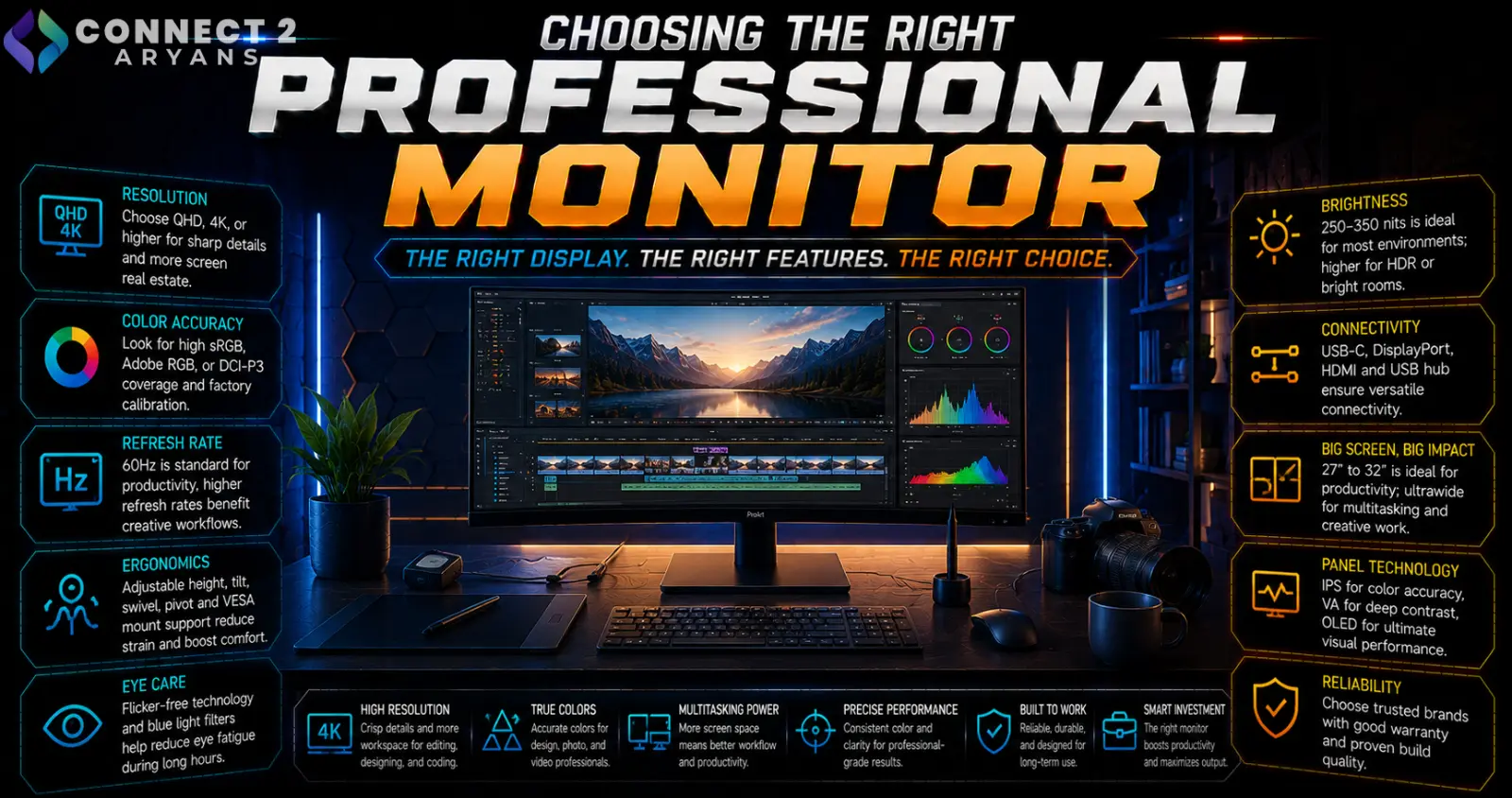
A professional monitor isn't chasing the highest refresh rate — it's judged on color accuracy, ergonomics, and how well it supports hours of focused work. Whether you're designing, editing, coding, or working across spreadsheets, the priorities here look very different from a gaming setup. Here's what to look for in a Professional Monitor purchase built for professional use.
Step 1: Color Accuracy and Gamut Coverage
For design, photo, and video work specifically, accurate color reproduction matters more than almost any other spec:
- sRGB coverage — the standard baseline for most everyday and web-focused work; look for close to 100% coverage
- Adobe RGB coverage — important for print design work, offering a wider color range than sRGB
- DCI-P3 coverage — relevant for video editing and content aimed at digital/cinema display standards
- Delta E rating — measures color accuracy deviation; a lower Delta E (typically under 2) indicates more accurate, reliable color reproduction
If your work involves client-facing design or print output, prioritize a monitor with strong, verified gamut coverage rather than a generic "wide color" marketing claim.
Step 2: Factory Calibration
- Some professional monitors come factory-calibrated, meaning color accuracy is verified and adjusted before it reaches you, often with a calibration report included
- This matters most for color-critical work; general office and coding use doesn't require this level of precision
- If color accuracy is central to your work, a factory-calibrated monitor removes guesswork that an uncalibrated display can't match out of the box
Step 3: Resolution and Pixel Density
- 1440p — a comfortable resolution for coding, spreadsheets, and general productivity, offering more screen real estate than 1080p without extreme pixel density
- 4K — valuable for detailed design and photo/video work where fine detail matters, and for larger screens where pixel density needs to stay sharp
- Higher pixel density (resolution relative to screen size) generally looks sharper for text-heavy and detail-oriented work
Step 4: Panel Type
- IPS is the standard choice for professional monitors, offering strong color accuracy and wide, consistent viewing angles — important if colleagues or clients are viewing the screen from an angle during reviews
- VA and TN panels are generally not preferred for color-critical or detail-focused professional work due to weaker color consistency and viewing angles
Step 5: USB-C with Power Delivery
- A monitor with USB-C input supporting power delivery lets you connect a laptop with a single cable — carrying video, data, and charging power simultaneously
- This significantly simplifies a laptop docking setup, removing the need for a separate charger and multiple cables
- Check the actual power delivery wattage against your laptop's charging needs before relying on this as your primary charging method
Step 6: Ergonomics
Since professional monitors are used for hours daily, physical adjustability matters:
- Height adjustment, tilt, swivel, and pivot (rotating to portrait orientation) all contribute to reducing neck and back strain over a full workday
- A pivot feature is particularly useful for coding or document-heavy work, where a portrait orientation shows more vertical content at once
- Cheaper monitors often only offer tilt, without height or swivel adjustment — worth checking specifically if ergonomics matter to your daily comfort
Step 7: Multi-Monitor Considerations
- If running a multi-monitor setup, matching resolution and color characteristics across monitors creates a more consistent, less jarring visual experience
- Thin-bezel monitors reduce the visual gap between screens in a multi-monitor arrangement
- Check your GPU's output count and types before planning a multi-monitor setup, to confirm you have enough compatible ports
Popular Professional Monitor Brands
Common Mistakes to Avoid
- Choosing a monitor based on refresh rate for work that doesn't benefit from it, while overlooking color accuracy
- Assuming a "wide color gamut" marketing claim guarantees professional-grade accuracy without checking actual coverage percentages
- Ignoring ergonomic adjustability and ending up with neck or back strain from a fixed-tilt-only monitor
- Overlooking USB-C power delivery wattage, then finding it can't actually keep a demanding laptop charged under load
Final Thoughts
The right professional monitor comes down to color accuracy for your specific work (design, video, or general use), ergonomic adjustability for daily comfort, and — increasingly — single-cable USB-C convenience for laptop-based setups. Refresh rate takes a back seat here; accuracy, comfort, and practicality lead the decision instead.
Browse our full range of Professional Monitors from AOC, Asus, Dell, HP, KOORUI and MSI on Connect2Aryans, with warranty support included.

