
Choosing the Right Presentation Pointer
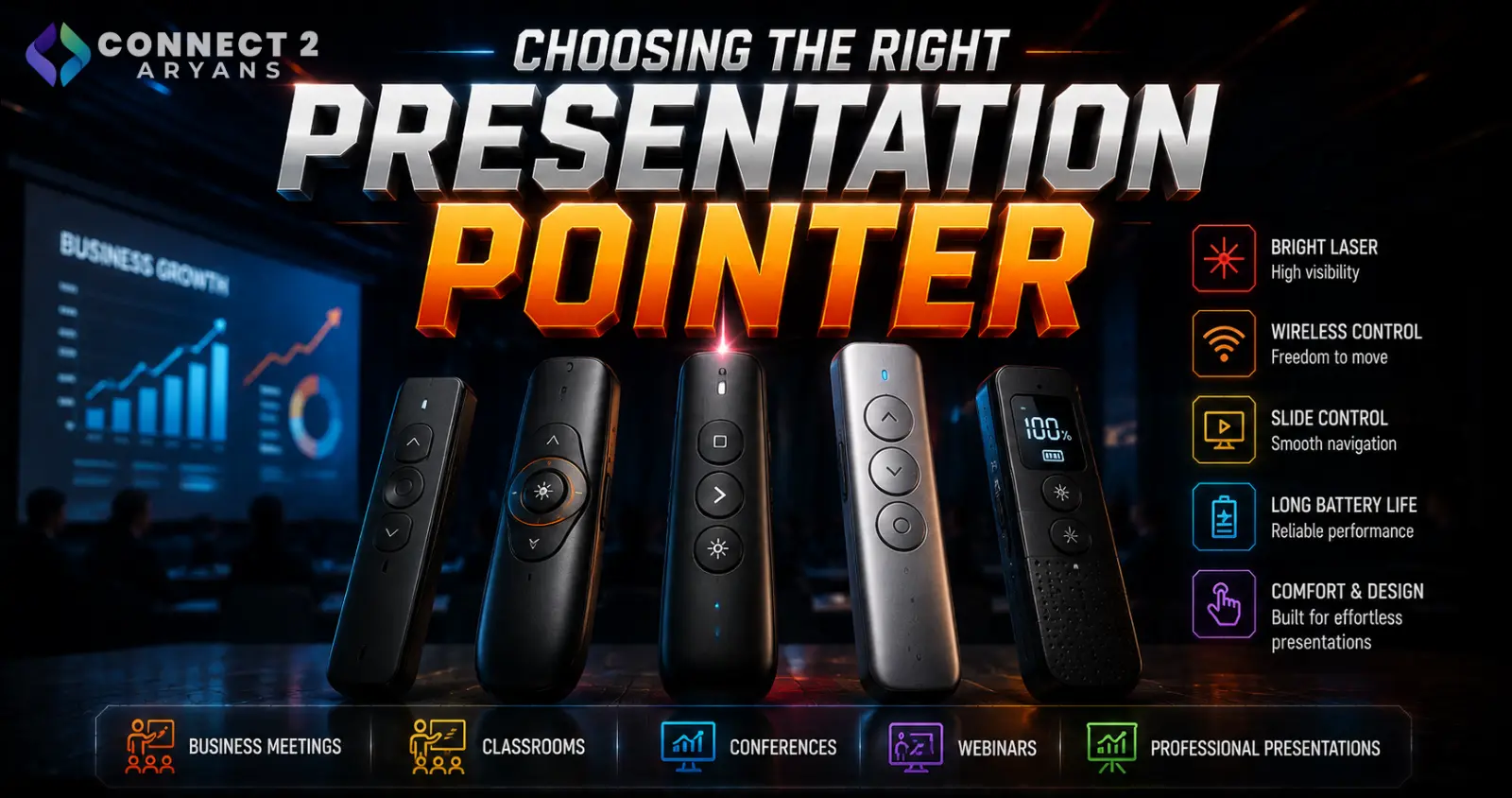
A presentation pointer needs to do one thing reliably above all else — advance your slides without dropping connection or lagging in front of an audience. Extra features matter less than a rock-solid connection and controls you can use without looking down. Here's how to choose the right Presentation Pointers for your needs.
Step 1: Wireless Range
- Standard presentation clickers typically offer a range sufficient for most classroom and meeting room settings
- For larger venues (lecture halls, conference rooms, larger auditoriums), check for extended-range models specifically rated for greater distances
- Range can be affected by obstructions between the clicker and receiver — if you'll be presenting in larger or more open spaces, prioritizing a model with confirmed longer range avoids awkward mid-presentation connectivity issues
Step 2: Connectivity — USB Dongle vs Bluetooth
- USB dongle (RF wireless) — plugs into a USB port and pairs directly with the clicker, generally offering reliable, low-latency connection without needing device-specific Bluetooth pairing
- Bluetooth — connects directly without needing a separate dongle (useful for slim laptops with limited USB ports), but requires pairing with each specific device beforehand
Recommendation: if you present from multiple different computers regularly (your own laptop, a venue's provided PC, a colleague's laptop), a USB dongle is often more practical since it works instantly without prior pairing — just plug in and go.
Step 3: Laser Pointer Class and Visibility
- Most presentation clickers include a built-in laser pointer for highlighting content on screen
- Laser visibility varies — brighter, more visible lasers are more useful in larger rooms or on brighter screens/projected images
- If you present primarily via digital displays with cursor highlighting features already built into your presentation software, the laser pointer feature may matter less than the core clicking functionality
Step 4: Button Layout and Additional Functions
- Basic functions — forward/back slide advance, essential and present on virtually every clicker
- Black screen button — temporarily blanks the display, useful for pausing visual attention during a discussion without closing the presentation
- Volume control — useful if your presentation includes embedded video or audio content
- Additional customizable buttons — some higher-end clickers allow custom key mapping for specific software shortcuts
Check that the button layout is intuitive enough to use without looking down — fumbling for the right button mid-presentation undermines the whole point of a hands-free clicker.
Step 5: Ergonomics and Grip
- A clicker that fits comfortably in your hand and can be operated with your thumb without awkward reaching improves usability during longer presentations
- Consider the button placement relative to how you naturally hold the device — some clickers are designed for a pen-like grip, others for a more traditional remote-style grip
Step 6: Battery Life and Type
- Check whether the clicker uses replaceable batteries or a rechargeable built-in battery, and realistic battery life under regular presentation use
- Replaceable batteries mean you can swap in a fresh one immediately if it dies unexpectedly; rechargeable models need charging in advance but avoid ongoing battery purchases
Step 7: Software Compatibility
- Confirm compatibility with the presentation software you actually use — PowerPoint, Keynote, Google Slides, and PDF viewers can all have slightly different levels of clicker feature support
- Basic slide advance functions work universally across virtually all software; more advanced features (like the black screen button) may only function correctly with certain compatible software
Popular Presentation Pointer Brands
Common Mistakes to Avoid
- Choosing a clicker's laser visibility as the top priority while overlooking connection reliability, which matters far more during an actual presentation
- Assuming Bluetooth pairing will be quick and seamless on an unfamiliar venue computer, when a USB dongle would have worked instantly
- Not testing button layout ergonomics before an important presentation, leading to fumbling under pressure
- Overlooking software compatibility for advanced features like the black screen button
Final Thoughts
The right presentation pointer comes down to reliable range and connectivity above all else — a USB dongle generally offers the most hassle-free experience across different venues and computers. Beyond that, prioritize intuitive button layout and comfortable ergonomics over extra features you're unlikely to use mid-presentation.
Browse our full range of Presentation Pointers from A4Tech on Connect2Aryans, with warranty support included.

