
Choosing the Right PCIe Expansion Card
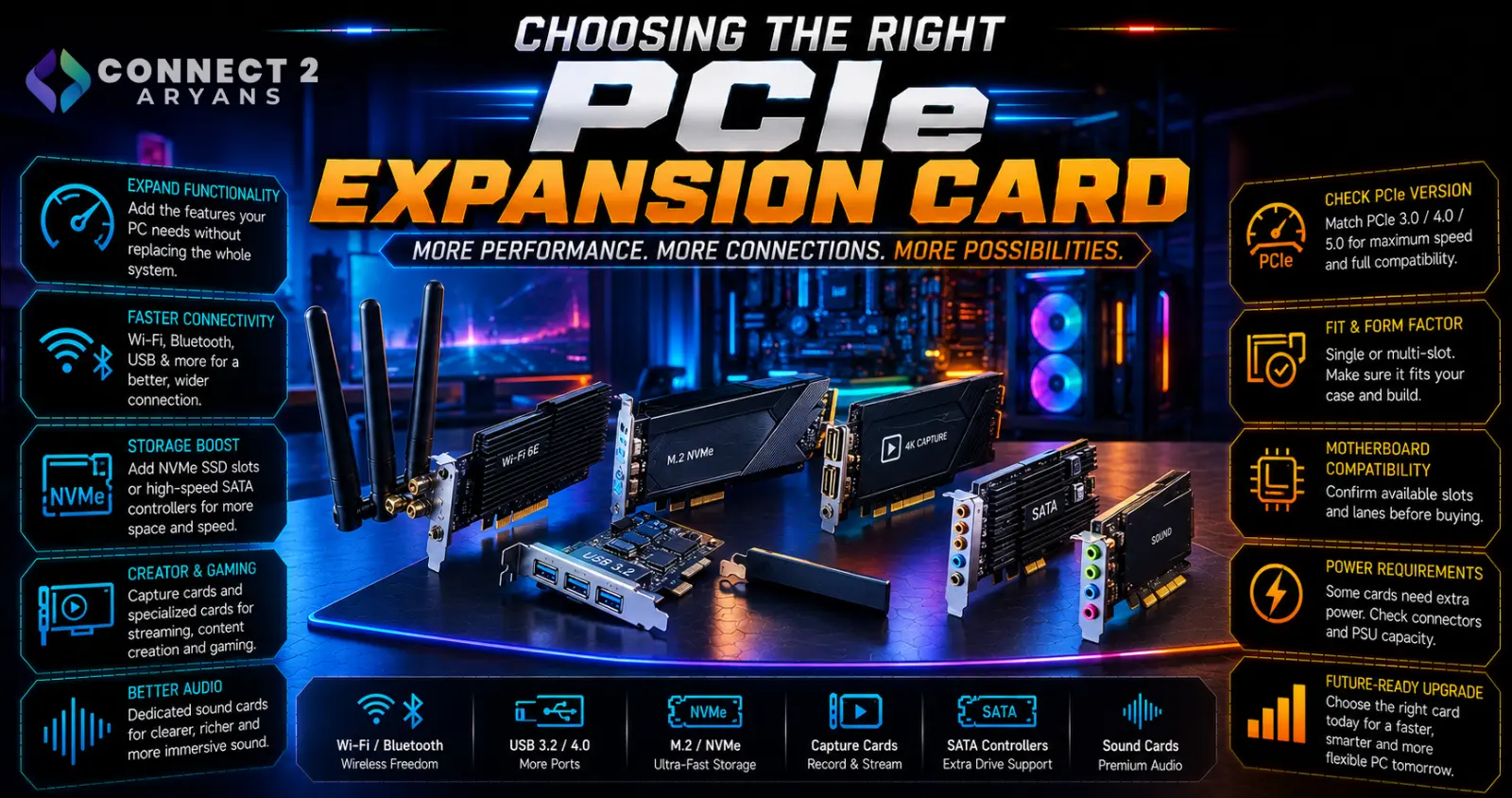
PCIe expansion cards let you add functionality your motherboard doesn't include out of the box — without needing a full system upgrade. The key is understanding which slot to use and whether your board actually has one free. Here's how to choose the right PCIe Expansion Cards for your build.
Step 1: Common Types of Expansion Cards
- Wi-Fi/Bluetooth cards — add wireless connectivity to a motherboard that doesn't include it built in, useful if running ethernet isn't practical
- Sound cards — offer improved audio quality and processing over onboard motherboard audio, worth considering for audiophiles or dedicated music/audio production setups
- USB expansion cards — add extra USB ports (including newer USB-C or high-speed USB standards) beyond what your motherboard's rear I/O provides
- M.2 to PCIe adapter cards — add additional NVMe SSD slots beyond your motherboard's built-in M.2 slots
- RAID/SATA expansion cards — add extra SATA ports for additional drives beyond your motherboard's built-in count, useful for NAS-style or multi-drive storage setups
Step 2: Check Your Available PCIe Slots
Before buying any expansion card, confirm you actually have a free, compatible slot:
- PCIe x16 slots — typically used by your GPU; a second x16 slot (if present) is often used for high-bandwidth cards
- PCIe x1 or x4 slots — smaller slots, sufficient for most expansion cards like Wi-Fi, USB, or sound cards, which don't need the full bandwidth of an x16 slot
- Check your motherboard's manual or specification page for exactly how many of each slot type you have, and whether any are already occupied by your GPU or other components
Step 3: Understand PCIe Generation and Bandwidth
- Most expansion cards don't need cutting-edge PCIe bandwidth — a Wi-Fi card or sound card works fine even in an older PCIe generation slot
- Higher-bandwidth needs (like certain M.2 adapter cards running multiple fast NVMe drives) benefit more from a current PCIe generation slot with sufficient lanes
- A card rated for a newer PCIe generation will still work in an older slot, just limited to that older slot's bandwidth — check whether that's actually a bottleneck for your specific use case
Step 4: Case Clearance and Physical Fit
- Some expansion cards (especially sound cards or multi-port USB cards) can be physically larger than expected — check your case has clearance for the card's length and any external bracket/ports
- If your GPU is particularly large, confirm it doesn't physically block an adjacent PCIe slot you were planning to use
Step 5: Do You Actually Need an Expansion Card?
Before buying, consider whether a simpler solution already solves your problem:
- Need more USB ports? A USB hub connected externally may be simpler than an internal expansion card, especially for a laptop or a desktop where opening the case isn't convenient
- Need Wi-Fi? A USB Wi-Fi adapter is a simpler alternative to an internal card if you don't want to open your case
- Internal expansion cards are worth it specifically when you need better performance, more permanent integration, or don't want an external device taking up desk space
Popular Expansion Card Brands
- ASUS
- TP-Link
- UGREEN
- StarTech
Common Mistakes to Avoid
- Buying a card without checking whether you actually have a free, compatible PCIe slot
- Assuming all PCIe slots are the same size or offer the same bandwidth
- Overlooking physical clearance issues with a large GPU blocking an adjacent slot
- Buying an internal card when a simpler external USB solution would have solved the same problem
Final Thoughts
The right PCIe expansion card comes down to confirming you have a genuinely free, compatible slot before buying, and choosing internal expansion specifically when it offers a real advantage over a simpler external alternative. Check your motherboard's actual slot layout first — it decides what's realistically possible before you even start comparing cards.
Browse our full range of PCIe Expansion Cards from ASUS, TP-Link, Creative, and UGREEN on Connect2Aryans, with warranty support included.

