
Choosing the Right NVMe SSD
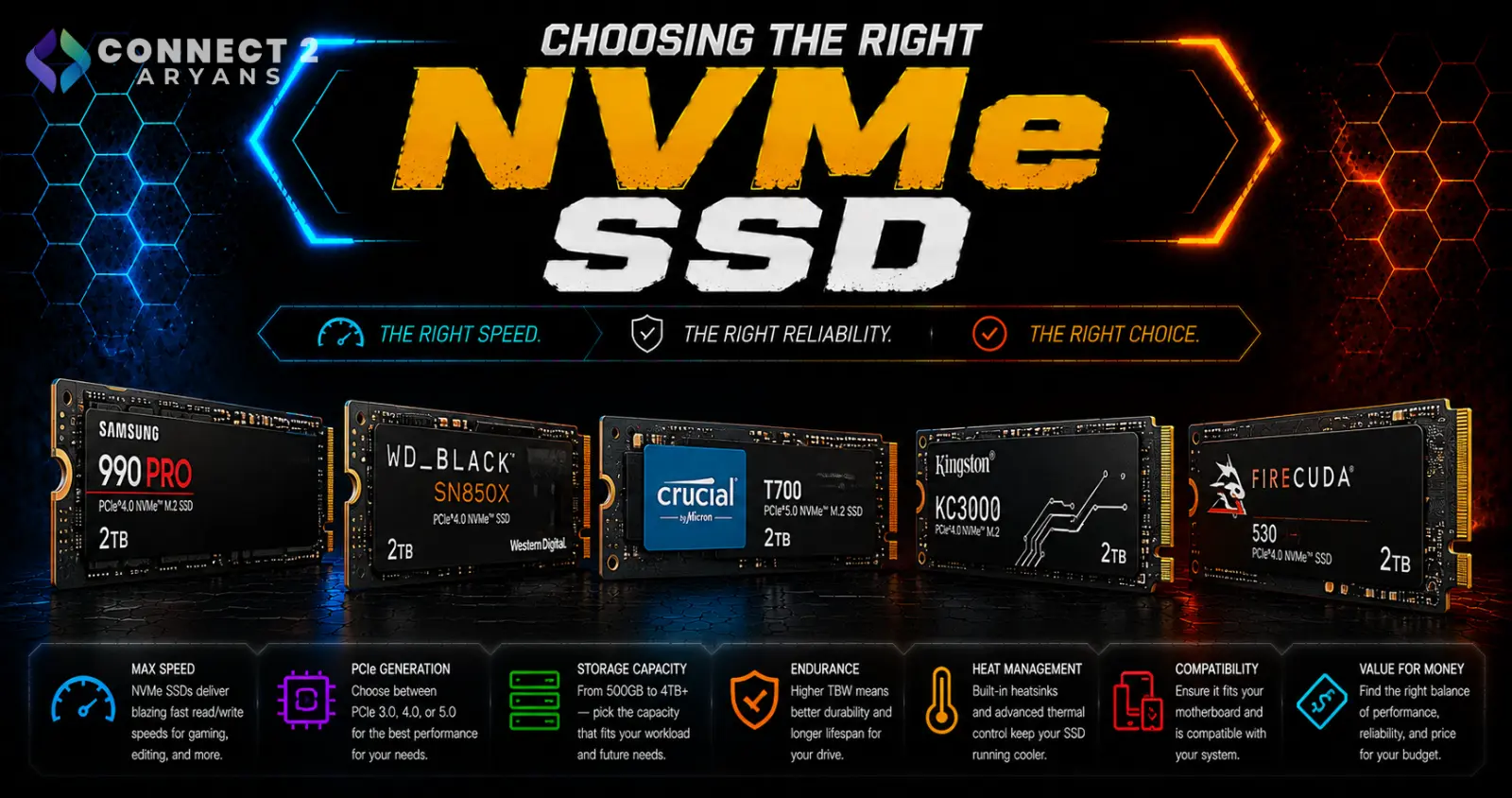
Not all NVMe SSDs perform the same, even at similar prices. PCIe generation, NAND type, and whether a drive has a DRAM cache all affect real-world speed and consistency — details that don't always show up clearly on a listing page. Here's how to choose the right one.
Step 1: Confirm Your Motherboard's PCIe Support
Before comparing drives, check what your motherboard's M.2 slots actually support:
- PCIe Gen 3 — older standard, still perfectly usable, especially for OS and general storage
- PCIe Gen 4 — the current mainstream standard on most recent motherboards, offering roughly double the bandwidth of Gen 3
- PCIe Gen 5 — the newest standard, available on select current-gen high-performance boards
A Gen 4 or Gen 5 drive will still work in a Gen 3 slot, but it'll run at Gen 3 speeds — so check your board before paying extra for a higher-generation drive.
Step 2: Choose the Right Capacity
- 500GB — workable for a secondary drive or a lighter-use primary drive, but tight given modern game and software sizes
- 1TB — the realistic sweet spot for a primary NVMe drive today, comfortably fitting an OS, several modern games, and everyday software
- 2TB — worth it if you install many large games or work with large media/project files regularly
- 4TB — mainly relevant for content creators or professionals working with very large files who want NVMe speed without a secondary drive
Step 3: Understand NAND Type — TLC vs QLC
The type of NAND flash memory used affects both performance consistency and long-term durability:
- TLC (Triple-Level Cell) — the current standard for most good-quality NVMe drives, offering a solid balance of speed, endurance, and price
- QLC (Quad-Level Cell) — generally cheaper, but with lower sustained write performance and reduced endurance compared to TLC — fine for lighter, read-heavy use, less ideal as a primary drive for heavy workloads
Recommendation: stick with TLC-based drives for your primary drive unless you're specifically buying budget bulk storage.
Step 4: DRAM Cache vs DRAM-less
- DRAM-cache drives — use a dedicated memory chip to manage data faster and more consistently, generally better sustained performance
- DRAM-less drives — cheaper, and fine for lighter everyday use, but can show more inconsistent performance during large, sustained file transfers
For a primary OS/gaming drive, a DRAM-cache model is worth the small price premium. For secondary or budget bulk storage, DRAM-less is a reasonable trade-off.
Step 5: Consider Thermals on High-Speed Drives
Gen 4 and especially Gen 5 NVMe drives can run hot under sustained heavy use, which may cause thermal throttling if not managed:
- Many current motherboards include an M.2 heatsink built into the board
- If yours doesn't, a standalone heatsink (often included with higher-end drives) is worth adding, especially for Gen 5 drives under heavy sustained workloads
Popular NVMe SSD Brands
Common Mistakes to Avoid
- Buying a Gen 5 drive for a motherboard that only supports Gen 3 or Gen 4, paying for bandwidth you can't actually use
- Choosing a QLC drive as a primary OS/gaming drive, then noticing inconsistent performance under heavier use
- Ignoring DRAM cache presence when comparing similarly priced drives
- Skipping a heatsink on a high-speed Gen 4/5 drive running under sustained heavy workloads
- Buying 500GB in 2026 and running out of space within months due to large modern game installs
Final Thoughts
The right NVMe SSD comes down to matching PCIe generation to what your motherboard actually supports, choosing TLC over QLC for your primary drive, and sizing capacity realistically for modern game and software sizes. Don't pay for Gen 5 speed your board can't use — match the drive to your actual platform and workload.
Browse our full range of NVMe SSDs from ADATA, Crucial, Samsung and Western Digital on Connect2Aryans, across PCIe Gen 3, Gen 4, and Gen 5, with warranty support included.

