
Choosing the Right Cables and Hubs
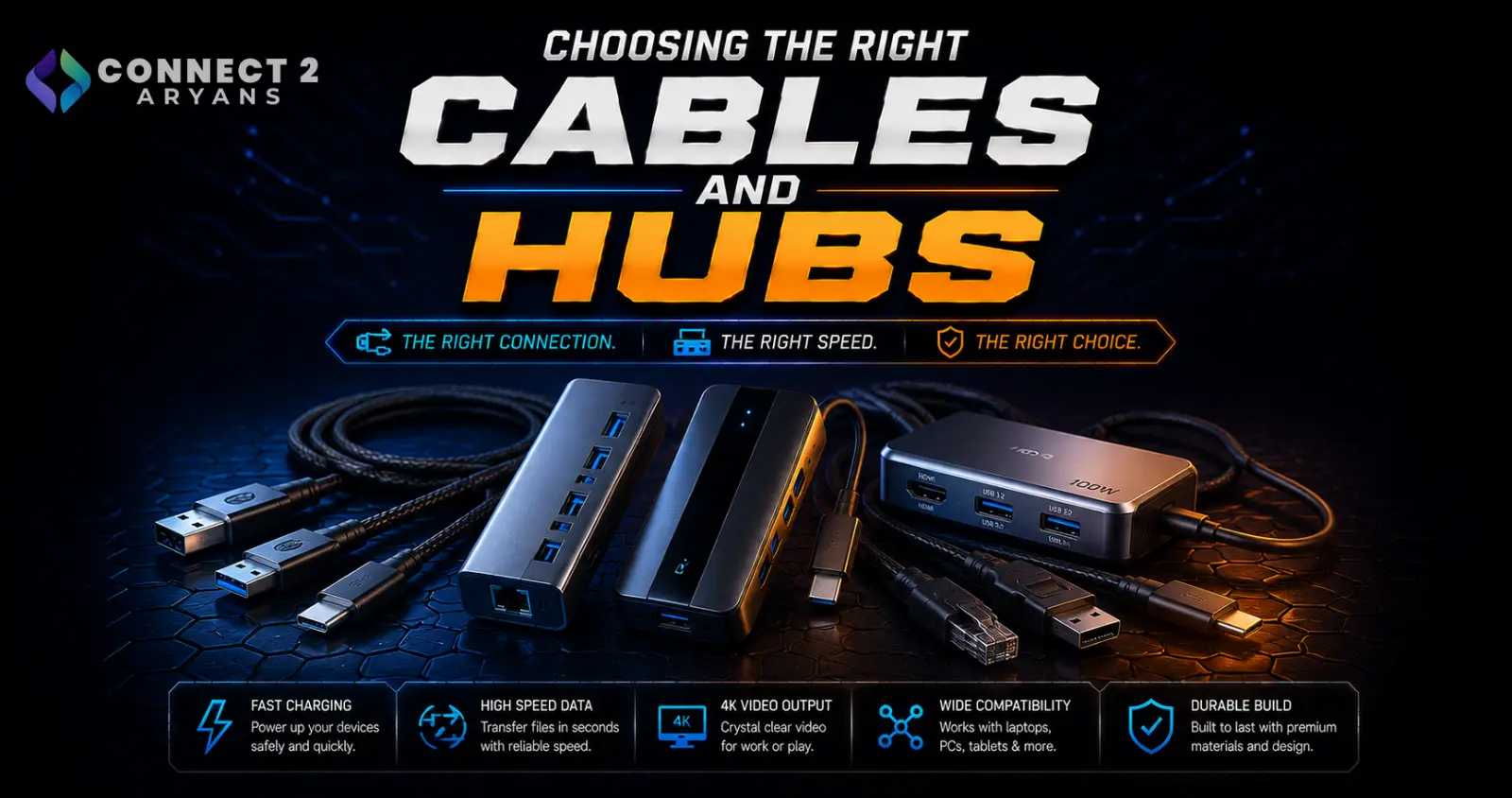
Cables and hubs are easy to treat as an afterthought, but the wrong choice can genuinely bottleneck an otherwise great setup — a cheap cable that can't handle your monitor's refresh rate, or a hub without enough power delivery for your laptop, causes problems that are hard to trace back to the actual cause. Here's how to choose the right Cables & Hub for your setup.
Step 1: Choose the Right Display Cable
- HDMI — widely compatible across monitors, TVs, and most GPUs; check the HDMI version (2.0 vs 2.1) since higher versions support higher refresh rates and resolutions
- DisplayPort — generally the preferred choice for PC gaming monitors, often supporting higher refresh rates and resolutions than HDMI at a given cable quality tier
- USB-C (with DisplayPort Alt Mode) — increasingly common on newer monitors and laptops, capable of carrying video, data, and sometimes power over a single cable
Rule of thumb: for high-refresh-rate gaming monitors (144Hz+), confirm your specific cable version supports the resolution and refresh rate combination you're running — an older or budget cable can bottleneck a monitor that's otherwise capable of more.
Step 2: USB Hub or Docking Station?
- USB hub — a simple way to add more USB ports from a single port, ideal if you just need more connections for peripherals like a mouse, keyboard, or external drive
- Docking station — a more comprehensive solution, often adding video output, ethernet, additional USB ports, and sometimes power delivery, especially useful for laptop users who want a single-cable connection to multiple peripherals and displays
Rule of thumb: if you're just short on USB ports, a hub is enough. If you're regularly docking and undocking a laptop with multiple monitors, keyboard, mouse, and ethernet, a proper docking station is worth the investment.
Step 3: Check Power Delivery (For Hubs and Docks)
- If you're charging a laptop through a hub or dock, check its power delivery (PD) wattage rating against your laptop's actual charging requirements
- An underpowered hub can charge slowly or fail to keep up with your laptop's power draw under heavy use, even if it appears to be charging
- Higher-wattage laptops (especially gaming laptops) often need dedicated high-wattage docks rather than basic hubs
Step 4: Match Ports to What You Actually Use
Before buying, list out what you actually need to connect simultaneously:
- Multiple monitors → check for enough video outputs (HDMI/DisplayPort) matching your monitor count
- Wired peripherals and external drives → count how many USB-A/USB-C ports you actually need
- Wired internet → look for a built-in ethernet port if you don't want to rely on Wi-Fi
- SD card readers → useful if you regularly transfer photos/video from a camera
Buying a hub or dock with unused ports isn't wasteful, but buying one that's short on the ports you actually need defeats the purpose.
Step 5: Cable Quality and Length
- Cheap, poorly shielded cables can cause signal issues, especially over longer lengths or at higher resolutions/refresh rates
- Longer cable runs (especially HDMI/DisplayPort) benefit more from quality shielding to maintain a stable signal — don't assume all cables of the same length perform identically
- For USB-C cables specifically, check that the cable itself supports the data/power specs you need — not all USB-C cables support the same charging wattage or data transfer speeds despite looking identical
Popular Cable & Hub Brands
Common Mistakes to Avoid
- Buying a budget HDMI cable for a high-refresh-rate monitor and experiencing dropped signal or capped refresh rate
- Choosing a USB hub without checking its power delivery rating, then wondering why your laptop won't charge properly
- Assuming all USB-C cables are functionally identical, when charging wattage and data speed can vary significantly between cables
- Buying a hub with fewer ports than you actually need, requiring a second purchase shortly after
Final Thoughts
The right cable or hub comes down to matching it precisely to what you're actually connecting — display cable version to your monitor's refresh rate, hub power delivery to your laptop's charging needs, and port count to your actual peripheral setup. It's an inexpensive category to get right, but an easy one to quietly bottleneck an otherwise solid setup if you get it wrong.
Browse our full range of Cables & Hub options from A4Tech, HP, ID Cooling, Lian Li, Logitech, Philips, Redragon, UGREEN, ThermalRight and Transcend on Connect2Aryans, with warranty support included.

